
Best MP4 to MP3 Converter in 2026: 8 Tools Compared (Free Picks Included)
You filmed a 40-minute webinar, a lecture, or a concert clip, and now you just want the audio. Maybe it's a podcast you recorded as video, or a music video you'd rather keep as an MP3 on your phone. That's the whole appeal of an mp4 to mp3 converter: strip the video wrapper and keep the sound.
If you searched for the best mp4 to mp3 converter in 2026, you've probably hit a wall of near-identical lists — most of them tell you to upload a whole file and convert mp4 to mp3 online without letting you grab just the part you need. We tested eight tools on the things that matter: output quality, whether your file leaves your device, and what the free tier really gives you.
Sound familiar? Let's get into it.
Table of Contents
- Why Convert MP4 to MP3? (Quick Answer)
- What Makes a Good Converter (How We Tested)
- The 8 Best MP4 to MP3 Converters (2026) — Comparison Table
- 1. AudioCut: Convert + Trim in One Step
- 2. VLC — Best Free Desktop, 100% Offline
- 3. Audacity — Best for Audiophiles & Editing
- 4. FreeConvert — Best for Bitrate Control
- 5. CloudConvert — Best for Format Coverage
- 6. HappyScribe — Best If You Also Need a Transcript
- 7. Clideo — Best for Quick, Casual One-File Jobs
- 8. AudioConvert.ai — Best for Fast Everyday Extraction
- How to Convert MP4 to MP3 in Your Browser (Fastest)
- Which Bitrate Should You Choose?
- Batch Converting Many MP4 Files
- FAQ
- Bottom Line
Why Convert MP4 to MP3? (Quick Answer)
MP4 is a container — a wrapper that holds video, audio, subtitles, and metadata together. The audio inside is usually encoded with AAC, a lossy format. MP3 is a different audio codec that drops the video track entirely and produces a much smaller file that plays on basically anything, from a car stereo to a 2009 MP3 player. According to Wikipedia's overview of the MP4 container, the format was built to store mixed media streams, not audio alone. That's exactly why pulling the audio out is a separate job.
For a deeper look at how the three formats stack up, see our MP3 vs WAV vs AAC comparison. And if you want the broader "rip audio out of a video" workflow, our extract audio from video guide covers the mechanics.
The short version: you convert when you don't need the picture.
What Makes a Good Converter (How We Tested)
We didn't just click "convert" and call it a day. Each tool was judged on five dimensions:
- Output accuracy — does the MP3 match the source audio, or does it drift, clip, or drop a channel?
- Bitrate control — can you pick 128, 192, or 320 kbps, or are you stuck with whatever the tool decides?
- Privacy and where files go — this is the big one. Some tools run entirely on your machine; others upload to a server. For browser tools we noted the cutoff: AudioCut, for example, processes files up to 500 MB locally in your browser and only uploads larger ones.
- Free-tier honesty — we read the pricing pages, not the marketing banners, to find real daily or monthly limits.
- Trim-while-you-convert — the one most lists skip: can you extract just a segment, or only the full clip?
Every criterion above is something you can check yourself in a few minutes — nothing here requires lab equipment. You should be able to repeat what we did.
The 8 Best MP4 to MP3 Converters (2026) — Comparison Table
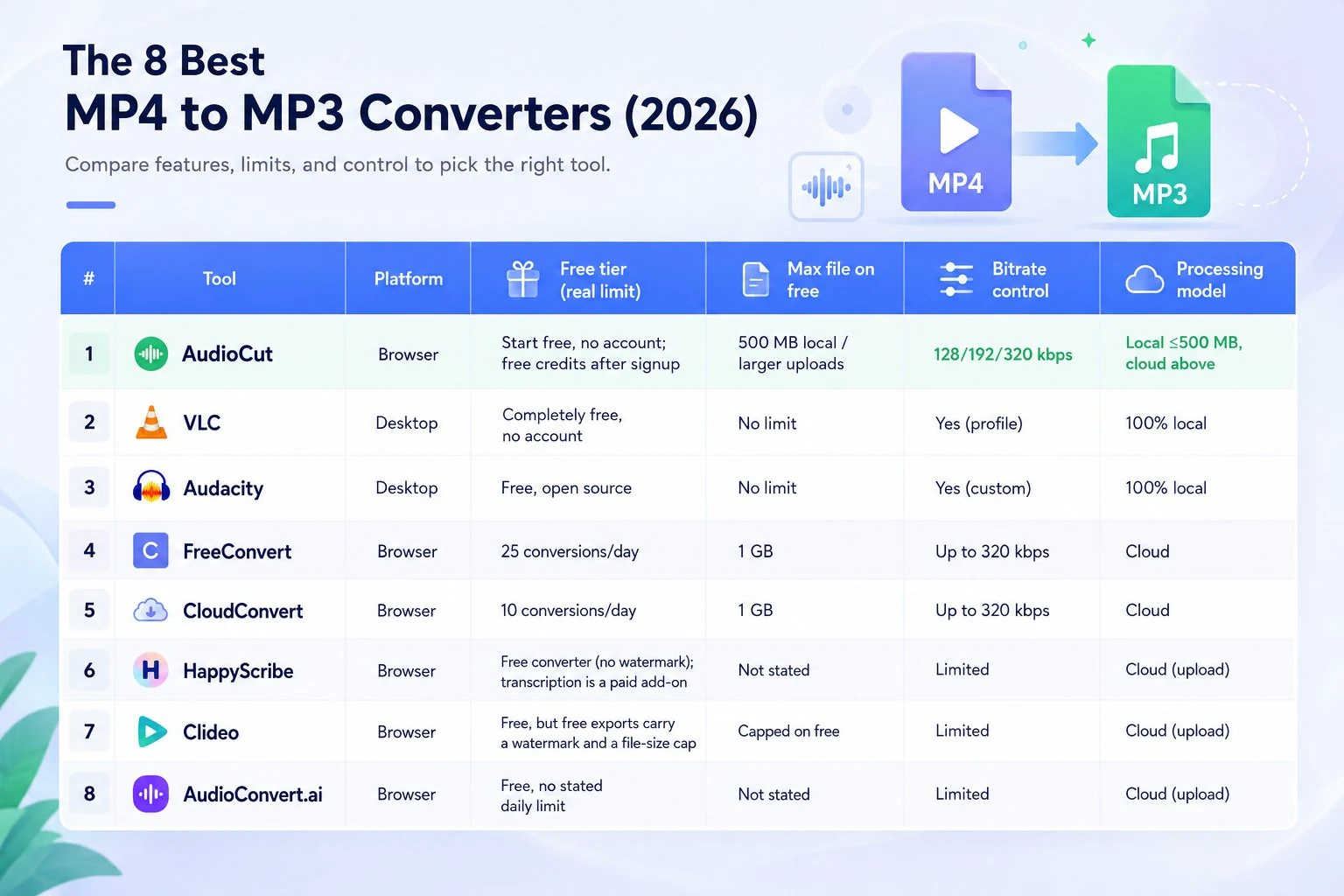
| # | Tool | Platform | Free tier (real limit) | Max file on free | Bitrate control | Processing model |
|---|---|---|---|---|---|---|
| 1 | AudioCut | Browser | Free, no account required | 500 MB local / larger uploads | 128/192/320 kbps | Local ≤500 MB, cloud above |
| 2 | VLC | Desktop | Completely free, no account | No limit | Yes (profile) | 100% local |
| 3 | Audacity | Desktop | Free, open source | No limit | Yes (custom) | 100% local |
| 4 | FreeConvert | Browser | 25 conversions/day | 1 GB | Up to 320 kbps | Cloud |
| 5 | CloudConvert | Browser | 10 conversions/day | 1 GB | Up to 320 kbps | Cloud |
| 6 | HappyScribe | Browser | Free converter (no watermark); transcription is a paid add-on | Not stated | Limited | Cloud (upload) |
| 7 | Clideo | Browser | Free, but free exports carry a watermark and a file-size cap | Capped on free | Limited | Cloud (upload) |
| 8 | AudioConvert.ai | Browser | Free, no stated daily limit | Not stated | Limited | Cloud (upload) |
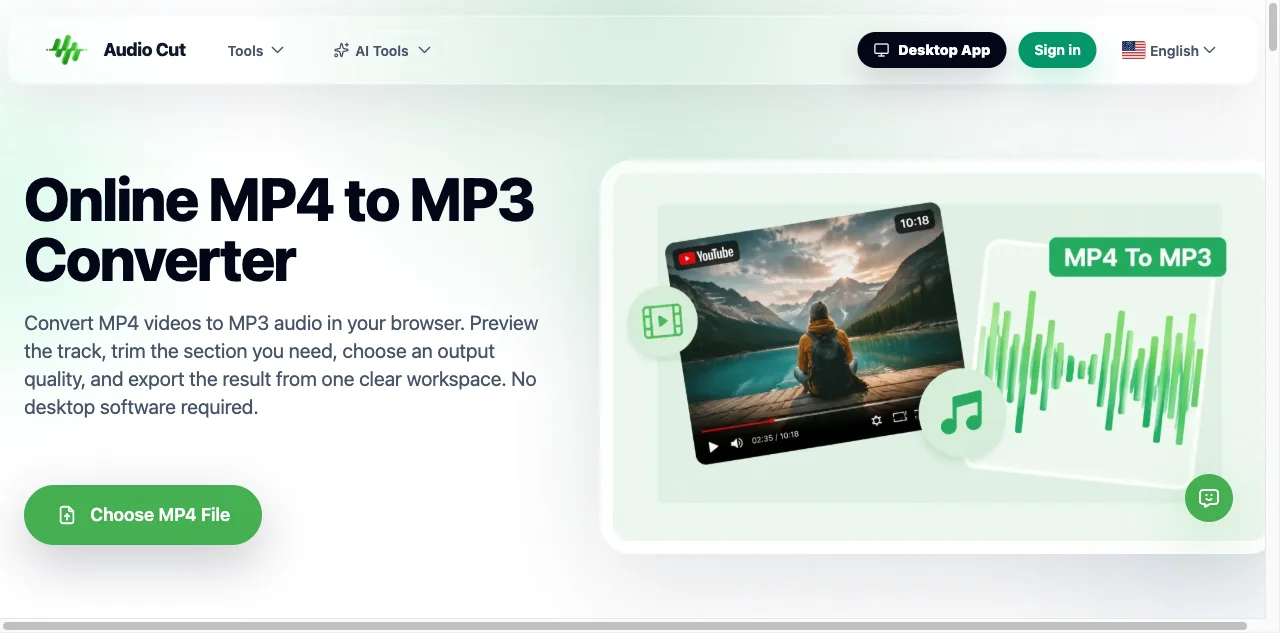
1. AudioCut: Convert + Trim in One Step
Here's the problem most online converters ignore: you rarely want the whole video's audio. You want the 90-second solo, the three-minute keynote, or the clip from 12:40 to 14:05. Most tools make you convert the entire file, then open a separate editor to cut it. AudioCut does both in one place, inside the browser.
Its workflow is built around two features: Preview Before Export and Trim Before Saving. You load an MP4, play it back to find the spot you care about, drag the start and end handles, then export just that range as MP3. No re-uploading, no second app. For someone pulling a quote from a long interview, that saves real time.
On privacy, the honest framing matters. Files up to 500 MB are processed locally in your browser and never uploaded. Anything larger than 500 MB gets uploaded for processing — we're not going to pretend a 4 GB file runs entirely on your phone's browser. That cutoff is the line, and it's stated plainly.
Quality-wise, you pick 128, 192, or 320 kbps. It handles MP4 natively and also accepts MOV, AVI, WebM, and MKV. The free tier is genuinely usable: there's no account required to start and converting doesn't cost anything — you can run it as long as you need it.
If extracting just the part you need is your main use case, this is the one to try first. The full walkthrough lives on the AudioCut MP4 to MP3 tool page.
- Pros: extract + trim in one browser pass (no second app); files ≤500 MB processed locally, never uploaded; pick 128/192/320 kbps; handles MP4/MOV/AVI/WebM/MKV; free to use with no signup.
- Cons: files >500 MB are uploaded for browser processing; no full waveform editor (trim only, not post-production).
- Best for: pulling a specific segment out of a long video as an MP3.
2. VLC — Best Free Desktop, 100% Offline
VLC is the converter people forget they already own. It's free, open source, and runs fully offline on Windows, macOS, and Linux. According to VideoLAN's official site, it handles conversion without file-size caps or daily limits — you're only limited by your disk space and patience.

The catch is the interface. MP4-to-MP3 lives under Media → Convert / Save, and you have to pick an "Audio – MP3" profile manually. It's not pretty, but it works, and it never uploads a byte. For a one-off long file or a privacy-sensitive recording, VLC is hard to beat. Just don't expect trimming — you'd convert the whole clip, then slice it elsewhere.
- Pros: 100% free, open source, fully offline; no file-size limit and no daily cap; handles almost any format.
- Cons: clunky menu navigation (Media → Convert / Save); no trimming — converts the whole clip only.
- Best for: private, one-off or large-file conversions on desktop.
3. Audacity — Best for Audiophiles & Editing
Audacity is where you go when the conversion is only half the job. It's free and open source, and once you import a video's audio, you get a full waveform editor: noise reduction, EQ, fade, normalize, the works. Then export to MP3 at the bitrate you choose.
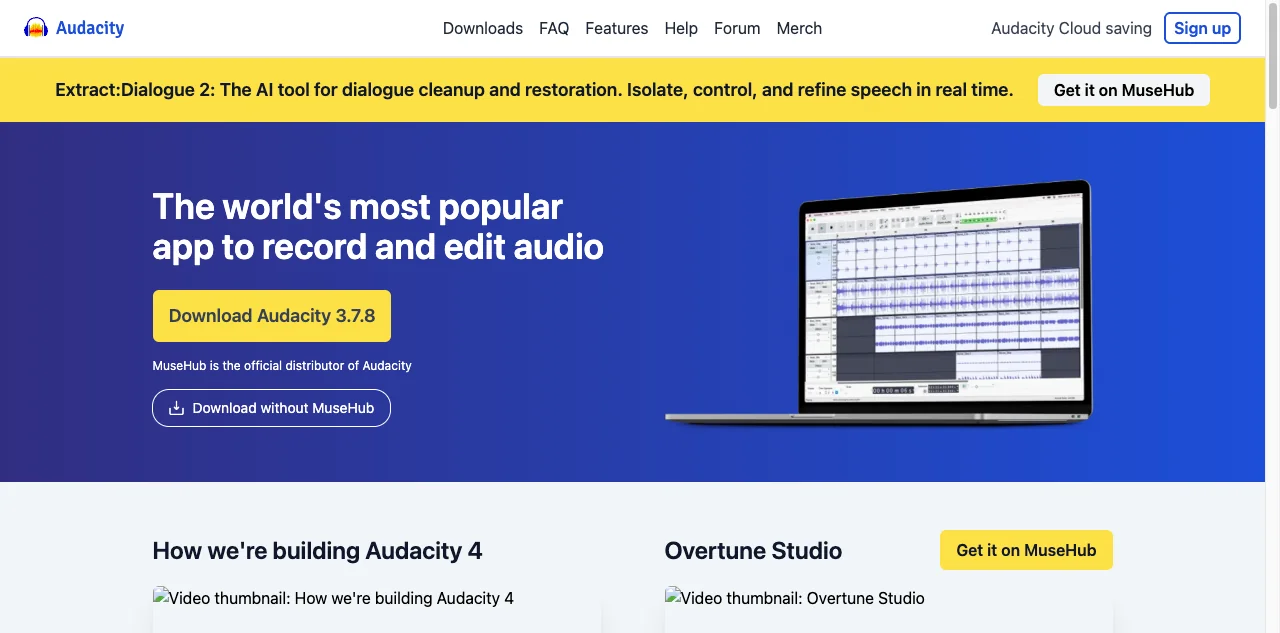
One gotcha: Audacity can't read MP4 audio out of the box. You need the FFmpeg library, which the Audacity team documents clearly. Install it once and MP4 import just works. After that, exporting a clean 320 kbps MP3 from a lecture or session is straightforward. It's more steps than a browser tool, but the editing upside is unmatched for post-production.
- Pros: free, open source, full waveform editor (noise reduction, EQ, fades); export at a custom bitrate; no size limit.
- Cons: needs the FFmpeg plugin to import MP4 audio; more steps than a browser tool; no trim-during-convert.
- Best for: when you'll edit the audio after extracting it.
4. FreeConvert — Best for Bitrate Control
FreeConvert is a browser tool that takes settings seriously. On the free plan you get 25 conversions per day with files up to 1 GB, according to FreeConvert's site. You can set codec, bitrate (up to 320 kbps), sample rate, and channel count, and even trim by start and end time.
It also pulls files from Google Drive, Dropbox, or a URL, which is handy if your video already lives in the cloud. The trade-off: your file uploads to FreeConvert's servers for processing, and free conversions are ad-supported. For batch jobs under 1 GB, the level of control is hard to beat at this price.
- Pros: detailed output settings (codec, bitrate ≤320 kbps, sample rate, channels, trim); 25 conversions/day with files up to 1 GB; cloud-drive import.
- Cons: cloud processing (file uploads to servers); free tier is ad-supported.
- Best for: users who want precise control over output settings.
5. CloudConvert — Best for Format Coverage
CloudConvert wins on breadth. Per its official pricing page, the free tier gives you 10 conversions per day with a 1 GB file cap and a 5-minute processing limit. Paid plans lift those ceilings. Where it shines is format support — 200+ formats — plus direct Google Drive and Dropbox integration for automated workflows.
Be clear about the model, though: CloudConvert is a cloud service. Your file uploads to its servers, gets converted, and is deleted after processing per its retention policy. That's not a flaw — it's how it reaches formats desktop tools don't bother with — but it's a different privacy posture than a local tool. If you're converting a rare codec from a cloud folder, it's the right call. If the file is sensitive and under 500 MB, a local browser tool is the safer pick.
- Pros: 200+ formats; Google Drive and Dropbox integration; 10 conversions/day and 1 GB cap on free.
- Cons: cloud service — file uploads and is deleted after processing; free daily cap is low for bulk.
- Best for: rare formats or cloud-folder workflows.
6. HappyScribe — Best If You Also Need a Transcript
HappyScribe's converter is a free, browser-based MP4-to-MP3 tool with no watermark, and it supports 47+ output formats. What makes it worth a look is what sits next to the converter: once your file is converted, HappyScribe can transcribe that MP3 to text. The converter itself is free; the transcription is a separate paid HappyScribe service, so you're not locked into a subscription just to rip the audio.
Like most browser converters, your file uploads to HappyScribe's servers for processing, and bitrate control is limited compared to a desktop editor. But if your end goal is "audio plus a written transcript" — a podcast, a lecture, an interview — having both in one place saves you a hop.
- Pros: free MP4→MP3 converter with no watermark; 47+ output formats; optional transcription add-on in the same workspace.
- Cons: cloud processing (file uploads); converter is free but transcription is paid; limited bitrate control.
- Best for: creators who also need a transcript or subtitles from the audio.
7. Clideo — Best for Quick, Casual One-File Jobs
Clideo is the "just make it work" option. The interface is about as simple as it gets: upload, convert, save, with almost no decisions in between. It's part of a broader free online video and audio toolkit, so if you later need to trim, merge, or compress, the same account covers it.
The free tier is real but has edges: free exports typically carry a watermark and a file-size cap, and bitrate control is minimal. For a one-off clip you're sending to a friend, that's fine. For clean, watermark-free bulk work, you'll want one of the local or paid options above. Clideo states its files are protected with SSL during processing.
- Pros: very simple, beginner-friendly interface; part of a broader free online video/audio toolkit.
- Cons: free tier adds a watermark and caps file size; cloud processing; limited bitrate control.
- Best for: quick, casual one-file conversions.
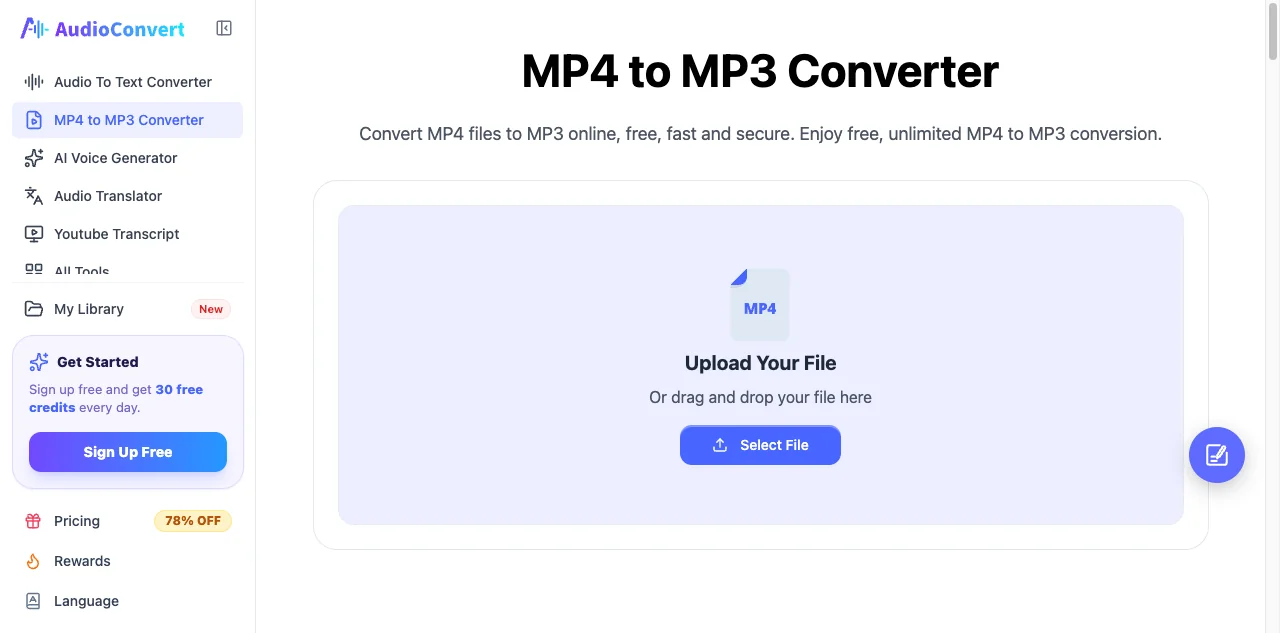
8. AudioConvert.ai — Best for Fast Everyday Extraction
AudioConvert.ai is a free, browser-based converter with a clean three-step flow: upload, convert, download. It claims no hidden fees and no stated daily limit for everyday use, and it positions itself around "clean, balanced" audio output. Files are encrypted during upload and processing, then automatically deleted.
It's built for speed, not settings — there's no trimming or editing, and bitrate control is limited. If you just need the MP3 out of a video and you're done, it gets you there fast. Like the other cloud tools here, your file leaves your device for processing.
- Pros: free with no stated daily limit; simple, clean three-step flow; browser-based, no install; files encrypted and auto-deleted.
- Cons: cloud processing (file uploads); limited settings and bitrate control; no trimming or editing.
- Best for: fast everyday extraction when you just need the MP3.
How to Convert MP4 to MP3 in Your Browser (Fastest)
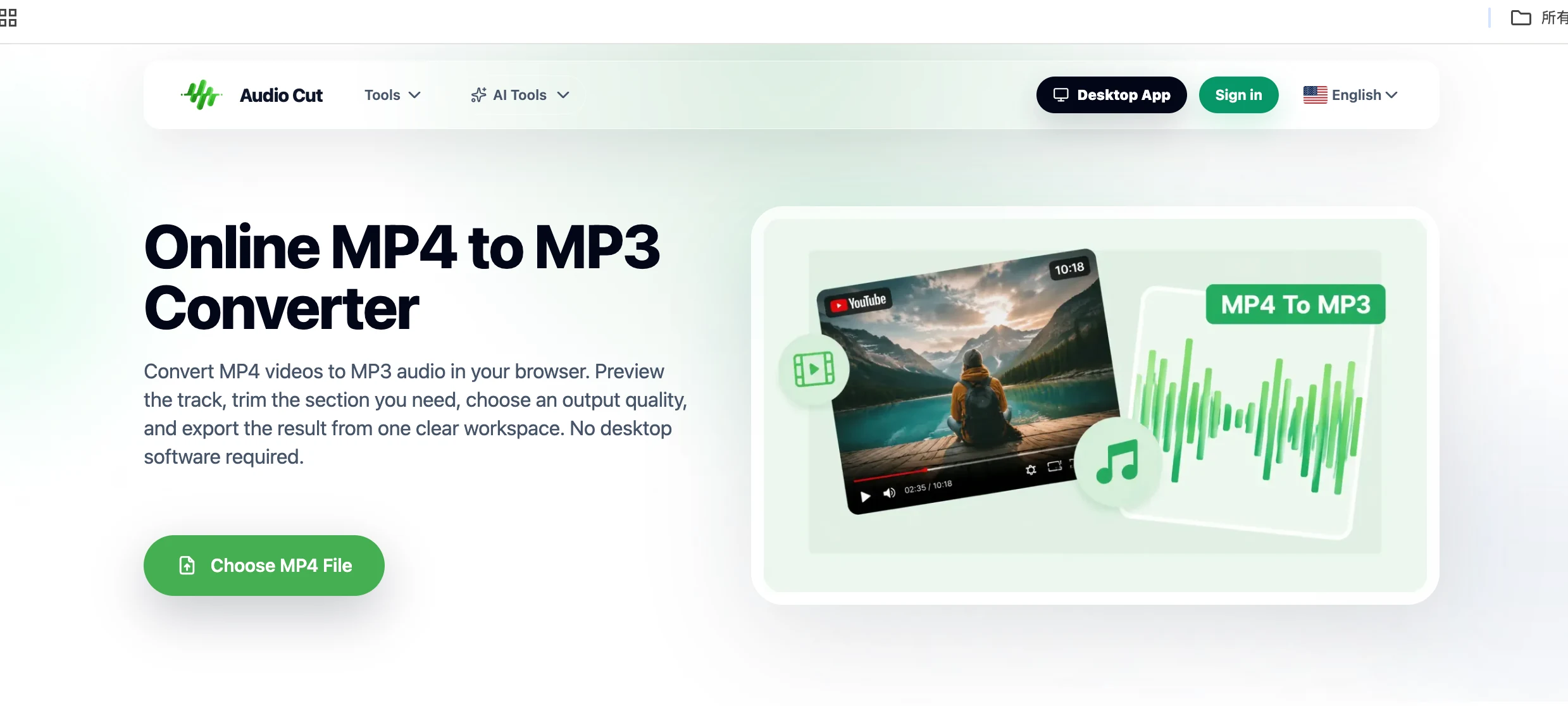
The trick that saves time is extracting the part you want and converting in one pass — instead of converting the whole file, then opening a second tool to cut it. Here's the three-step version, using AudioCut as the example:
Step 1: Load and preview
Open the AudioCut MP4 to MP3 tool in your browser and drop in your MP4. Play it to find the moment you care about. Files up to 500 MB process locally.
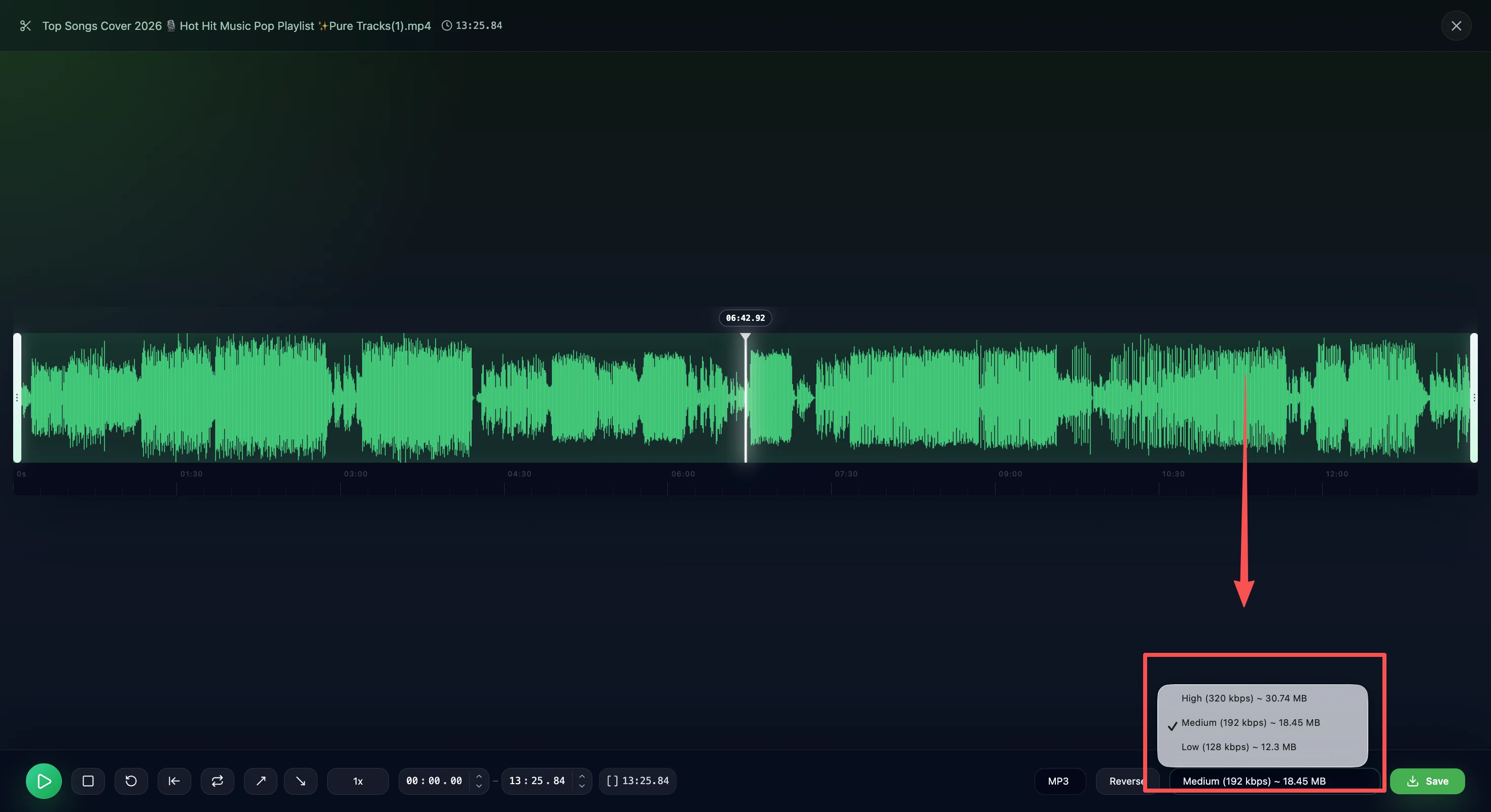
Step 2: Mark the range
Drag the start and end handles to select just the segment you need, then pick 128, 192, or 320 kbps.
Step 3: Export as MP3
Hit save and download your MP3. No re-uploading, no second app.
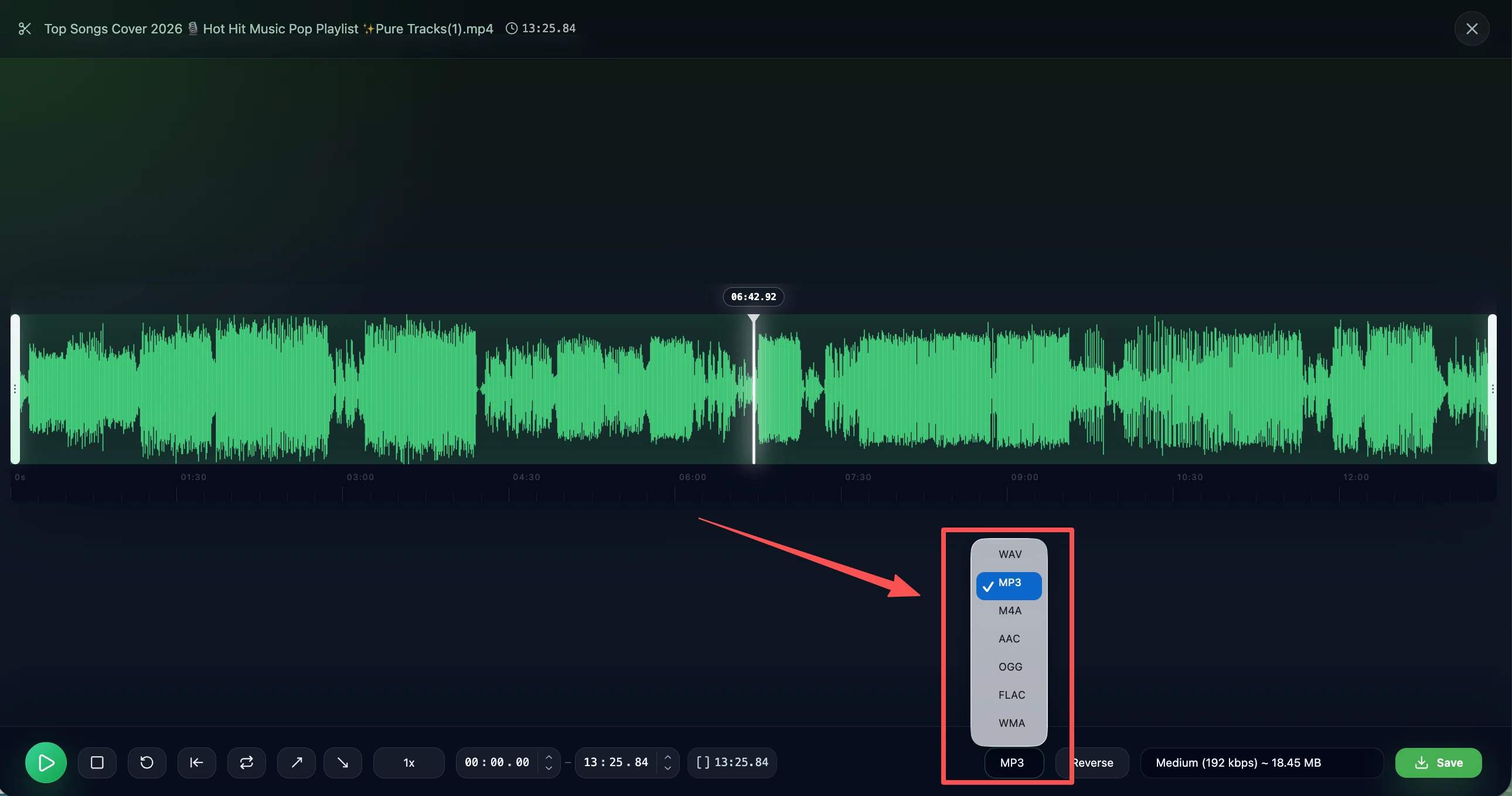
For the full screenshot walkthrough, see the AudioCut guide. On desktop, the same load → select → export idea works in VLC or Audacity, just with more menu clicks.
Which Bitrate Should You Choose?
Bitrate decides file size and how much audio detail survives. Higher isn't always better — it just makes bigger files. Here's the practical map:
| Bitrate | Best for | Rough size per hour |
|---|---|---|
| 128 kbps | Podcasts, lectures, audiobooks (spoken word) | ~55 MB |
| 192 kbps | Casual music listening, most podcasts | ~82 MB |
| 256 kbps | Music where you notice detail | ~110 MB |
| 320 kbps | Maximum standard MP3 quality | ~137 MB |
Spoken content rarely needs more than 128 kbps — the human voice doesn't use the frequency range music does, so extra bits are wasted storage. For music, 192–256 kbps is the sweet spot for most ears; 320 only matters if you're archiving or have good gear.
One thing people miss: most converters keep your ID3 tags and metadata if you set them, but not all do. If track title or artist matters, confirm the tool preserves metadata before you batch a folder. For more on format trade-offs, our MP3 vs WAV vs AAC comparison goes deeper, and our best audio editing tools 2026 roundup covers post-conversion cleanup.
Batch Converting Many MP4 Files
Got a folder of 30 recordings to process? Browser tools get slow here — every file uploads, eats quota, and waits in a queue. For heavy batch work, the simplest path is the AudioCut desktop app, which runs everything locally on your machine.
If you'd rather stay 100% free and local, the classics still work: VLC (via a batch script) or Audacity (with a macro) process folders offline with no upload and no daily cap.
FAQ
Is there a free MP4 to MP3 converter with no signup?
Yes, a few. VLC and Audacity are fully free with no account. Among browser tools, AudioCut needs no signup and converting is free — you can keep using it without paying anything. CloudConvert and FreeConvert also work on free daily limits.
What's the best tool for batch converting many files?
If you stay in the AudioCut ecosystem, the desktop app handles batch locally on your machine — no upload, no daily cap. For a fully free local alternative, scripted VLC and Audacity macros still work offline; browser tools cap at 10–25 conversions per day.
Can I convert DRM-protected or copyrighted files?
DRM-protected video (iTunes purchases, streaming downloads) is encrypted and won't convert cleanly. On copyright: only convert videos you own or have rights to — your recordings, meetings, footage. Don't extract content you lack permission for.
Desktop or online — which wins?
Desktop for large files, batches, or sensitive material: no upload, no size cap, offline. Online for a quick one-off on a locked-down device. The 500 MB local line on browser tools like AudioCut is the tiebreaker for mid-size files.
Podcast vs music bitrate?
Podcasts: 128 kbps is enough. Music: 192–256 kbps for casual listening, 320 kbps for archiving. (Sizes per hour are in the table above.)
Bottom Line
There's no single winner — there's the right tool for your file. Need just a slice of a video as MP3? AudioCut does extract-and-trim in one browser pass, processing files up to 500 MB locally. Want zero accounts and no caps on local runs? VLC or Audacity. Need format breadth or cloud-drive hooks? CloudConvert or FreeConvert. Want a transcript alongside the audio? HappyScribe. Need to churn through a folder at once? AudioCut's desktop app handles batch locally.
Start with what you actually have: a browser and a clip. Try AudioCut's MP4 to MP3 converter on your next file and grab only the part you need.