
Online Audio Trimmer & Clipper
Trim and clip audio online with AudioCut, a browser-based audio trimmer and clipper for MP3, WAV, AAC, and FLAC. Upload, select, preview, and export your audio clips in seconds.

WHY AUDIOCUT
Why Choose AudioCut as Your Audio Trimmer?
AudioCut is an online audio trimmer and audio clipper built for speed and simplicity. Trim podcasts, clip ringtones, cut voice recordings, and export clean music clips with a clear browser-based workflow.
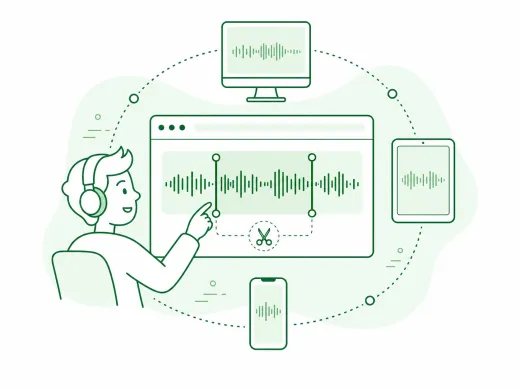
Browser-Based Editing
Start editing without installing desktop software or browser plugins. This browser-based audio trimmer and clipper works in modern browsers across desktop, tablet, and mobile devices.
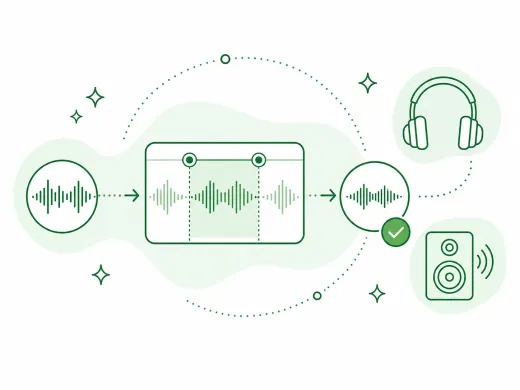
High-Quality Output
The audio trimmer lets you preview the selected section and choose from common output formats before exporting. Final audio quality depends on the source file and selected output format.
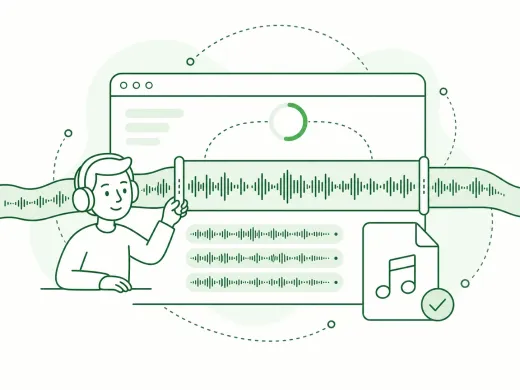
Large File Support
Use the audio trimmer and clipper for long podcasts, interviews, and lectures in the same workflow. Larger files may take longer to upload and process depending on the format, device, and connection.
Secure Processing
Files sent for online processing are transferred over an encrypted connection and handled according to our Privacy Policy. Smaller files may be edited directly in your browser.
Beginner Friendly
A visual waveform audio editor makes trimming intuitive for everyone—drag the handles, preview, and export. No audio engineering background needed.
A Complete Audio Toolkit
Continue with related AudioCut tools for vocal removal, voice changing, audio conversion, splitting, merging, and other audio workflows.
HOW IT WORKS
How to Use the Audio Trimmer Online
Learn how to trim and clip audio in three simple steps. Upload, select, preview, and export your audio clip—all in your browser.
Step 1
Upload Your Audio File
Choose an MP3, WAV, M4A, FLAC, AAC, OGG, or another common audio file to open in the audio trimmer. Larger files may require additional upload and processing time.
Step 2
Select Your Section
In the audio trimmer and clipper, drag the waveform handles to choose exactly what to keep. Preview your audio clip before exporting.
Step 3
Export and Download
Choose an available output format, export the selected audio, and download the result.
More Tools
Continue with the next audio task
Extract, merge, or keep trimming with the right tool.
Audio Splitter
Split songs into stems such as vocals, drums, bass, and other parts, then continue editing the separated tracks in one workspace.
Audio Merge
Join multiple audio tracks into one ordered file for chapters, spoken sections, and batch cleanup workflows.
Extract Audio
Pull clean audio from video files for lessons, interviews, recordings, and content repurposing.
Audio Converter
Convert video to audio or switch audio formats quickly with one shared export workflow.
Audio Compressor
Compress MP3, WAV, M4A, AAC, FLAC, OGG, and other audio files into lighter formats with quality presets.
Audio Speed Changer
Speed up or slow down audio online, preview the timing, and export the new version from one editor.
User feedback
How Creators and Editors Use This Audio Trimmer
See how people use this online audio trimmer for podcasts, ringtones, recordings, and everyday editing tasks.
4.9/5
A focused trimming workflow for creators, students, podcasters, and everyday audio tasks.
Browser-based editing
Open a file and start editing without installing desktop software.
Quick export
Upload, trim, preview, and save in one short workflow.

Sarah Connor
PodcasterThis audio trimmer helped me clean up an episode. I removed a long pause from a WAV recording and exported the section I needed in a few steps.

David Miller
Music EnthusiastI use it to make ringtone clips for my phone. The audio clipper's selection and preview controls help me check the edit before choosing an output format.

Alice Smith
StudentI am not technical at all, but this interface is so simple. I used it to trim a song for a class presentation without dealing with complex software.

Mike Ross
Sound EngineerI trim voice memos and meeting recordings regularly. The waveform editor makes it easy to find dead air and prepare a clean edit without a complicated workflow.
Start Using Audio Trimmer Today
Open the audio trimmer, upload your file, choose the section you want to keep, and export the result with a clear, straightforward workflow.
Open the trimmer, adjust the trim range, preview your edit, and export the section you need.
AUDIO TRIMMER FAQ
Frequently Asked Questions
Answers to common questions about using the AudioCut audio trimmer online.
Before You Start
Learn about supported formats, device compatibility, privacy, audio quality, clean exports, and the difference between trimming and cutting audio.
The AudioCut audio trimmer supports MP3, WAV, M4A, AAC, FLAC, OGG, and other common audio formats. Upload your file, choose the section you want to keep, preview the result, and export it in the format that fits your workflow.
Yes. AudioCut works in modern browsers on desktop, tablet, and mobile devices, including Windows, Mac, iPhone, and Android. Open the page in your browser, upload an audio file, adjust the trim range, preview your edit, and export the result.
Files sent for online processing are transferred over an encrypted connection and handled according to our Privacy Policy. Smaller files may be edited directly in your browser, while larger files can use online processing.
Output quality depends on the source file and selected format. Exporting in the same format where appropriate can help reduce unnecessary quality changes, while converting or re-encoding audio may affect the result.
AudioCut does not add a branded voice tag or audible watermark to exported audio. The resulting file can still differ from the source because of the selected format and export process.
Trimming typically means removing unwanted sections from the beginning or end of an audio file—like cutting the first 10 seconds of silence. Cutting can also refer to removing sections from the middle, like taking out a mistake in the middle of a podcast. Our Audio Cutter supports both workflows: drag the handles to trim the ends, or use the selection tool to cut a section from anywhere in the file.
They serve the same purpose—extracting a specific section from an audio file. "Audio clipper" and "audio trimmer" are often used interchangeably. Some users say "clip" when they want a short highlight like a ringtone or sound bite, and "trim" when removing silence from the beginning or end of a recording. AudioCut's audio clipper and trimmer tool supports both workflows: use the waveform handles to set start and end points, preview your audio clip, and export the result.