
Online Audio Splitter for Vocals, Drums, Bass, and More
Upload one audio file, let this stem splitter generate stems, and open the separated tracks directly in the multitrack editor.
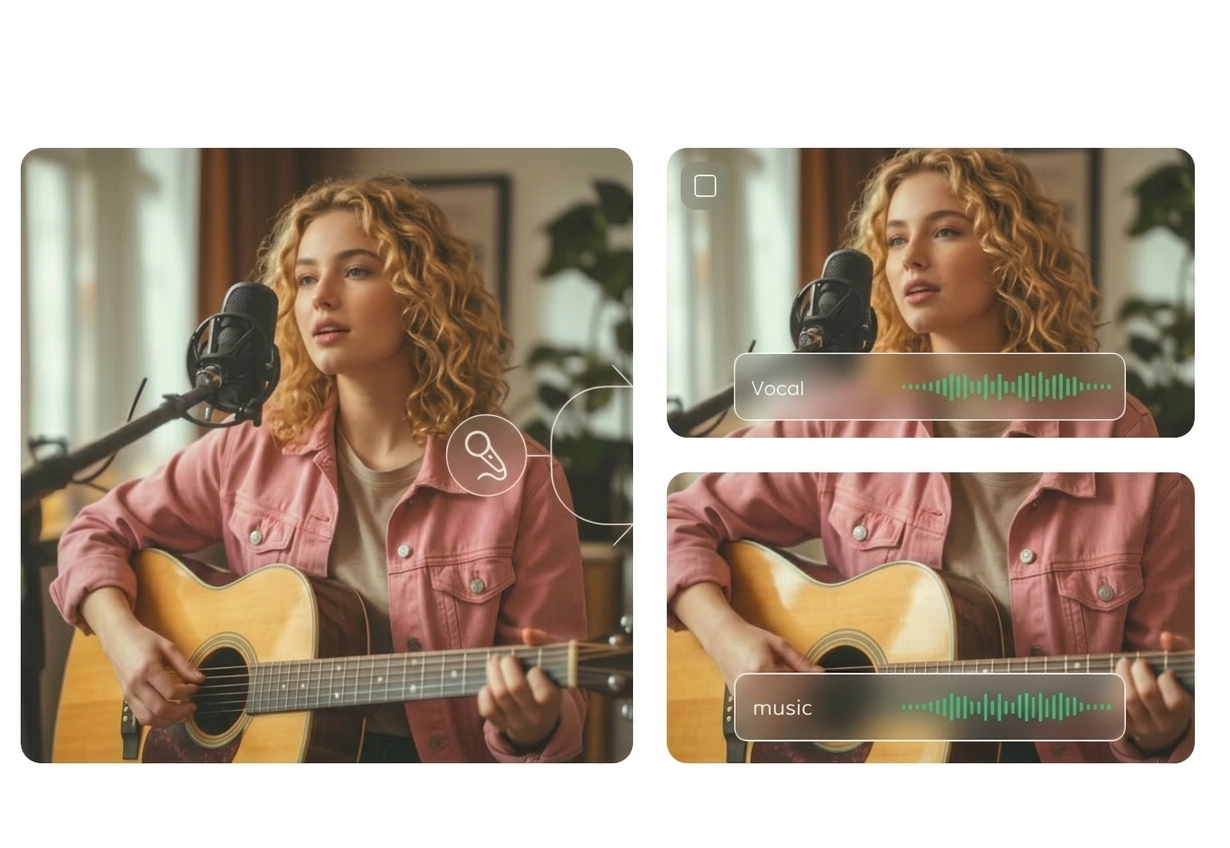
Why teams choose it
Why This Audio Splitter Fits Fast Stem-Separation Workflows
This online stem separator keeps splitting and editing in one browser flow, so you can turn one song into editable stems without switching tools.
Separate Common Stem Types
This track separation tool can return tracks such as vocals, drums, bass, piano, guitar, and other accompaniment parts.
Open Results in the Multitrack Editor
As soon as processing finishes, the separated outputs are opened as individual tracks in the multitrack editing workspace.
Keep Splitting and Editing in One Flow
Upload, wait for stem separation to finish, review each stem, rename tracks, trim sections, and export from the same page.
Practice or karaoke preparation
Pull vocals or accompaniment apart when you need cleaner rehearsal, remix, or sing-along material.
Quick content repurposing
Use isolated stems for short-form edits, backing tracks, intros, and lightweight post-production tasks.
Simple stem review before export
Check which parts were separated successfully, then keep only the tracks you want to download or mix.
Three-step workflow
How to Use the Audio Splitter
Use this audio splitter to split one file into stems in three simple steps.
Step 1
Upload Audio
Choose an audio file from your device and upload it to the stem separation tool.
Step 2
Wait for Stem Separation
The stem splitter processes the file and returns separated tracks such as vocals, drums, bass, and other parts.
Step 3
Edit and Export the Tracks
Open the result in the multitrack editor, review the stems, then download individual tracks or export a mix.
More Tools
Continue with the next audio task
Extract, merge, or keep trimming with the right tool.
MP3 Cutter
Trim MP3 files with fast in and out point selection for music clips, ringtones, and lightweight edits.
WAV Cutter
Cut lossless WAV files quickly for recordings, interviews, and higher-fidelity source material.
AAC Cutter
Edit AAC audio more directly for mobile recordings, compressed assets, and quick delivery cleanup.
Extract Audio
Pull clean audio from video files for lessons, interviews, recordings, and content repurposing.
Audio Converter
Convert video to audio or switch audio formats quickly with one shared export workflow.
Audio Compressor
Compress MP3, WAV, M4A, AAC, FLAC, OGG, and other audio files into lighter formats with quality presets.
Audio Merge
Join multiple audio tracks into one ordered file for chapters, spoken sections, and batch cleanup workflows.
User feedback
Why Users Open This Audio Splitter
People choose this page when they need separated stems first and quick editing second.
4.9/5
Editors, creators, students, and podcasters consistently rate the workflow as fast and clear.
Zero setup
No account wall, no software install, no learning curve.
Quick export
Upload, trim, preview, and save in one short workflow.

Emma Price
Project ManagerUseful when we need a quick vocal or backing track without sending the file through a longer desktop workflow.

Noah Chen
Music TeacherIt is handy for making practice tracks when students only need the accompaniment or the vocal line.

Lena Brooks
Content CoordinatorThe best part is opening the stem separation result directly in the editor instead of downloading stems one by one first.

Owen Reed
FreelancerFast for one-off jobs. I upload once, wait for the stems, then trim or export exactly what I need.
Ready to Open the Audio Splitter?
Upload one file, wait for stem separation to finish, and continue editing vocals, drums, bass, and other returned tracks in your browser.
When stem separation finishes, the editor opens automatically with the returned stems.
Support
Audio Splitter FAQ
Common questions about using this audio splitter to separate audio into stems online.
Common concerns covered
These answers cover what the stem separation tool returns, how the editor opens, and what you can do with the separated tracks afterward.
The online stem splitter can return stems such as vocals, drums, bass, piano, guitar, and other accompaniment parts, depending on the result.
Yes. After processing completes successfully, the returned tracks are passed into the multitrack editor automatically.
Yes. In the multitrack editor you can rename, delete, download, trim, and reposition tracks.
Yes. Each returned track can be downloaded individually, or you can export a mixed selection from the multitrack editor.
Yes. The upload page and multitrack workflow are designed for modern desktop and mobile browsers.
No. Uploading, workflow processing, and multitrack editing all happen through the browser.