
Online Audio Reverser Tool
Open an audio file, choose the range you want to export, turn on reverse in the editor, and save the backward version with this audio reverser without leaving the browser.

Why Use It
Why This Audio Reverser Workflow Fits Quick Backward Exports
A focused browser workflow for people who want reverse audio online without moving into a heavier desktop editor, while still keeping an audio reverser flow easy to use.
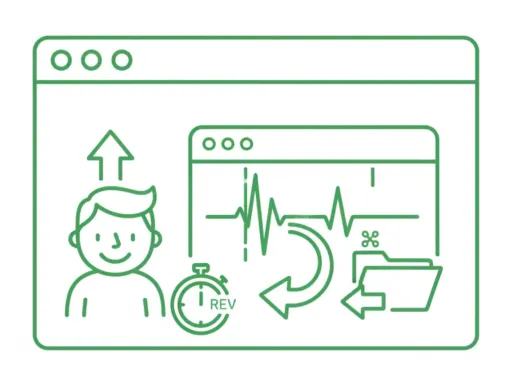
Reverse Export in the Same Editor
Upload one file, keep the full range or trim a section, then turn on reverse export from the same workspace.
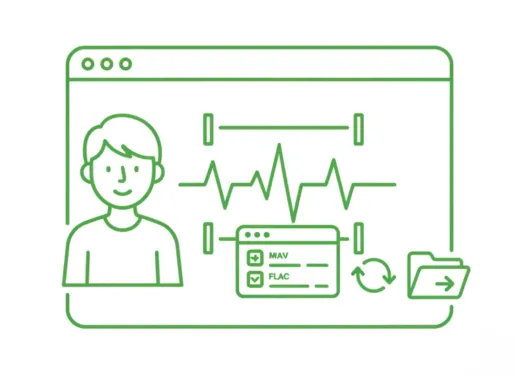
Keep Trim and Format Controls Together
Select the exact range you want, choose the output format, and export the backward audio version in one pass.
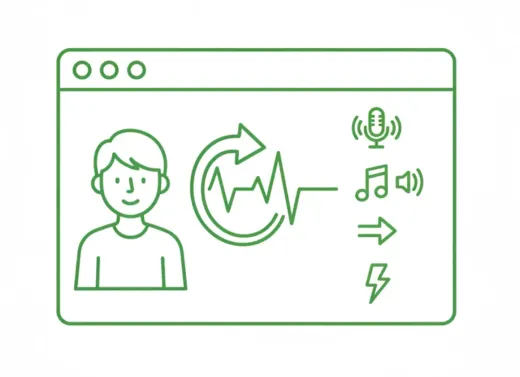
Useful for Effects and Sound Design
A practical fit for transition sounds, reverse cues, stylized intros, and quick creative edits.
Create reverse transition sounds
Export a reversed section for risers, swells, and other reverse sound effect use cases.
Flip a short clip quickly
Take one selected phrase or reverse audio file section and save a backward version without a full DAW workflow.
Reuse the same trim workflow
Keep the familiar editor, but use the reverse export toggle when the final file needs to play backward.
Three-step workflow
How to Reverse Audio Online
Export backward audio in three simple steps.
Step 1
Upload Audio
Choose an audio file such as MP3, WAV, M4A, AAC, FLAC, OGG, or WMA when you need reverse MP3 online or reverse WAV online output.
Step 2
Open Reverse Export
Adjust the range if needed, then turn on the reverse export control in the editor to keep the audio reverser workflow simple.
Step 3
Save the Backward Version
Export the reversed audio directly from the browser in the format you want, whether you need a short effect or reverse music online output.
More Tools
Continue with the next audio task
Extract, merge, or keep trimming with the right tool.
MP3 Cutter
Trim MP3 files with fast in and out point selection for music clips, ringtones, and lightweight edits.
Extract Audio
Pull clean audio from video files for lessons, interviews, recordings, and content repurposing.
Audio Compressor
Compress MP3, WAV, M4A, AAC, FLAC, OGG, and other audio files into lighter formats with quality presets.
Audio Speed Changer
Speed up or slow down audio online, preview the timing, and export the new version from one editor.
Audio Fade In and Out
Apply fade in and fade out to smooth abrupt starts, endings, and clip transitions before export.
Audio Converter
Convert video to audio or switch audio formats quickly with one shared export workflow.
Audio Merge
Join multiple audio tracks into one ordered file for chapters, spoken sections, and batch cleanup workflows.
User Feedback
Why Users Open This Audio Reverser
A lightweight workflow for people who mainly need reverse output without extra production setup from an audio reverser page.
4.9/5
Creators, editors, teachers, and sound designers use it for quick reverse exports before delivery.
Fast setup
Open one file, enable reverse export, and save without extra steps.
Simple range control
Useful when only one selected section needs to be exported backward.

Mia Carter
Podcast ProducerHelpful when I need a short reversed cue for transitions and do not want to open a heavier editor.

Lucas Kim
Music TeacherI can flip a short example backward for lessons in just a couple of minutes.

Nina Patel
Content EditorThe reverse export toggle is straightforward. I trim the range, switch it on, and save.

Ethan Brooks
FreelancerUseful for quick sound design tasks when a client wants a reversed sting or intro.
Ready to Reverse Audio?
Upload a file, enable reverse export in the editor, and save the backward version right in your browser with a simple reverse audio tool flow.
Trim the exact range first if you only need one section to be exported backward.
Support
Audio Reverser FAQ
Common questions about exporting reversed audio online with an audio reverser workflow.
What these answers cover
These answers explain how reverse export works, what files are supported, and how to save the backward result with an audio reverser setup.
It exports the selected audio so the final file plays backward from end to start.
Yes. You can trim the range in the editor first, then export only that selected section in reverse.
No. In this workflow, reverse only affects the exported file and does not change the live preview direction.
You can upload common audio files such as MP3, WAV, M4A, AAC, FLAC, OGG, and WMA.
No. The reverse export workflow runs directly in your browser.
Yes. The page and editor are designed to work on modern desktop and mobile browsers.