
Online Audio Fade In and Fade Out Tool
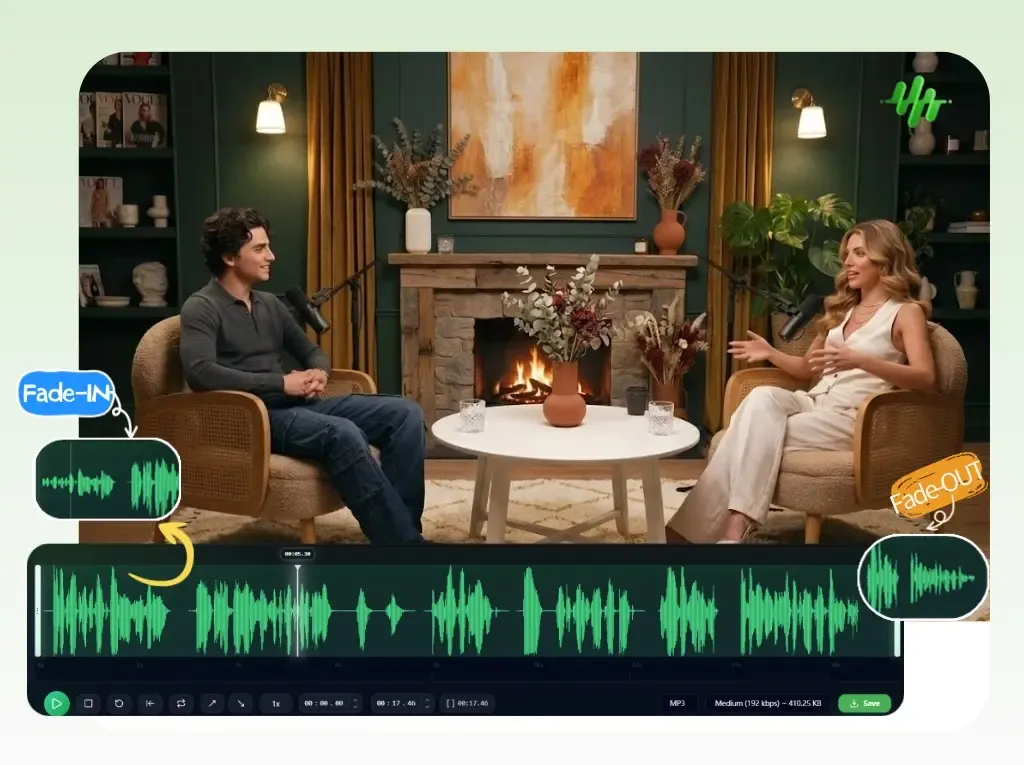
Open an audio file, adjust fade in and fade out length inside the editor, preview the result, and export a smoother version in your browser.
Why Use It
Why This Fade In and Fade Out Workflow Fits Quick Audio Cleanup
A browser-based editor focused on softening harsh starts and endings without sending users into a full production app.
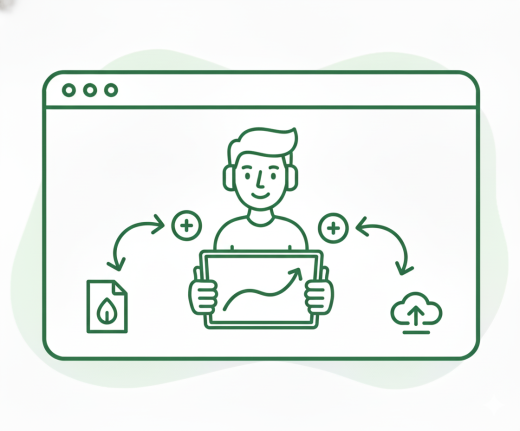
Set Fade In and Fade Out in One Editor
Upload one audio file, preview the waveform, then fine-tune both fade directions from the same export workspace.
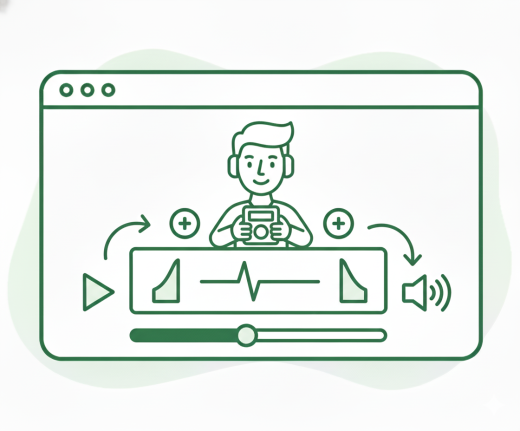
Preview Before You Save
Listen to the selected range first so you can decide whether the transition feels natural before exporting.
Useful for Intros, Outros, and Snippets
A simple fit for podcasts, music excerpts, voice clips, ambient loops, and short content edits that need softer transitions.
Soften abrupt clip starts
Add a short fade in when the beginning of a clip feels too sharp or distracting.
Create cleaner endings
Fade out music, spoken audio, or background sound so the file ends more naturally.
Polish short exports quickly
Use one short browser workflow when you only need smoother entry and exit volume.
Three-step workflow
How to Add Fade In and Fade Out
Apply smoother audio transitions in three simple steps.
Step 1
Upload Audio
Choose an audio file such as MP3, WAV, M4A, AAC, FLAC, OGG, or WMA.
Step 2
Adjust Fade Controls
Open the fade in and fade out controls, set the duration you want, and preview the result in the editor.
Step 3
Export the Smoothed File
Save the processed audio directly from the browser after the transition sounds right.
More Tools
Continue with the next audio task
Extract, merge, or keep trimming with the right tool.
MP3 Cutter
Trim MP3 files with fast in and out point selection for music clips, ringtones, and lightweight edits.
Extract Audio
Pull clean audio from video files for lessons, interviews, recordings, and content repurposing.
Audio Compressor
Compress MP3, WAV, M4A, AAC, FLAC, OGG, and other audio files into lighter formats with quality presets.
Audio Speed Changer
Speed up or slow down audio online, preview the timing, and export the new version from one editor.
Audio Converter
Convert video to audio or switch audio formats quickly with one shared export workflow.
Audio Merge
Join multiple audio tracks into one ordered file for chapters, spoken sections, and batch cleanup workflows.
User Feedback
Why Users Open This Fade In and Fade Out Tool
A lightweight workflow for people who mainly want smoother transitions without extra setup.
4.9/5
Creators, editors, teachers, and podcasters use it for quick polish before delivery.
Fast preview
Hear the transition before you export the final file.
No heavy editor
A good fit when you only need fade timing and a clean save path.

Mia Carter
Podcast ProducerI use it to soften the start and end of spoken clips before publishing short episodes.

Lucas Kim
Music TeacherHelpful for trimming music examples and adding a gentle fade out before I share them with students.

Nina Patel
Content EditorThe fade controls are easy to understand. I can open a clip, preview, and export in a few minutes.

Ethan Brooks
FreelancerUseful when a client only needs cleaner intros and outros instead of a full audio edit.
Ready to Add Fade In and Fade Out?
Upload audio, adjust the fade controls, and export a cleaner opening and ending right in your browser.
Use short fades for subtle cleanup, or extend the duration for softer transitions.
Support
Audio Fade In and Fade Out FAQ
Common questions about applying fades to audio online.
What these answers cover
These answers explain how the fade controls work, what files are supported, and how to export the final result.
Fade in raises the volume gradually at the beginning of the selected audio so the sound starts more smoothly.
Fade out lowers the volume gradually near the end of the selected audio so the ending feels less abrupt.
Yes. You can set both controls in the same editor session and preview the combined result before exporting.
You can upload common audio files such as MP3, WAV, M4A, AAC, FLAC, OGG, and WMA.
No. The fade workflow runs directly in your browser.
Yes. The page and editor are designed to work on modern desktop and mobile browsers.