
3-in-1 Splitter AI for Vocal, Drum, and Bass Separation
Use AI to separate your audio into vocals, drums, bass, and other supported stems. Upload a file, review the separated tracks in the multitrack editor, and export the stems you need directly in your browser.
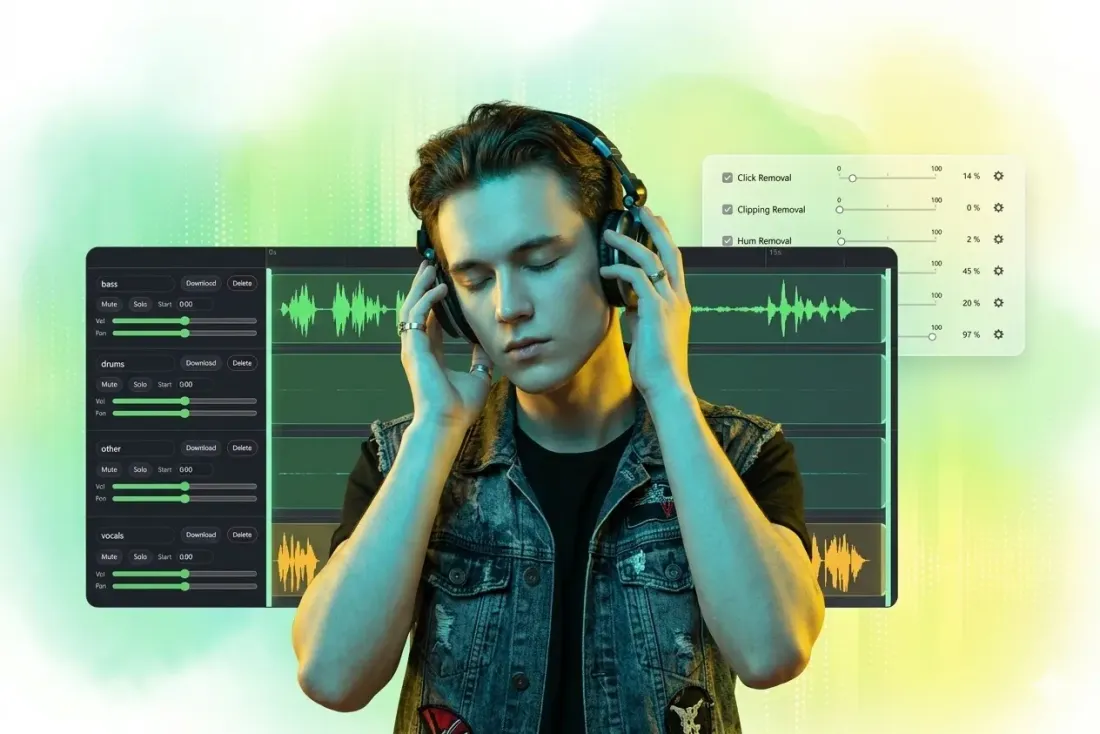
Why teams choose it
Why Splitter AI Fits Fast 3-Stem Workflows
Splitter AI is built for users who mainly need vocals, drums, and bass separated quickly, then want to keep editing without leaving the browser.
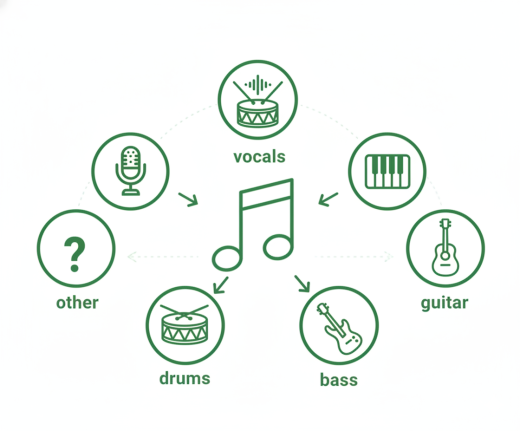
AI Stem Separation for Music
Use AI to separate a song into vocals, drums, bass, and other supported stems, making it easier to remix, practice, analyze, or edit individual parts.
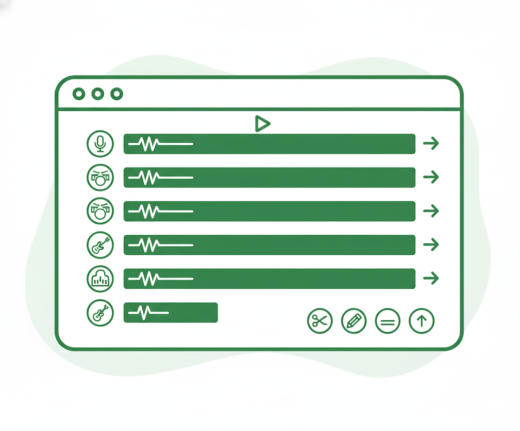
Open Separated Stems in One Editor
Open your separated stems directly in the multitrack editor. Review, trim, rename, mute, and export each stem without switching tools.
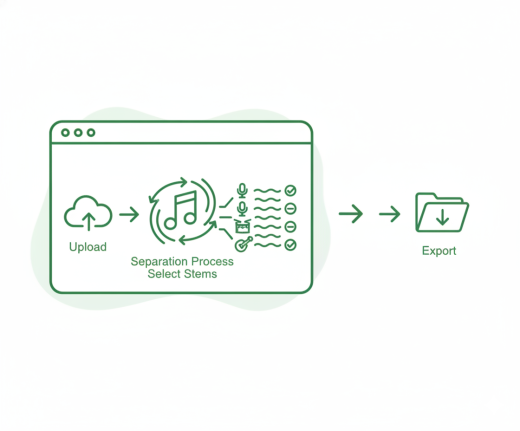
Separate, Edit, and Export in One AI Workflow
Upload once in Splitter AI, wait for AI separation, review the returned stems, and continue editing in the same browser workspace.
Karaoke and rehearsal prep
Pull vocals away from the rhythm section or keep just the backing parts for cleaner practice material.
Remix and short-form editing
Use isolated vocals, drums, or bass to build intros, mashups, social edits, and lightweight production drafts.
Quick stem review before export
Check whether the three main parts were separated cleanly, then export only the tracks you want to keep.
Three-step workflow
How to Use Splitter AI
Use Splitter AI to split one file into editable stems in three simple steps.
Step 1
Upload Audio or Video
Choose one local media file and upload it to the Splitter AI workflow.
Step 2
Run AI Stem Separation
The AI workflow analyzes the file and returns supported stem types such as vocals, drums, bass, other, piano, and guitar.
Step 3
Edit and Export Your Stems
Open the result in the multitrack editor, review each stem, then download individual tracks or export a new mix.
More Tools
Continue with the next audio task
Extract, merge, or keep trimming with the right tool.
Audio Splitter
Split songs into stems such as vocals, drums, bass, and other parts, then continue editing the separated tracks in one workspace.
MP3 Cutter
Trim MP3 files with fast in and out point selection for music clips, ringtones, and lightweight edits.
WAV Cutter
Cut lossless WAV files quickly for recordings, interviews, and higher-fidelity source material.
Extract Audio
Pull clean audio from video files for lessons, interviews, recordings, and content repurposing.
Audio Converter
Convert video to audio or switch audio formats quickly with one shared export workflow.
Audio Merge
Join multiple audio tracks into one ordered file for chapters, spoken sections, and batch cleanup workflows.
User feedback
Why Users Open Splitter AI
Feedback from users who want Splitter AI for fast stem separation and simple follow-up editing.
4.9/5
Editors, creators, students, and podcasters consistently rate the workflow as fast and clear.
Zero setup
No account wall, no software install, no learning curve.
Quick export
Upload, trim, preview, and save in one short workflow.

Maya Torres
Content ProducerUseful when we only need vocals, drums, and bass fast. The three-stem setup is easier to review than a bigger export set.

Ryan Lee
Music TutorIt helps students hear the role of each core part more clearly, especially when we compare vocals against drums and bass.

Chloe Martin
Video EditorOpening the separated stems directly in the editor saves time because I can trim or mute tracks immediately.

Ethan Cole
FreelancerGood for one-off AI stem jobs. I upload once, wait for the three tracks, then export exactly what the client needs.
Ready to Open the 3-in-1 Splitter AI?
Upload one file to Splitter AI, separate vocals, drums, and bass with AI, and continue editing the returned stems in your browser.
After Splitter AI finishes the workflow, the multitrack editor opens automatically with the returned stems.
Support
Splitter AI FAQ
Common questions about using Splitter AI to separate vocals, drums, and bass online.
Common concerns covered
These answers explain what Splitter AI returns, how the editor opens, and what you can do with the separated stems afterward.
An AI stem splitter separates a mixed song into individual parts such as vocals, drums, bass, and other supported instruments.
Splitter AI can return stems such as vocals, drums, bass, other, piano, and guitar, depending on the audio.
Yes. Separate the instrumental from the vocals and use the backing track for karaoke or singing practice.
Yes. Splitter AI separates the lead vocal from the instrumental so you can download either track.
Yes. When the AI detects separate drum and bass stems, it returns them as individual tracks you can review and export.
Yes. The stems open in the multitrack editor where you can trim, rename, mute, and rearrange them.
Yes. Download each stem separately, or export a new mix of the tracks you keep.
No. Splitter AI runs in your browser — no download or installation required.