
Online Audio Compressor for MP3, WAV, FLAC, M4A & OGG
Set a target size, output percentage, or quality preset. Adjust sample rate and channels if needed, then download the compressed MP3.
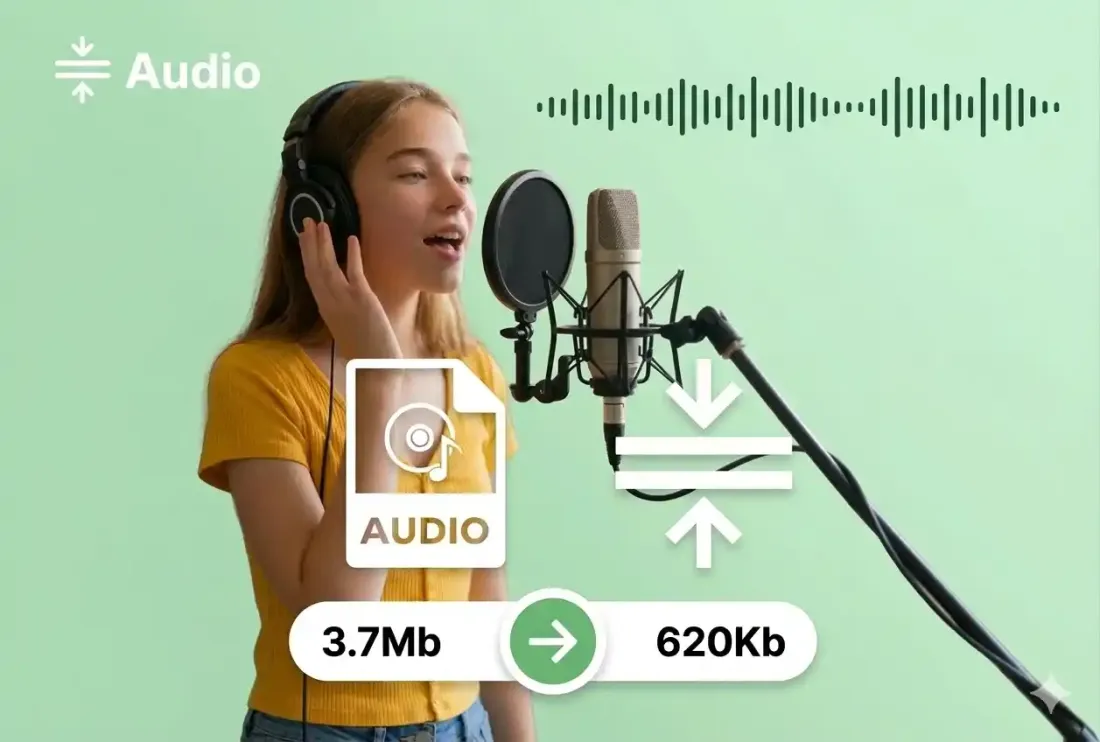
Audio compression features
Simple Ways to Reduce Audio File Size
Use this online audio compressor to compress supported audio to MP3 with size targets, quality presets, and optional sample rate or channel controls.
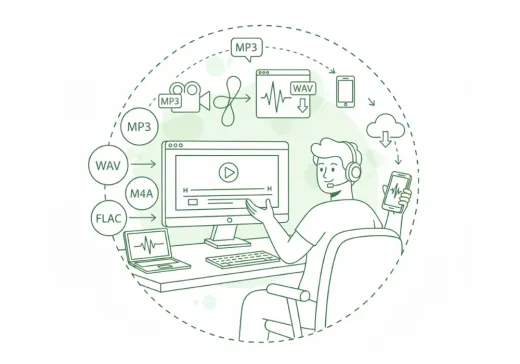
Five Supported Audio Formats
Open MP3, WAV, FLAC, M4A, or OGG files and compress them to MP3.
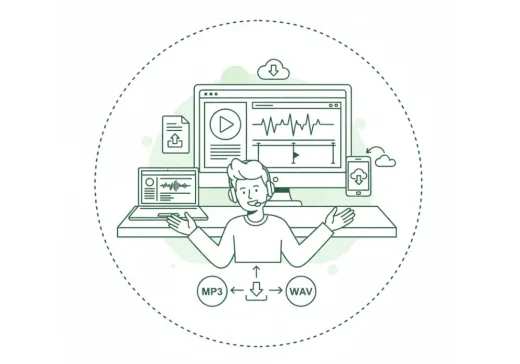
Three Compression Methods
Compress by target size, output percentage, or an audio quality preset. The MP3 bitrate is calculated automatically.
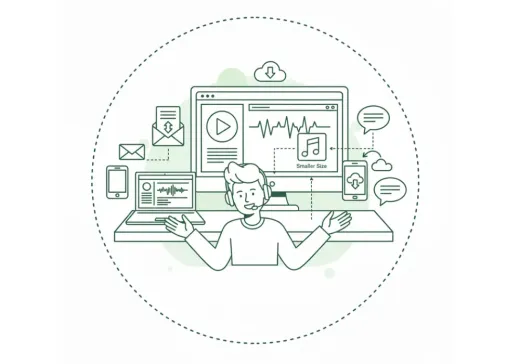
Optional Advanced Controls
Keep the original sample rate and channels, or choose a supported sample rate, mono, or stereo before compression.
Reduce audio file size for sharing
Create a more portable MP3 for email, messaging, content platforms, or mobile playback.
Compress WAV or FLAC to MP3
Turn a large lossless source into an MP3 with a target size, percentage, or quality preset.
Download automatically when ready
The MP3 downloads after compression, and the result panel keeps a Download again option available.
Three-step workflow
How to Use the Audio Compressor
Compress an audio file with this online audio compressor in three simple steps.
Step 1
Upload Audio
Choose an MP3, WAV, FLAC, M4A, or OGG audio file.
Step 2
Choose Compression Settings
Set a target size, output percentage, or quality preset, then optionally adjust sample rate and channels.
Step 3
Download the MP3
Start compression and the finished MP3 downloads automatically. You can also download it again from the result panel.
More Tools
Continue with the next audio task
Extract, merge, or keep trimming with the right tool.
MP3 Cutter
Trim MP3 files with fast in and out point selection for music clips, ringtones, and lightweight edits.
Extract Audio
Pull clean audio from video files for lessons, interviews, recordings, and content repurposing.
Crop Music
Focused on song and soundtrack edits such as chorus cuts, hook extraction, and short-form music snippets.
Audio Converter
Convert video to audio or switch audio formats quickly with one shared export workflow.
Audio Splitter
Split songs into stems such as vocals, drums, bass, and other parts, then continue editing the separated tracks in one workspace.
Audio Merge
Join multiple audio tracks into one ordered file for chapters, spoken sections, and batch cleanup workflows.
Audio compressor feedback
Why Users Open This Audio Compressor
Feedback from people who need smaller audio files without unnecessary setup.
4.9/5
Choose a supported file, set the compression goal, and download the resulting MP3.
Flexible size controls
Use a target size, output percentage, or audio quality preset.
Automatic MP3 download
The result downloads when ready and remains available to download again.

Emma Price
Project ManagerI use it when voice recordings are too big to send. Compressing them to MP3 is enough for most tasks.

Noah Chen
Music TeacherHelpful when I need lighter lesson audio for students on mobile devices.

Lena Brooks
Content CoordinatorThe quality presets make it easy to reduce size without guessing export settings.

Owen Reed
FreelancerFast for one-off jobs. I can open a WAV file and save a smaller MP3 in a few clicks.
Ready to Compress Your Audio?
Choose an MP3, WAV, FLAC, M4A, or OGG file in the audio compressor, set the compression goal, and download the result as MP3.
Choose a target size, output percentage, or quality preset to get started.
Audio compression help
Online Audio Compressor FAQ
Answers about supported audio formats, MP3 output, target file size, audio quality, and browser processing.
Compress audio with clear controls
Choose a target size, output percentage, or quality preset, then adjust the sample rate and audio channels when needed.
You can compress MP3, WAV, FLAC, M4A, and OGG files. Every result is encoded as MP3, a widely supported format for sharing, storage, and playback.
Choose Target size (MB), Target percentage, or Audio quality. The audio compressor calculates the MP3 bitrate automatically, so you can reduce audio file size without configuring complex encoding settings.
Yes. Enter an approximate target size in MB or choose an output percentage. The estimated output appears before compression, and the result page shows the actual MP3 file size after processing. The final size may differ because of MP3 encoding, metadata, and the supported bitrate range.
Yes. Open a WAV, FLAC, M4A, or OGG file and compress it into a more portable MP3. This is especially useful for reducing large lossless audio files before sharing or uploading them.
Choose 64 kbps for the smallest file, 96 kbps for compact audio, 128 kbps for balanced quality, or 192 kbps for higher quality. Advanced settings also let you keep or change the sample rate and choose the original channels, mono, or stereo.
No. The audio compressor works from a modern web browser. Files smaller than 20 MB are processed locally in your browser, while files of 20 MB or more are uploaded and processed in the cloud automatically.
The compressed MP3 starts downloading automatically. The result panel shows the actual output size and size reduction, and you can use Download again if you need another copy.