
Sometimes, you really don't need the video.
Audio is an efficient and effective way to consume media. and MP3 is truly "works everywhere. Formats like WAV are extremely large. Converting WAV to MP3 can dramatically reduce file size while maintaining sound quality. Or you may convert MP4 to MP3 to extract music, dialogue, or voice recordings from video files.. MP3 files are easier to upload, send, and store.
That's why we put "one-click MP3 conversion" front and center.
Desktop Apps vs. Online Converters: Which is Better?
Desktop apps
Desktop applications like VLC, CapCut, or Camtasia are built for heavy lifting and deep customization.
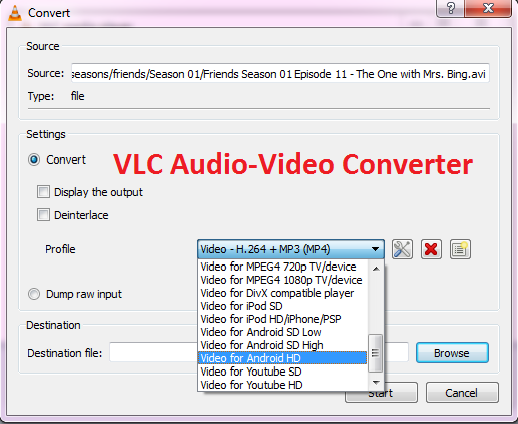
- Offline Reliability: Since the processing happens on your local hardware, you don't need an internet connection. This is a lifesaver if you're working in a remote area or have a spotty Wi-Fi signal.
- Zero Upload Latency: For massive video files (like a 4K raw recording), uploading to a server can take forever. Desktop apps eliminate the "waiting for upload" phase.
- Granular Control: Professionals who need to tweak specific audio codecs, sample rates, or metadata headers often prefer the deep menus found in local software.
- Batch Processing at Scale: If you need to convert hundreds of files at once, desktop apps can leverage your computer’s full CPU/GPU power more effectively.
Online converters
Modern web-based tools like AudioCut have evolved significantly. They are no longer just "simple" alternatives; they are specialized, high-speed environments designed for the cloud-first era.
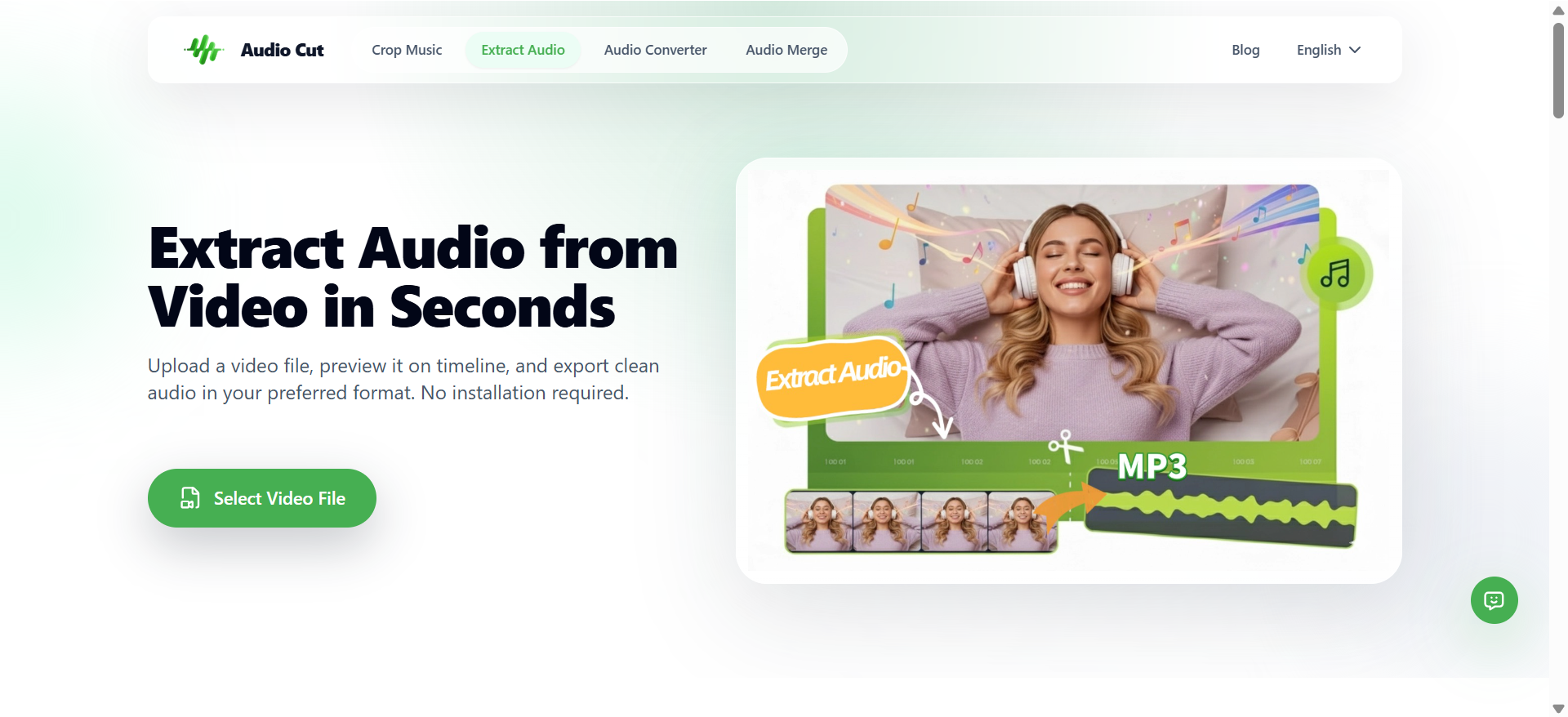
- Zero-Footprint (Memory Friendly): You don't have to worry about your hard drive getting bogged down by bulky installation files or "background update" services that drain your RAM.
- Universal Compatibility: It doesn't matter if you're switching between a MacBook at work, a Windows PC at home, or an Android tablet on the train. As long as you have a browser, you have a professional-grade converter.
- Instant Access: There is no "Download -> Install -> Restart -> Update" cycle. You go from having a problem to having a solution in under 30 seconds.
- Managed Security (SSL & Auto-Deletion): Reputable online tools now prioritize privacy by using SSL encryption and automated scripts that wipe files from servers immediately after processing—ensuring your data never sticks around.
If you need to get the job done right now, without compromising your device's performance or your data's privacy, Free Online Audio Cut - Audio Converters are the fastest and most secure bridge between your MP4, WAV, or M4A files and a perfect MP3.
Step-by-Step: How to Convert MP4 to MP3 Online
Converting MP4 to MP3 is one of the most common audio tasks. Many videos contain music, interviews, lectures, or podcasts that users want to save as audio.
Here’s how to do it.
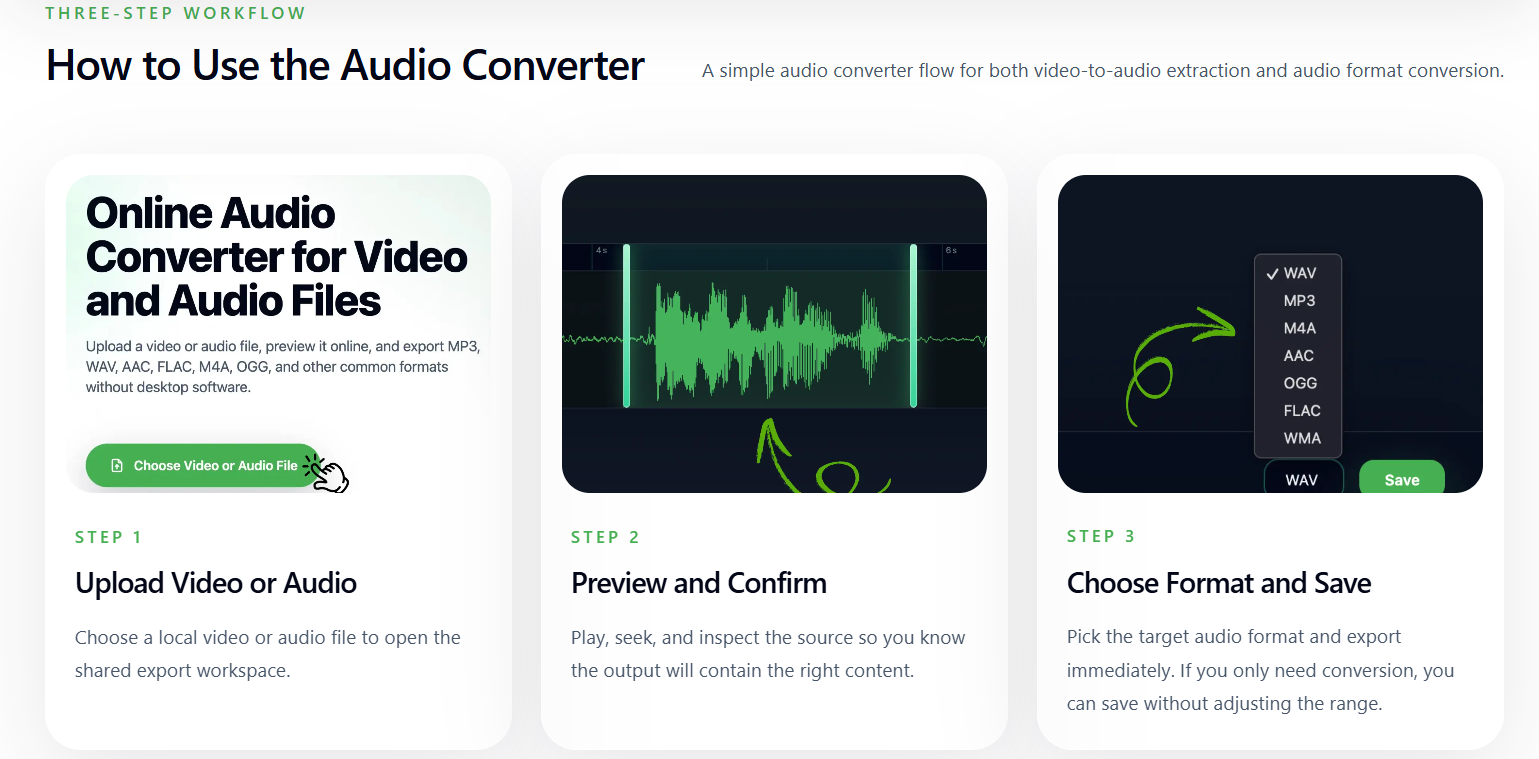
Step 1 Upload the MP4 file
Open the audio converter tool and upload your video file. Most converters support formats like MP4, MOV, AVI, and WebM.
Step 2 Choose MP3 as the output format
Select MP3 as the target format. Some tools also allow bitrate selection for better quality control.
Step 3 Convert and download
Start the conversion and download the MP3 file when it finishes.
That’s it. The entire MP4 to MP3 conversion process usually takes under a minute.
Many people use this method to:
- extract music from videos
- convert recorded lectures
- save YouTube clips as audio
- turn video podcasts into MP3
Beyond MP4: Converting Other Audio Formats
Audio extraction isn't just about video. Different audio formats come with their own unique sets of problems.
WAV to MP3: Quality Without the Bulk
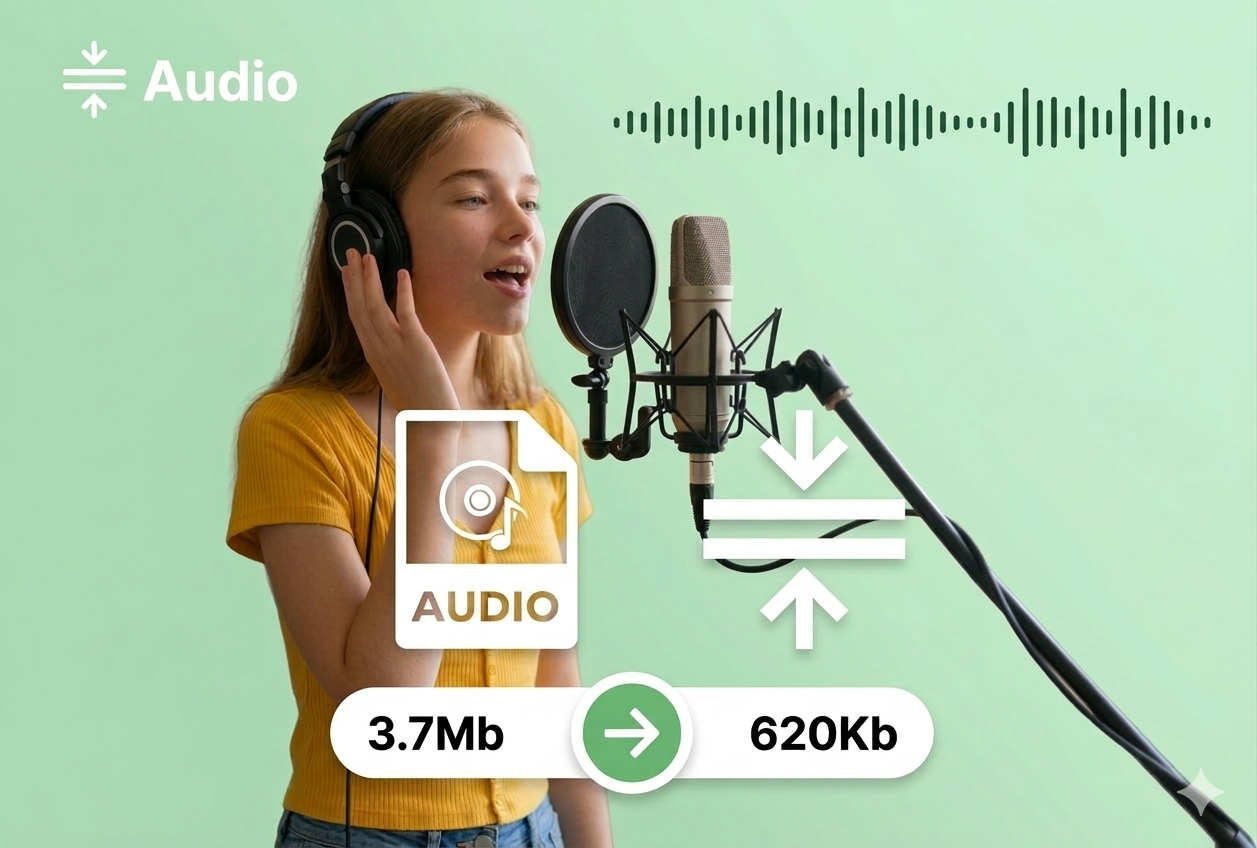
WAV files are uncompressed and beautiful, but they are giants. If you have a professional recording that needs to be shared or uploaded to a platform with size limits, converting WAV to MP3 is essential. By choosing a high bitrate (320kbps), you can shrink the file size by up to 90% without losing the "warmth" or detail of the original recording.
M4A to MP3: The Mobile Fix
If you’ve ever recorded a lecture or a song on your iPhone’s Voice Memos, you’ve dealt with M4A files. They sound great, but sharing them with non-Apple users or uploading them to social media often leads to "file not supported" errors.
The best part? You don’t need to transfer these files to a computer. In 2026, tools like AudioCut are fully optimized for mobile browsers (Safari, Chrome, and Samsung Internet). You can convert your voice recordings directly on your phone and share them to WhatsApp, Slack, or Instagram in seconds.
Expert Tips for Professional-Grade Results
To ensure your audio sounds like it was handled by an engineer, keep these three tips in mind:
- Tip 1: Always check the Bitrate. For music or important speeches, 320kbps is the "sweet spot." It provides near-lossless quality while keeping the file size manageable. Avoid 128kbps unless you are extremely short on space.
- Tip 2: Prioritize Privacy. Before you upload, ensure the site uses HTTPS and clearly states that files are deleted. AudioCut’s privacy-first model ensures your data never lingers on the web.
- Tip 3: Check Your Channels. If your source video was recorded in Stereo, make sure your output is too. AudioCut handles this automatically, but it’s always good to verify so you don’t lose that immersive soundstage.
Conclusion
In 2026, digital tools should make our lives easier, not more cluttered. While desktop apps still have their niche for studio-level batch work, online converters have won the day for the rest of us. They are faster, more secure, and leave your computer’s memory free for the things that actually matter.
Whether you are salvaging a song from a video or making a voice memo playable for your whole team, a high-quality online tool is the most efficient bridge to cross.
Ready to clean up your media library? Start your first conversion with AudioCut today—no install, no fuss, just pure sound.