
Audio Splitter Online
Split audio online into individual tracks, review the results, and continue editing them in the multitrack editor. AudioCut supports separated tracks such as vocals, drums, bass, and other parts.
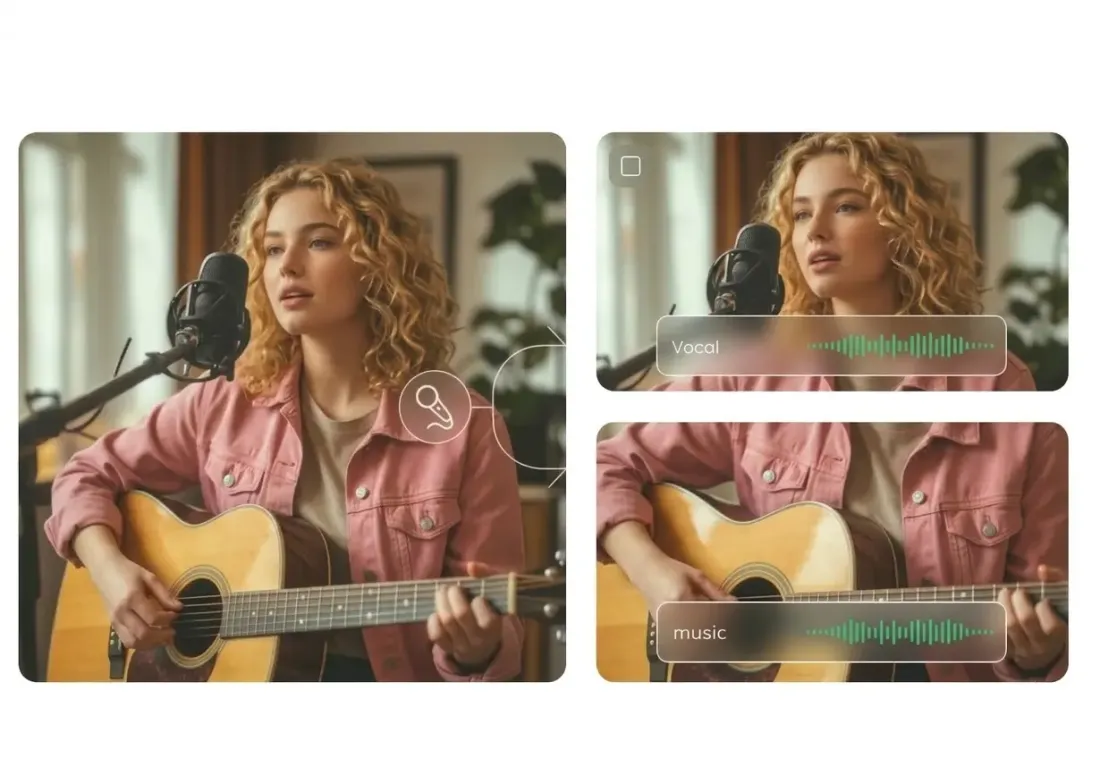
Why teams choose it
Why Use an Online Audio Splitter?
This online stem separator keeps splitting and editing in one browser flow, so you can turn one song into editable stems without switching tools.
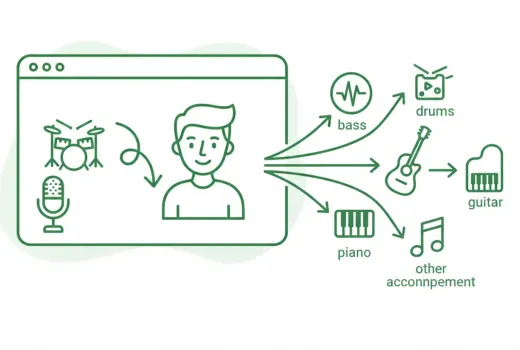
Separate Audio Into Individual Tracks
Upload an audio file and get separate tracks that you can review, edit, download, or continue working with in the multitrack editor. Depending on the result, tracks may include vocals, drums, bass, piano, guitar, and other parts.
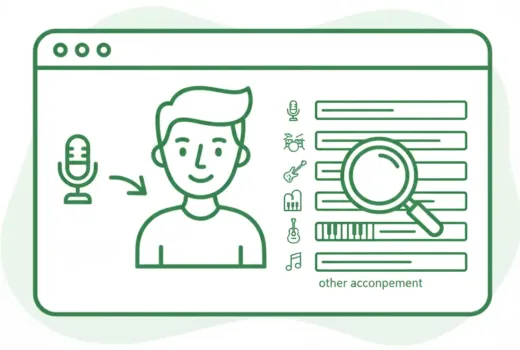
Open Separated Tracks in the Multitrack Editor
As soon as processing finishes, the separated outputs are opened as individual tracks in the multitrack editing workspace.
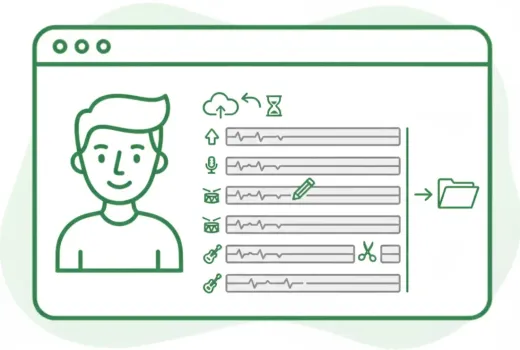
Split, Edit, and Export Audio in One Browser
Split your audio, review individual tracks, trim sections, rename tracks, and export what you need without switching tools.
Extract Individual Tracks for Practice or Karaoke
Separate a song into individual tracks and keep only the parts you need, like vocals or backing accompaniment, for rehearsal or sing-alongs.
Prepare Tracks for Content Repurposing
Separate tracks before trimming, rearranging, or making further edits in the multitrack editor.
Review Tracks Before Download or Export
Check the separated tracks first, then download individual files or export a mix.
Three-step workflow
How to Use the Audio Splitter
Use this audio splitter to split one file into stems in three simple steps.
Step 1
Upload Your Audio
Choose an audio file from your device and upload it.
Step 2
Split the Audio Into Tracks
AudioCut processes your file and returns separate tracks such as vocals, drums, bass, and other supported parts.
Step 3
Edit and Export the Tracks
Open the result in the multitrack editor, review the stems, then download individual tracks or export a mix.
More Tools
Continue with the next audio task
Extract, merge, or keep trimming with the right tool.
Splitter AI
Use AI to separate vocals, drums, bass, and other supported music stems.
MP3 Cutter
Trim MP3 files with fast in and out point selection for music clips, ringtones, and lightweight edits.
WAV Cutter
Cut lossless WAV files quickly for recordings, interviews, and higher-fidelity source material.
AAC Cutter
Edit AAC audio more directly for mobile recordings, compressed assets, and quick delivery cleanup.
Extract Audio
Pull clean audio from video files for lessons, interviews, recordings, and content repurposing.
Audio Converter
Convert video to audio or switch audio formats quickly with one shared export workflow.
Audio Compressor
Compress MP3, WAV, M4A, AAC, FLAC, OGG, and other audio files into lighter formats with quality presets.
Audio Speed Changer
Speed up or slow down audio online, preview the timing, and export the new version from one editor.
Audio Merge
Join multiple audio tracks into one ordered file for chapters, spoken sections, and batch cleanup workflows.
User feedback
Why Users Open This Audio Splitter
People choose this page when they need separated stems first and quick editing second.
4.9/5
Editors, creators, students, and podcasters consistently rate the workflow as fast and clear.
Zero setup
No account wall, no software install, no learning curve.
Quick export
Upload, trim, preview, and save in one short workflow.

Emma Price
Project ManagerUseful when we need a quick vocal or backing track without sending the file through a longer desktop workflow.

Noah Chen
Music TeacherIt is handy for making practice tracks when students only need the accompaniment or the vocal line.

Lena Brooks
Content CoordinatorThe best part is opening the stem separation result directly in the editor instead of downloading stems one by one first.

Owen Reed
FreelancerFast for one-off jobs. I upload once, wait for the stems, then trim or export exactly what I need.
Ready to Open the Audio Splitter?
Upload one file, wait for stem separation to finish, and continue editing vocals, drums, bass, and other returned tracks in your browser.
When stem separation finishes, the editor opens automatically with the returned stems.
Support
Audio Splitter FAQ
Common questions about using this audio splitter to separate audio into stems online.
Common concerns covered
These answers cover what the stem separation tool returns, how the editor opens, and what you can do with the separated tracks afterward.
An audio splitter separates an audio file into individual tracks so you can review, edit, or export each track separately.
Upload your audio, let AudioCut process it into separate tracks, then open the result in the multitrack editor.
Yes. Upload a single audio file and AudioCut returns separate tracks you can edit or download individually.
Depending on the audio, the splitter can return vocals, drums, bass, piano, guitar, and other parts.
Yes. The separated tracks open in the multitrack editor where you can trim, rename, and rearrange them.
Yes. Download each track separately, or export a new mix.
Yes. The audio splitter works in mobile browsers.
No. Everything runs in your browser — no download or installation required.