
Online MP4 to MP3 Converter
Convert MP4 videos to MP3 audio in your browser. Preview the track, trim the section you need, choose an output quality, and export the result from one clear workspace. No desktop software required.
WHY AUDIOCUT
Why Choose AudioCut as Your MP4 to MP3 Converter?
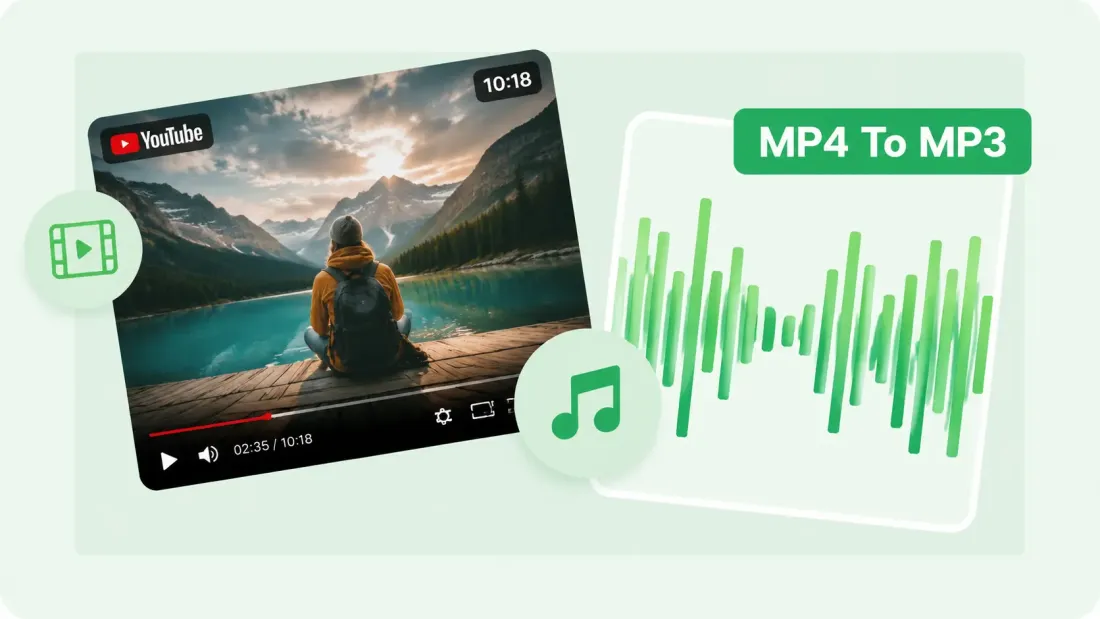
AudioCut provides a focused browser-based workflow for converting MP4 video to MP3 audio. Preview the source, choose the section you need, select 128, 192, or 320 kbps, and export the result without opening desktop editing software.
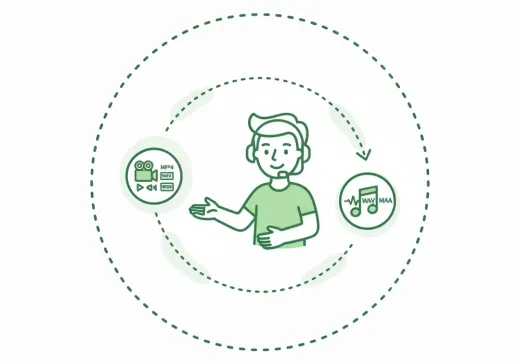
Simple Browser Workflow
Choose an MP4 file from your device and open it in the MP4 to MP3 converter. The visual timeline lets you preview the source and confirm the section you want before exporting.
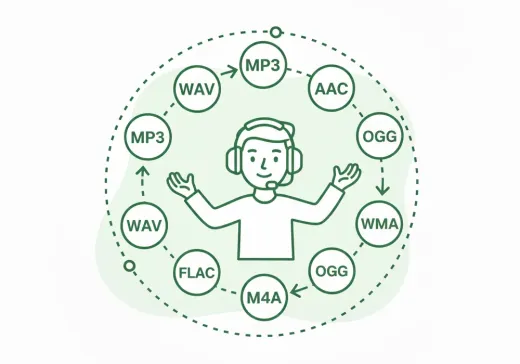
MP3 Quality Control
Select 128 kbps for speech and smaller files, 192 kbps for a balanced result, or 320 kbps when you want to retain more audio detail. Final quality still depends on the source audio and selected bitrate.
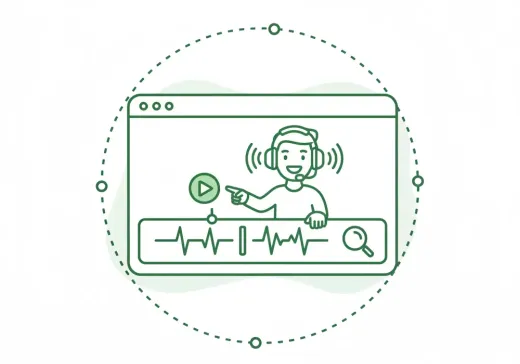
Common Video Format Support
The converter is designed for MP4 and can also open common video formats such as MOV, AVI, WebM, and MKV when the source codec is supported. Processing time depends on the file duration, codec, and available device resources.
Preview Before Export
Play the source audio and check the timeline before saving, so you can confirm that the MP3 contains the section you need.
Trim Before Saving
Adjust the start and end points inside the MP4 to MP3 converter when you only need part of the original video’s audio track.
Continue with AudioCut Tools
After saving your MP3, use AudioCut’s related tools when you need a separate trimming, speed, fade, merge, or ringtone workflow.
HOW IT WORKS
How to Use the MP4 to MP3 Converter Online
Convert MP4 to MP3 by choosing a video, reviewing the audio, selecting an MP3 quality preset, and exporting the result in three clear steps.
Step 1
Choose Your MP4 File
Select an MP4 video from your device to open it in the MP4 to MP3 converter. Common formats such as MOV, AVI, WebM, and MKV can also be opened when their codecs are supported.
Step 2
Preview and Choose MP3 Quality
Preview the audio and adjust the selected range if needed. Keep MP3 as the output format, then choose 128 kbps, 192 kbps, or 320 kbps based on your preferred balance of file size and audio detail.
Step 3
Export and Download
Save the selected audio as an MP3 file and download the result to your device. Processing time varies with the video duration, source codec, bitrate, and device performance.
More Tools
Continue with the next audio task
Extract, merge, or keep trimming with the right tool.
Audio Trimmer
Trim MP3, WAV, AAC, M4A, FLAC, and other audio files with a visual waveform editor in your browser.
Audio Speed Changer
Speed up or slow down audio online, preview the timing, and export the new version from one editor.
Audio Merge
Join multiple audio tracks into one ordered file for chapters, spoken sections, and batch cleanup workflows.
Ringtone Maker
Create custom ringtone clips from songs and recordings with fast trimming, preview, and export in one editor.
Audio Compressor
Compress MP3, WAV, M4A, AAC, FLAC, OGG, and other audio files into lighter formats with quality presets.
Extract Audio
Pull clean audio from video files for lessons, interviews, recordings, and content repurposing.
USER FEEDBACK
How Creators and Editors Use This MP4 to MP3 Converter
See how an online MP4 to MP3 converter can fit podcast, lecture, music, transcription, and everyday video-to-audio workflows.
4.9/5
A focused conversion workflow for creators, students, podcasters, and everyday audio tasks.
Browser-Based Conversion
Open a local video file and prepare an MP3 without installing desktop conversion software.
Preview Before Export
Review the source, choose the section and quality preset, then save the MP3 from the same conversion workspace.

Sarah Connor
PodcasterI used the MP4 to MP3 converter to prepare an audio version of a video podcast. Previewing the track before export helped me confirm that the full episode was included.

David Miller
Music EnthusiastThe bitrate options make it easy to choose between a smaller MP3 and a higher-quality version when I extract audio from my own video files.

Alice Smith
StudentI converted a lecture recording from MP4 to MP3 so I could listen to it more easily. The preview and export controls were straightforward to understand.

Mike Ross
Sound EngineerI use video-to-audio conversion for transcription references and quick previews. Being able to review and trim the source before exporting is useful for everyday tasks.
Start Using the MP4 to MP3 Converter
Choose an MP4 file, preview the audio, select the section and bitrate you need, and export the result as an MP3.
Review the timeline, choose an MP3 quality preset, and save the audio you need.
MP4 TO MP3 FAQ
Frequently Asked Questions
Answers to common questions about using the AudioCut MP4 to MP3 converter online.
Before You Start
Learn about MP4 and MP3 formats, bitrate choices, output quality, supported video files, editing controls, and mobile browser compatibility.
MP4, or MPEG-4 Part 14, is a multimedia container format that can store video, audio, images, and subtitles. It is widely used for online video, social media, streaming, and everyday playback. Because an MP4 file can contain both video and audio tracks, its audio can be extracted and exported separately.
MP3, or MPEG-1 Audio Layer 3, is a compressed audio format designed to reduce file size while maintaining practical sound quality. MP3 works with most phones, computers, media players, and audio applications. Output quality and file size depend partly on the bitrate selected during export.
Choose an MP4 file, wait for the audio preview to load, and confirm the section you want to export. Keep MP3 selected, choose 128, 192, or 320 kbps, then save the result to your device.
MP3 uses lossy compression, so the exported file may not preserve every detail from the source track. A higher bitrate can retain more audio information, but it cannot restore detail that is missing from the original video. For speech, 128 kbps is often sufficient; for mixed content or music, 192 or 320 kbps may be more suitable.
Yes. The MP4 to MP3 converter opens the source in a visual timeline where you can preview the audio and adjust the start and end points. This lets you export the full track or only the section you need.
MP4 is the primary format for this page. The converter can also open common video formats such as MOV, AVI, WebM, MKV, M4V, WMV, FLV, MPEG, and MPG when their source codecs are supported by the browser-based workflow.
The converter is designed for modern desktop and mobile browsers. Open the page, choose a video stored on your device, preview the audio, and export MP3. Processing time and maximum practical file size depend on the browser, device memory, source codec, and video duration.