
Top 8 Best Audio Cutters & Trimmers Free Online Included (2026 Tested)
Picking the best audio cutter in 2026 comes down to one question: a quick browser fix or a desktop workhorse? After running the popular tools through real cuts this month, the answer splits. The best audio cutter free online is AudioCut.io — no file-size limit, no account, and small files never leave your browser. For a desktop editor, Audacity is the safe pick. Privacy-first: your audio is never stored permanently — auto-deleted within 24 hours. All eight are below, with the catches nobody prints on the landing page.

Contents
- Quick Answer — Best Overall & Best Free Online
- What Is an Audio Cutter / Trimmer?
- How We Tested
- Top 8 Best Audio Cutters & Trimmers
- Comparison Table — 8 Tools at a Glance
- AudioCut.io Exclusive Capabilities
- How to Cut Audio Online (Step-by-Step, AudioCut)
- FAQ (People Also Ask)
- Verdict — Which One Should You Pick?
Quick Answer — Best Overall & Best Free Online
Skip the scroll. Here are the tools that earned a spot:
- Best free online: AudioCut.io — no file-size limit, no signup, local processing for small files, plus extras most cutters skip (vocal split, video-to-audio).
- Best desktop: Audacity — open-source, multi-track, works fully offline on Windows and Mac.
- Best for true local privacy: vocalremover.org/cutter — runs in your browser and exports without sending files to a server.
- Best lightweight WAV trimmer: Flixier — a dead-simple slide-to-trim UI, though the free tier only exports WAV.
Everything else in the list fills a narrower gap. Read on for who each one frustrates.
What Is an Audio Cutter / Trimmer?
An audio cutter and an audio trimmer are often sold as the same thing, but they solve two different problems. A cutter removes a chunk from the middle of a clip or splits one file into several — think dropping a boring 40-second bridge from a song. A trimmer only shortens the ends: trim the dead air at the start, the giggle at the end. Most tools today do both, which is why the names get used interchangeably.
Audio cutter vs trimmer — where they differ
The practical split is editing location. Cutting means the app rewrites the internal timeline; trimming means it just clips the head or tail. You'll want cutting when you build a mashup or pull a quote out of a webinar. You'll want trimming for quick cleanup before upload.
Common use cases
- Ringtones — slice a 30-second hook out of a track.
- Podcast cleanup — drop false starts and umms.
- Social clips — cut a 15-second soundbite for Reels or Shorts.
- Extract from video — pull the audio track off a recording, then trim it.
- Voice memos — shorten a long phone note into something shareable.
Most jobs start on a waveform editor where you drag two handles and preview the result. Fade in/out at the edges keeps the edit from clicking. Same-format export keeps it lossless.
How We Tested
We didn't rank these by vibes. Each tool got the same workout: a 12-minute WAV podcast clip, a 4-minute MP3 song, and a 90-second phone recording. We timed how long setup took and whether we hit a paywall.
Our evaluation criteria
Seven things decided the order:
- Ease of use — could a first-timer finish a cut in under two minutes?
- Privacy and local processing — does anything leave your device?
- File-size limit — the wall that kills big recordings.
- Output formats — choice matters if you need M4A or WAV.
- Watermark — free shouldn't mean branded.
- Price — free, freemium, or paid-only.
- Extra features — fade, merge, AI split, video extract.
How we rated each tool
Every pick below carries an honest limitation and a "who it's NOT for" line. A tool can be excellent and still wrong for you. A 4 GB interview, for example, rules out most browser cutters no matter how pretty the UI is.
Top 8 Best Audio Cutters & Trimmers
#1 AudioCut.io — Best Free Online (No File-Size Limit, No Account) ★
AudioCut sits at the top because it removes the two things that annoy people most: size caps and signup forms. You drop in an MP3, WAV, AAC, FLAC, OGG, M4A, or M4R file — yes, M4R for iPhone ringtones — and pick the output format on export. There is no file-size limit across any AudioCut tool, including the mp3 cutter, the ringtone maker, and the vocal splitter.
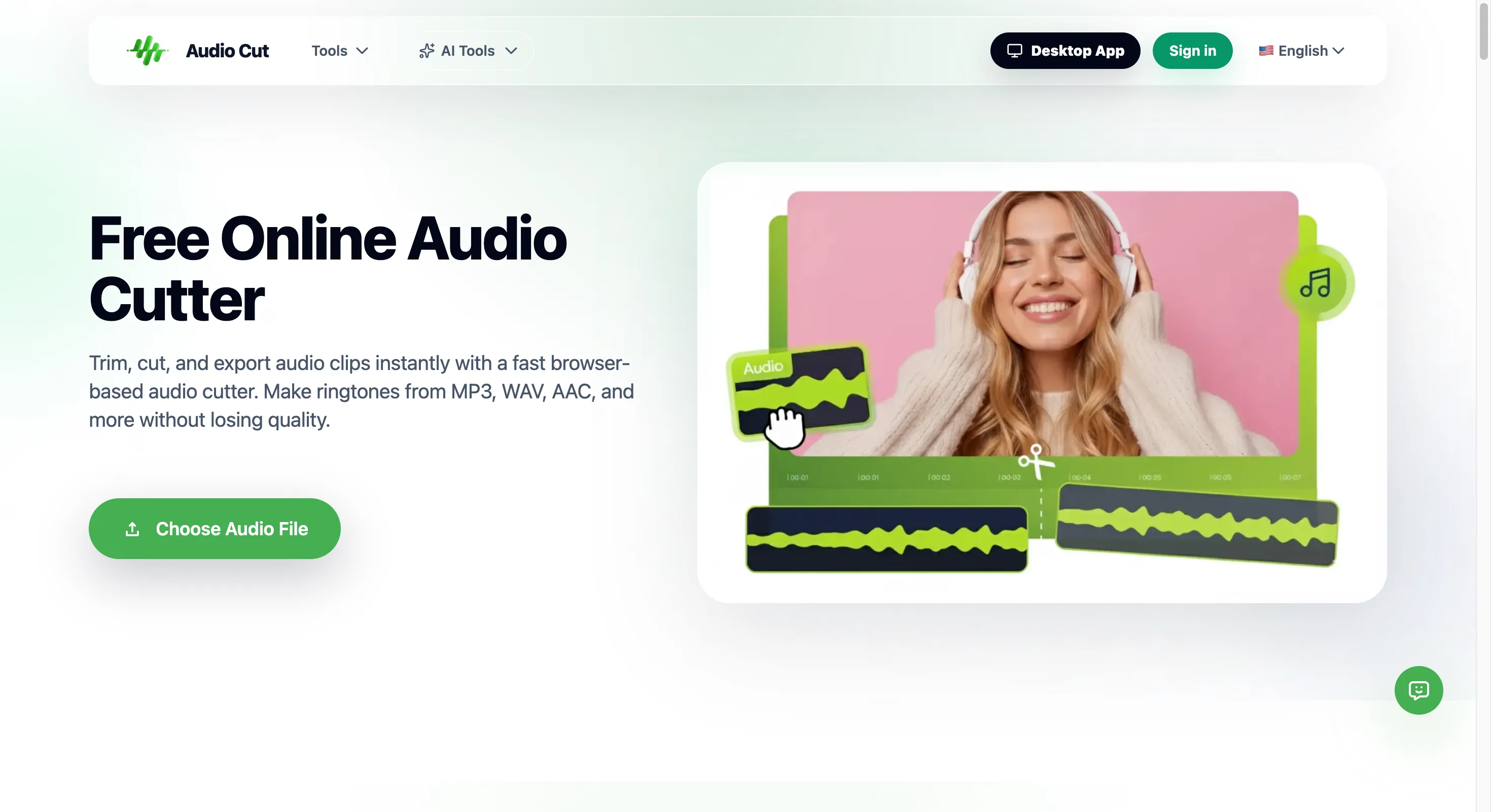
Small files process right in your browser and never get uploaded. Larger ones go to a server over SSL and are wiped within 24 hours. The interface is a plain waveform with drag handles, fade sliders, and a live preview. In our runs it handled a 90-minute lecture without complaining about size — something size-capped tools like Clideo simply refuse to do.
- Honest limitation: you need a connection, and files above 20 MB do leave your device temporarily.
- Who it's NOT for: anyone cutting sensitive audio who refuses any server upload, even briefly.
- First-hand note: the "no account" promise is real — we made a 25-second ringtone in under a minute, zero email asked.
If you prefer a desktop app, Audio Cut Desktop is the same tool family with more muscle. Source files stay on your computer, batch processing handles multiple clips at once, and large files skip the browser upload limit entirely. It's the better pick when you do repetitive edits or work with sensitive audio that should never touch a server.
The 9-language interface is a nice touch if English isn't your first screen.
#2 Audacity — Best Free Desktop, Open Source (Windows & Mac)
Audacity is the desktop standard for a reason. It's free, open-source, and runs fully offline on Windows, Mac, and Linux. Multi-track editing, noise reduction, and a deep effects stack mean you can do far more than cut.
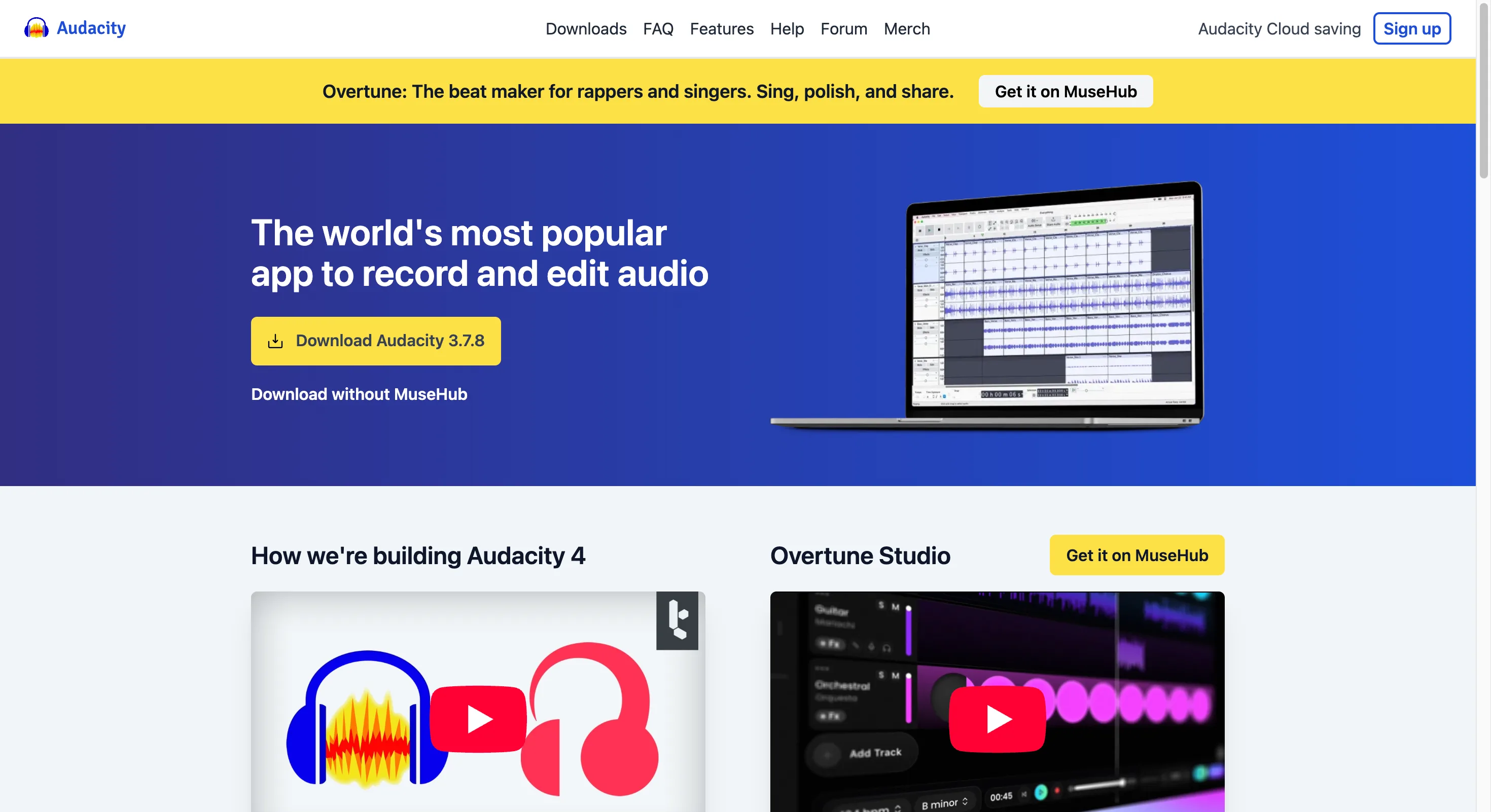
- Honest limitation: it's a full editor, not a one-click trimmer, so the learning curve bites beginners.
- Who it's NOT for: someone who just wants to shave three seconds off a clip on a borrowed laptop.
- First-hand note: on a 12-minute podcast we removed a cough and a false start in about four minutes — effective, but we had to read a menu first.
#3 vocalremover.org/cutter — Best Free Local-Processing (MP3 + WAV)
This one earns its spot by doing local processing the way AudioCut does for small files — except there's no size threshold. The page states files never leave your device, and it exports MP3 and WAV with fade in/out. Mobile-friendly, too.
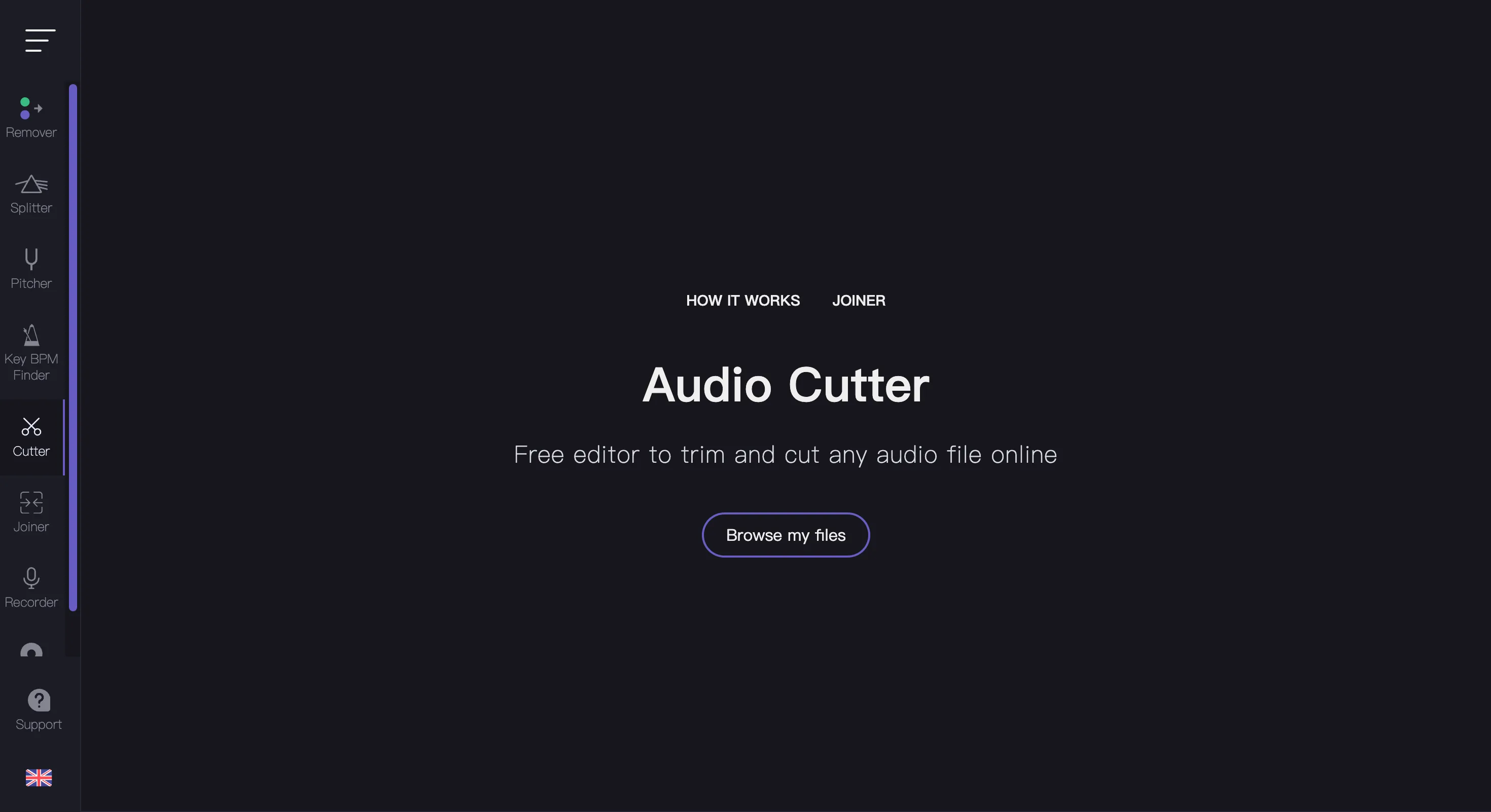
- Honest limitation: it only cuts, trims, and fades. No merge, no format zoo, no extras.
- Who it's NOT for: anyone who needs to convert to FLAC or split stems.
- First-hand note: we loaded a phone voice memo and had a trimmed WAV in maybe ten seconds — the simplest UI of the bunch.
#4 MP3Cut.net — Best Local-Processing Alternative
MP3Cut.net is the other browser tool that processes locally with no upload and no file-size limit. It's lean: open a file, mark the slice, download. If you want a second opinion to vocalremover.org, this is it.
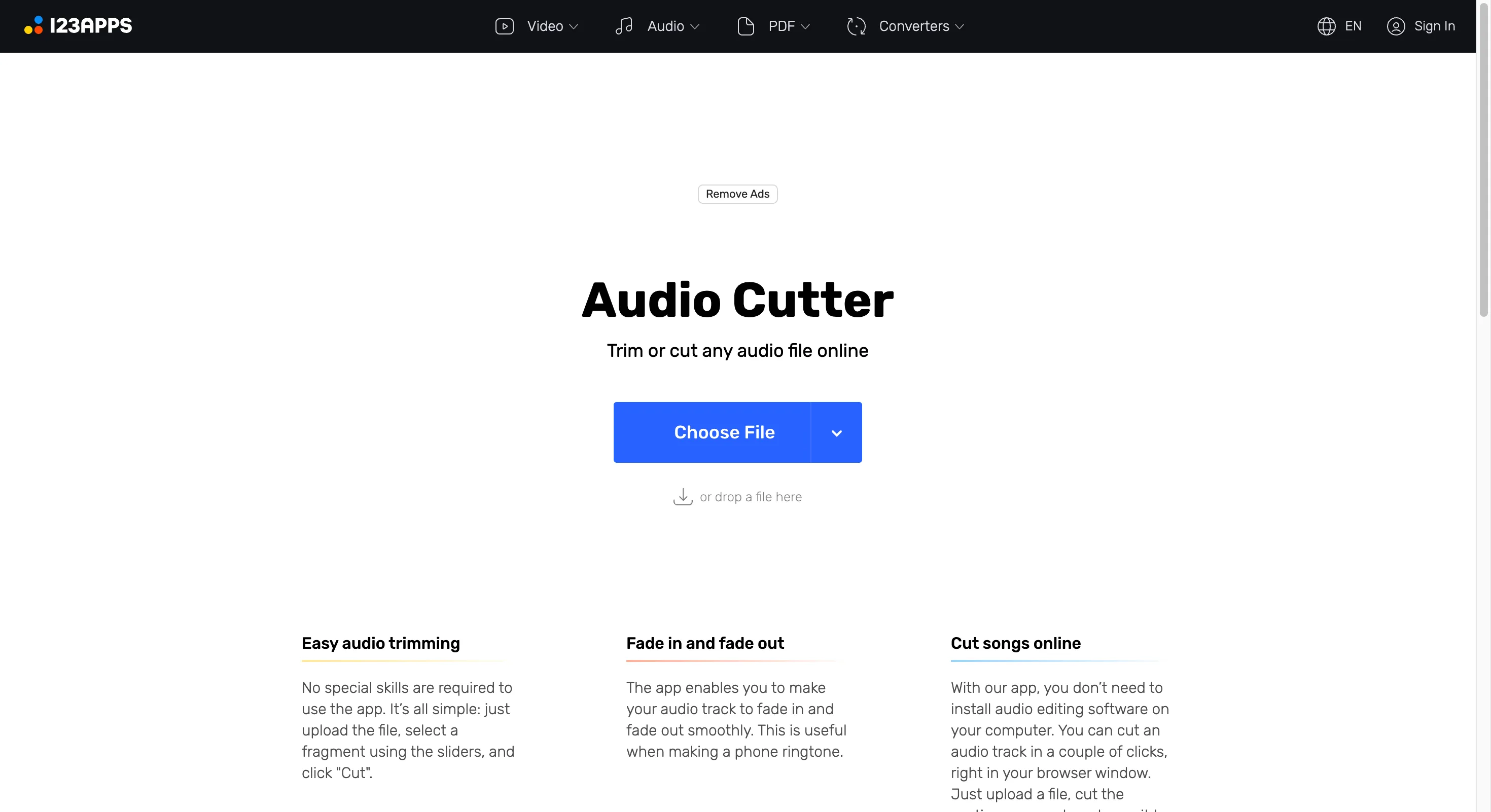
- Honest limitation: the feature set is bare — cut, fade, and that's close to it.
- Who it's NOT for: users who want OGG or M4A output from a browser tool.
- First-hand note: the page loaded instantly on a mid-range Android phone, which is more than we can say for some "cloud" editors.
#5 Happyscribe Audio Trimmer — Best Free Trim-Only (MP3 export, ad-supported)
Happyscribe takes the opposite tack: server-based, ad-supported, but genuinely free with no signup. It accepts 43+ input formats, which is wild — yet exports only MP3. Trim-only, no cut-in-the-middle.
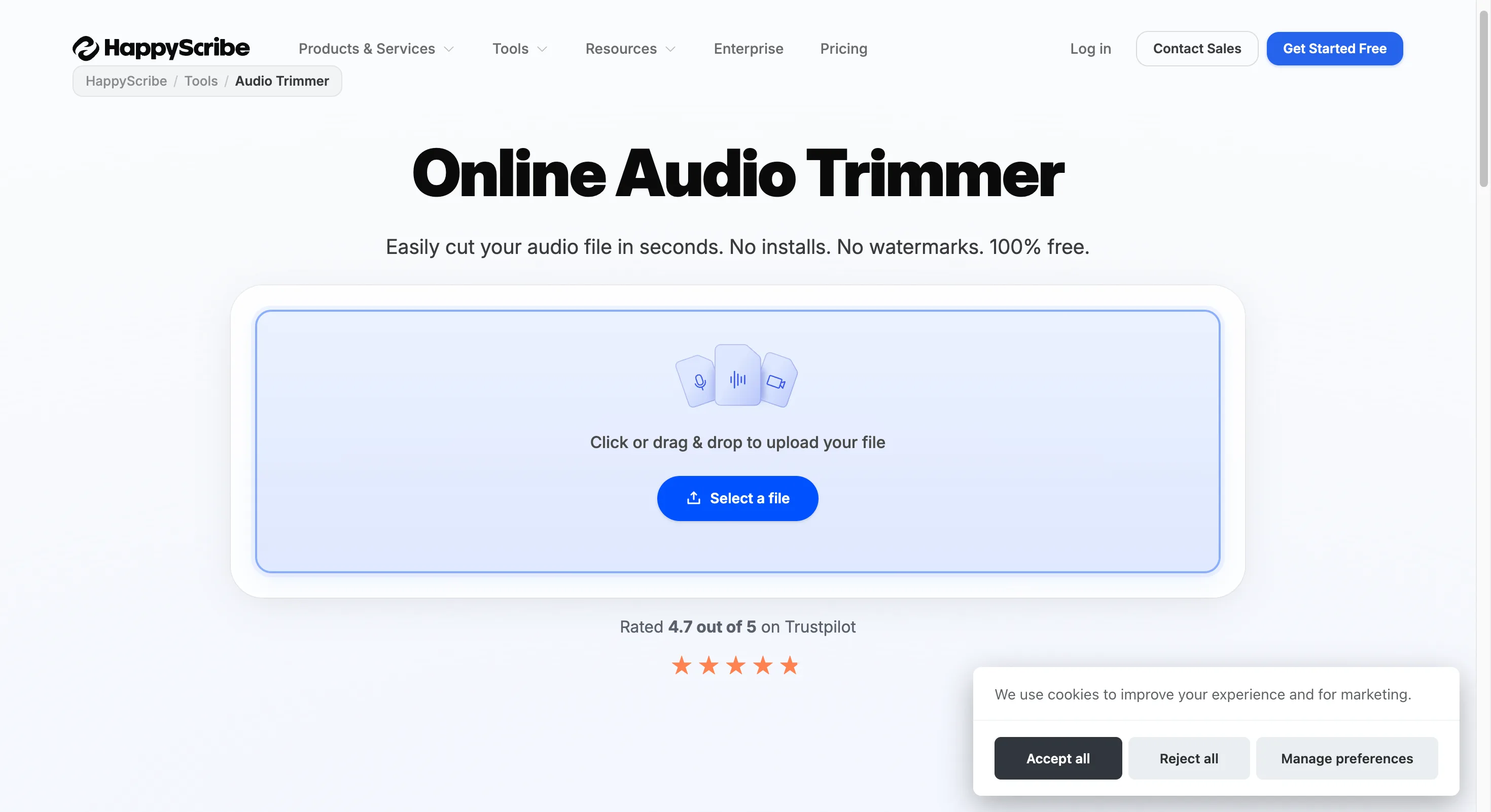
- Honest limitation: banner ads sit on the page, and your export is locked to MP3.
- Who it's NOT for: anyone needing WAV for a video editor or a clean ad-free workspace.
- First-hand note: the ads are easy to ignore, and trimming a 3-minute interview to 60 seconds was painless — just don't expect format choices.
#6 VEED.IO Audio Cutter — Polished, but Account & Watermark Required
VEED is the recognizable name here — a full browser video and audio studio with a neat cutter built in. The trade you make for the polish: you must create an account before you can export, and the free tier stamps a VEED watermark across your clip.
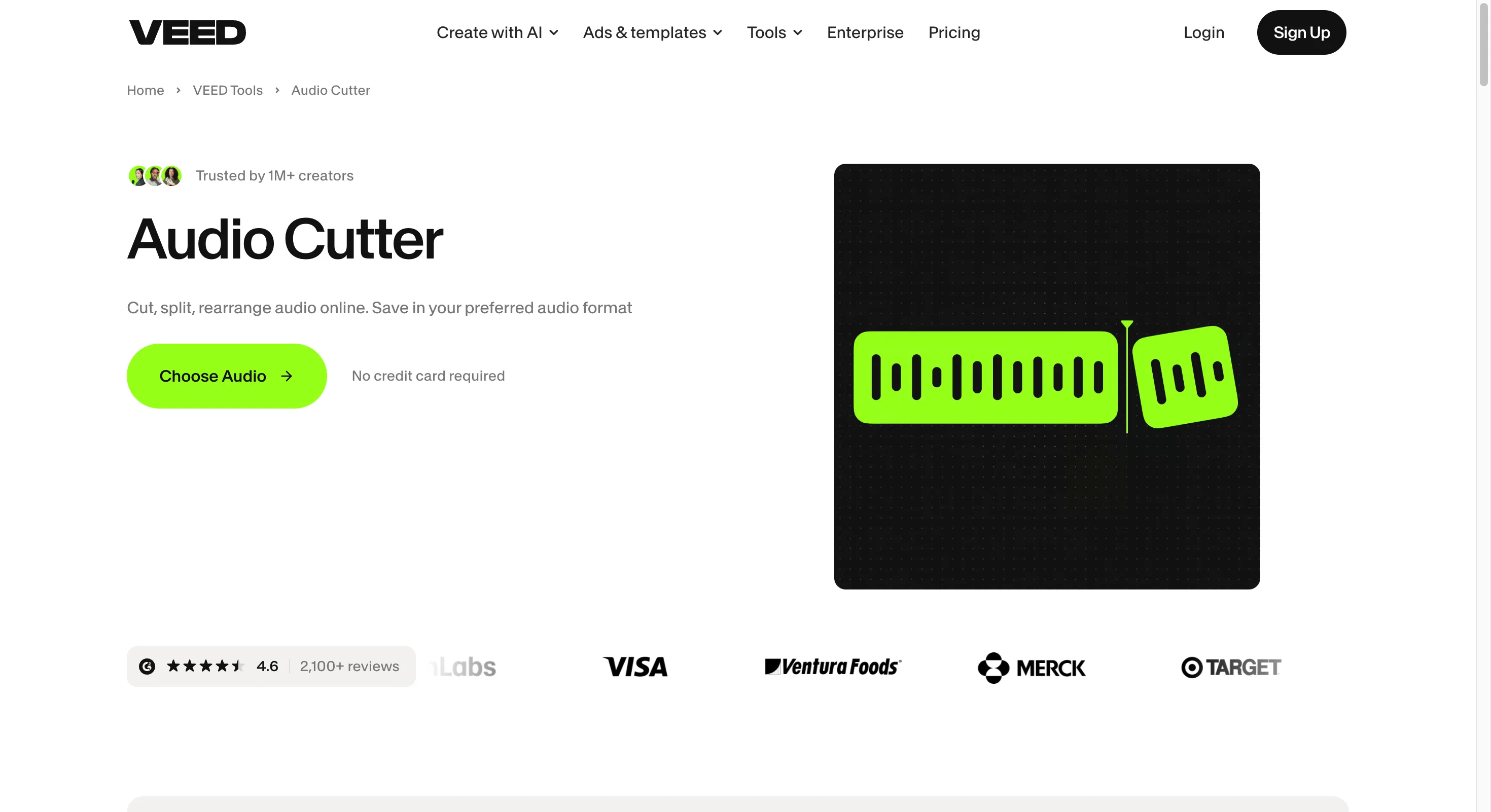
- Honest limitation: account required to export, and a watermark on free downloads.
- Who it's NOT for: anyone who wants a no-signup, clean cut in thirty seconds.
- First-hand note: the editor feels premium, but hitting the sign-up wall right after editing a clip was the exact friction AudioCut avoids.
#7 Clideo — Easiest Online (watermark + 500 MB)
Clideo has the prettiest interface here and a 500 MB limit, the most generous of the upload-based tools. The trade-off is a watermark burned into every free export. That's a dealbreaker for anything public.
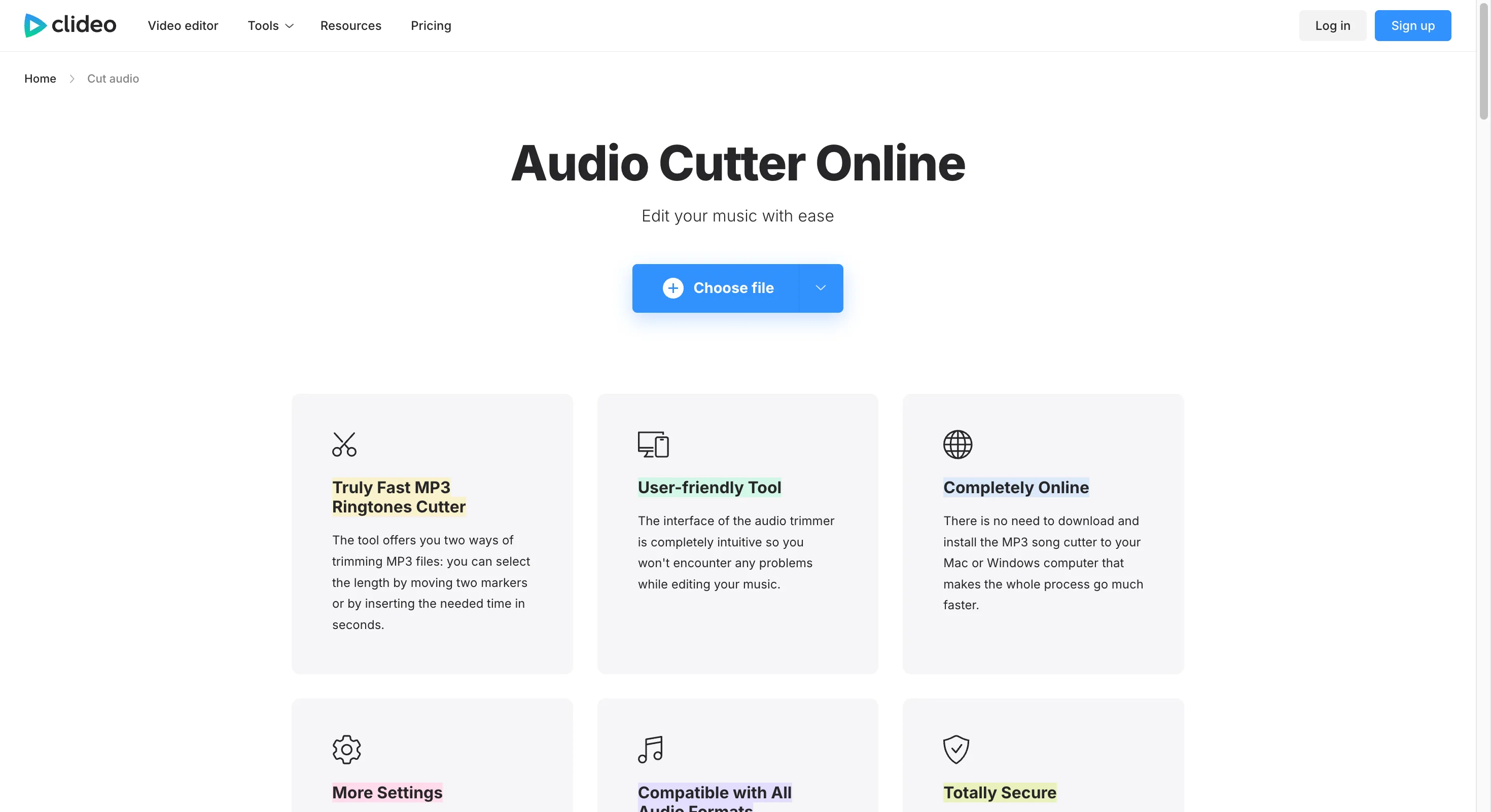
- Honest limitation: free exports carry a Clideo watermark; 500 MB still uploads to their servers.
- Who it's NOT for: anyone publishing the result — the mark won't come off on the free tier.
- First-hand note: we exported a 20-second clip and the logo sat right in the middle. Pretty, but we'd never ship it.
#8 Flixier Audio Cutter — Best Lightweight WAV Trimmer (simple slide UI)
Flixier markets a big cloud editor, but the free audio cutter we tested is intentionally tiny: two sliders, slide to trim, done. In our live test the free tier exported only WAV. Simple, but limiting.
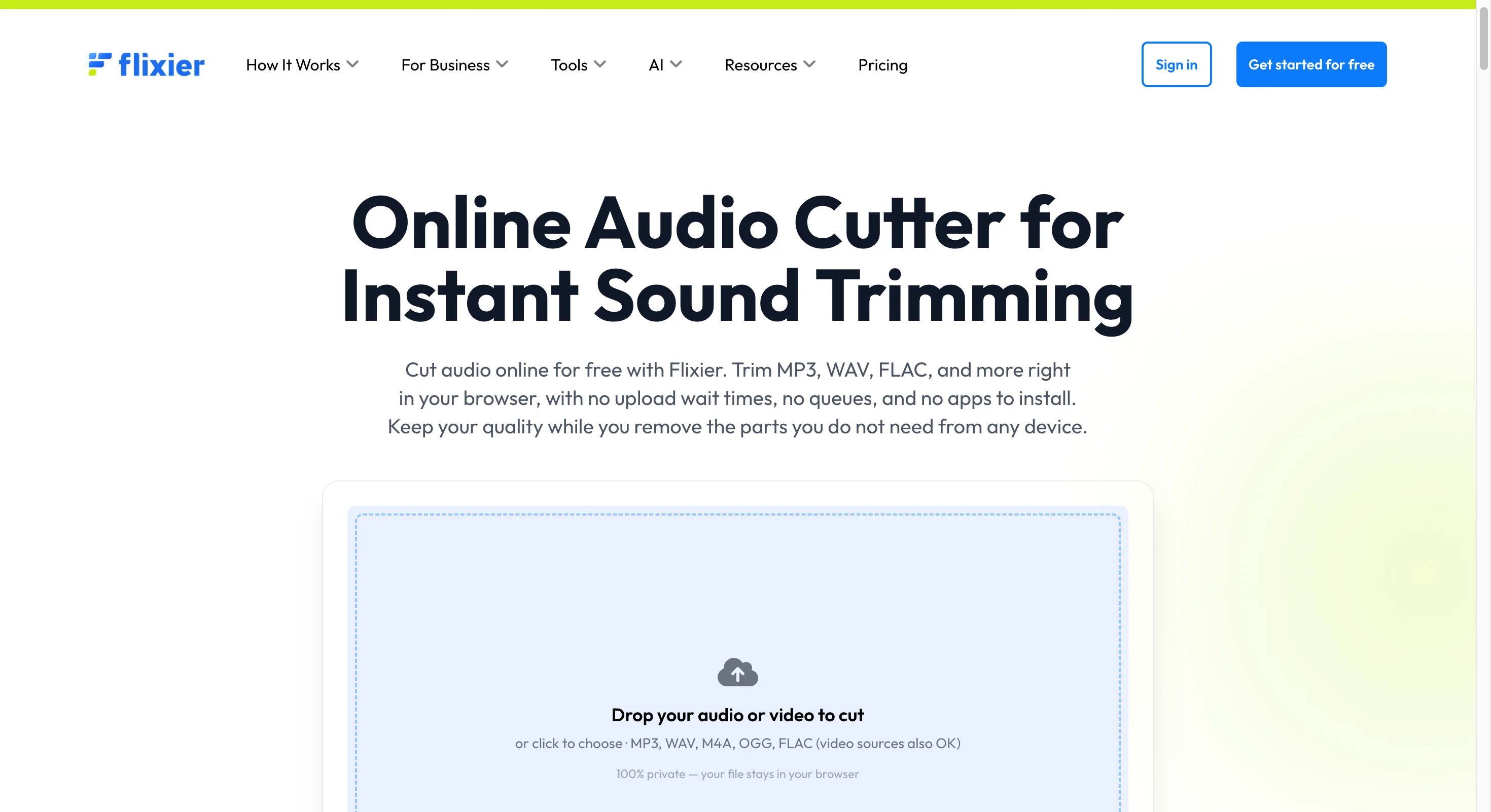
- Honest limitation: free tier exports WAV only, with minimal controls.
- Who it's NOT for: someone who needs MP3 out of the free tool or multi-track work.
- First-hand note: the slide UI is oddly satisfying for a quick trim — we just wished the free version gave us MP3.
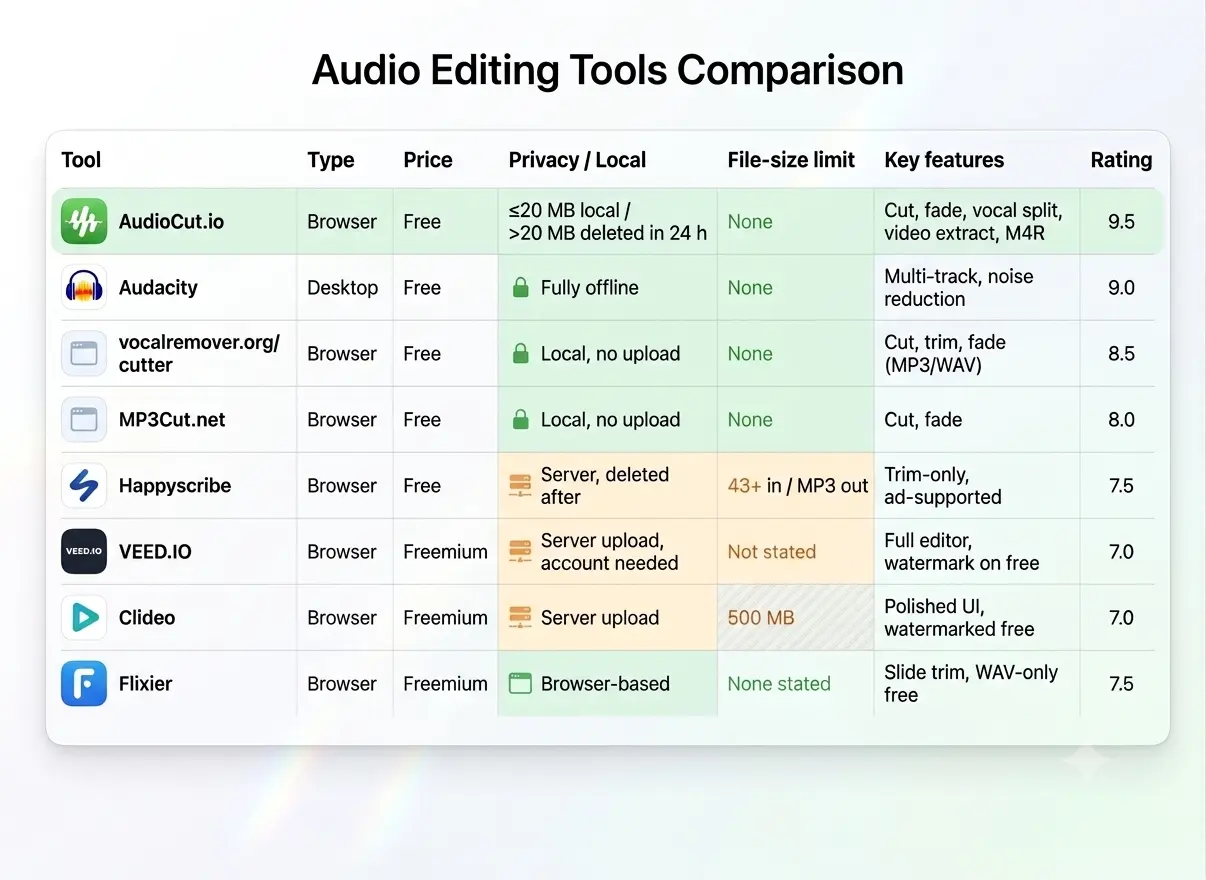
Comparison Table — 8 Tools at a Glance
A quick way to see where each tool stands. The two columns we cared about most: file-size limit and privacy handling.
| Tool | Type | Price | Privacy / Local | File-size limit | Key features | Rating |
|---|---|---|---|---|---|---|
| AudioCut.io | Browser | Free | ≤20 MB local / >20 MB deleted in 24 h | None | Cut, fade, vocal split, video extract, M4R | 9.5 |
| Audacity | Desktop | Free | Fully offline | None | Multi-track, noise reduction | 9.0 |
| vocalremover.org/cutter | Browser | Free | Local, no upload | None | Cut, trim, fade (MP3/WAV) | 8.5 |
| MP3Cut.net | Browser | Free | Local, no upload | None | Cut, fade | 8.0 |
| Happyscribe | Browser | Free | Server, deleted after | 43+ in / MP3 out | Trim-only, ad-supported | 7.5 |
| VEED.IO | Browser | Freemium | Server upload, account needed | Not stated | Full editor, watermark on free | 7.0 |
| Clideo | Browser | Freemium | Server upload | 500 MB | Polished UI, watermarked free | 7.0 |
| Flixier | Browser | Freemium | Browser-based | None stated | Slide trim, WAV-only free | 7.5 |
Notice the pattern: only AudioCut, Audacity, and the local pair skip size limits entirely. The upload-based tools all cap you — and Clideo stamps a watermark on top.
AudioCut.io Exclusive Capabilities
Most listicles stop at "cut and trim." AudioCut keeps going, and these three are reasons it ranks first — not repeats of what we already said.
AI Vocal Separation / Stem Splitter (Splitter AI)
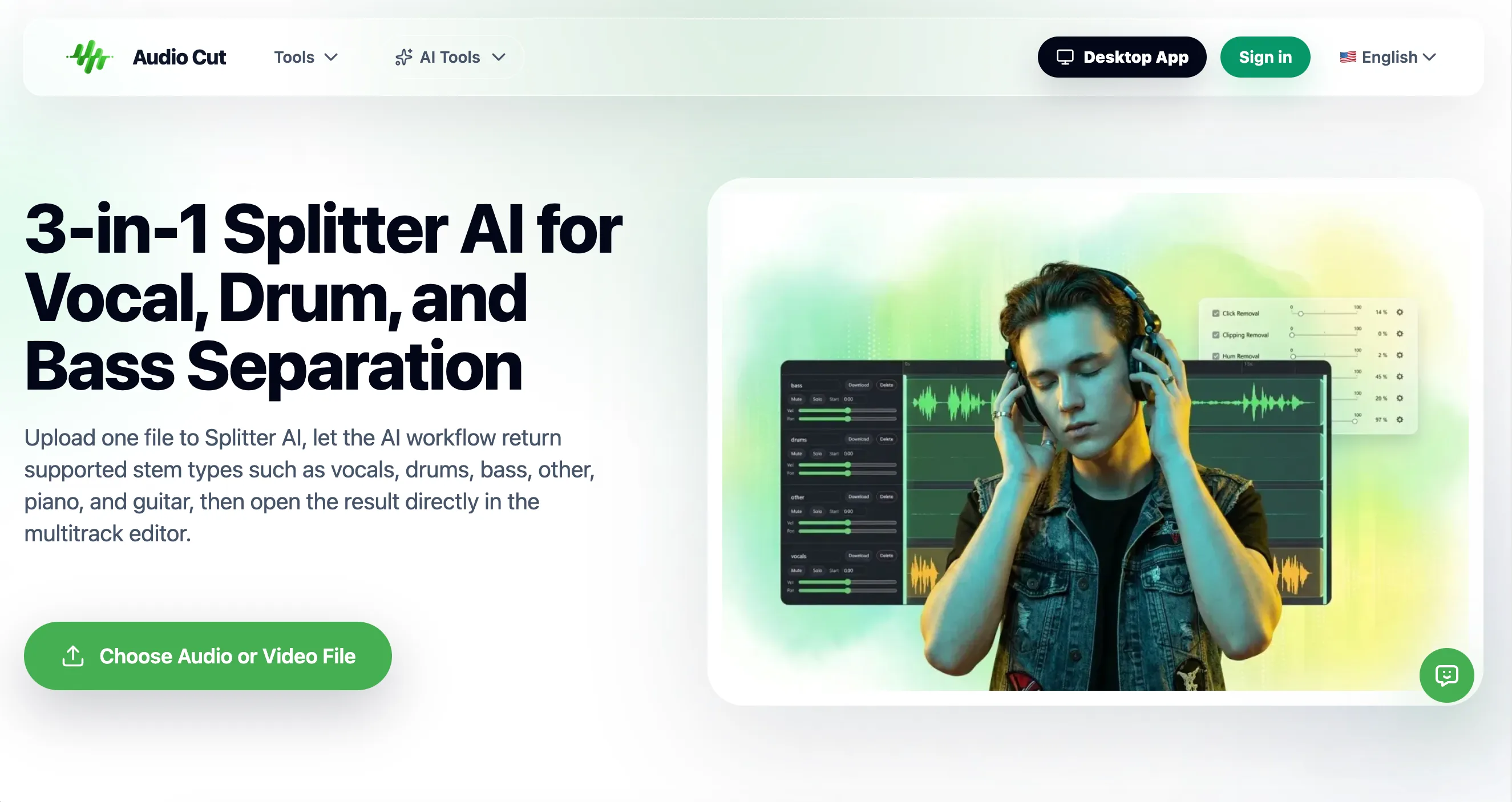
Drop in a song or a video and Splitter AI pulls the vocals, drums, and bass into separate tracks you can mute, trim, or remix. We've not seen another cutter listicle mention stem splitting at all. The vocal remover runs in the browser, free, no account.
Extract Audio from Video
Why bounce to a converter? Paste or upload a video and AudioCut pulls the audio track so you can trim it immediately. Handy for webinar recordings and interviews. The extract audio from video tool handles the lift in one tab.
Ringtone Maker (M4R for iPhone / M4A / MP3)
Slice a clip, set it to about 40 seconds — the iPhone convention per Ringtone norms — and export as M4R for native iPhone use, or M4A and MP3 for everything else. The ringtone maker previews the loop so you don't ship a cut that starts mid-word.
These aren't gimmicks. They're the jobs that usually send you hunting across three different sites.
How to Cut Audio Online (Step-by-Step, AudioCut)
Three steps, no install. Here's the actual flow we used.
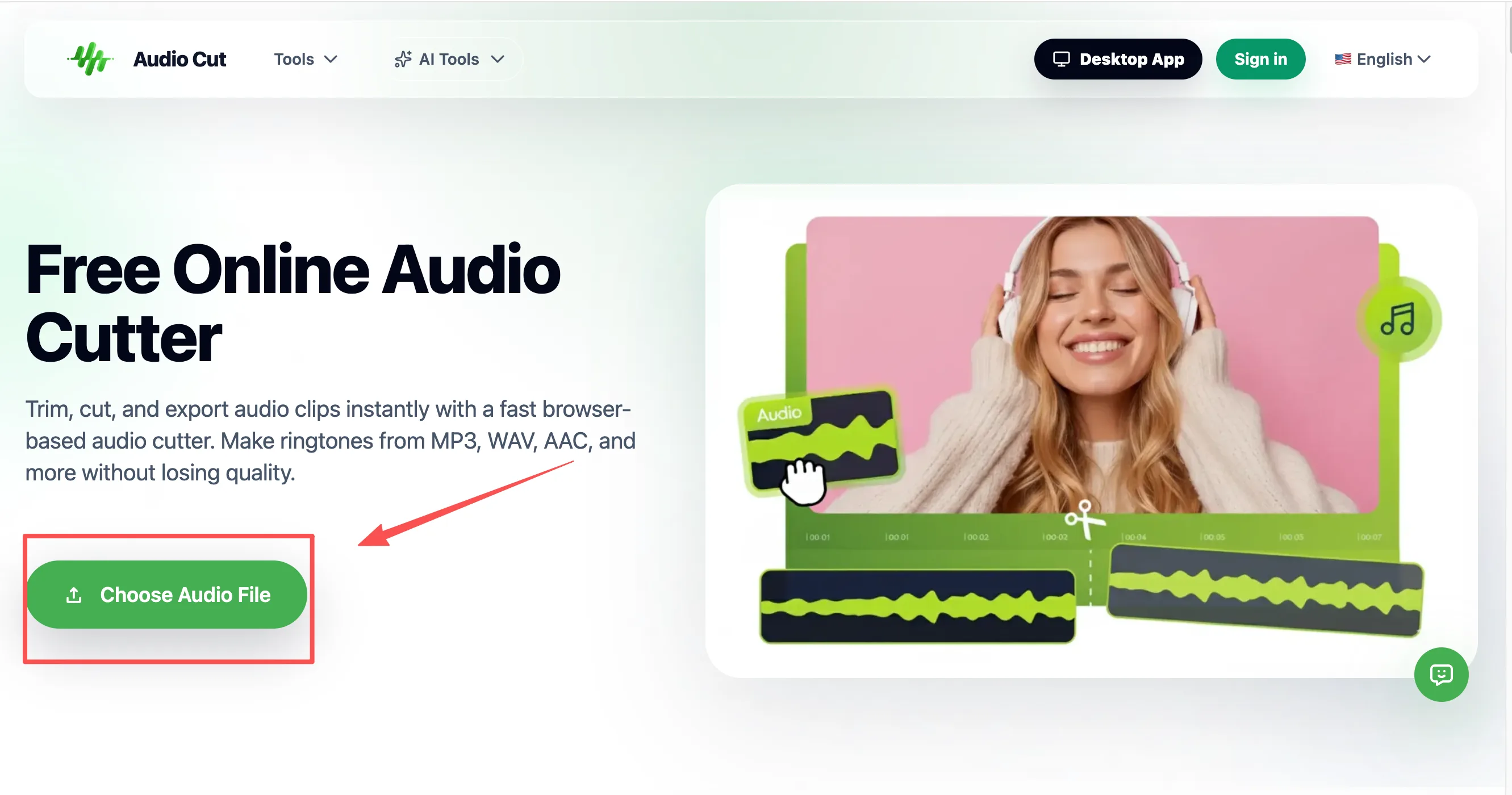
Step 1 — Open & upload
Go to AudioCut.io and drop in your file. Click the upload button or drag and drop your music file into the audio cutter. The editor supports popular formats for music, voice recordings, and ringtone clips.
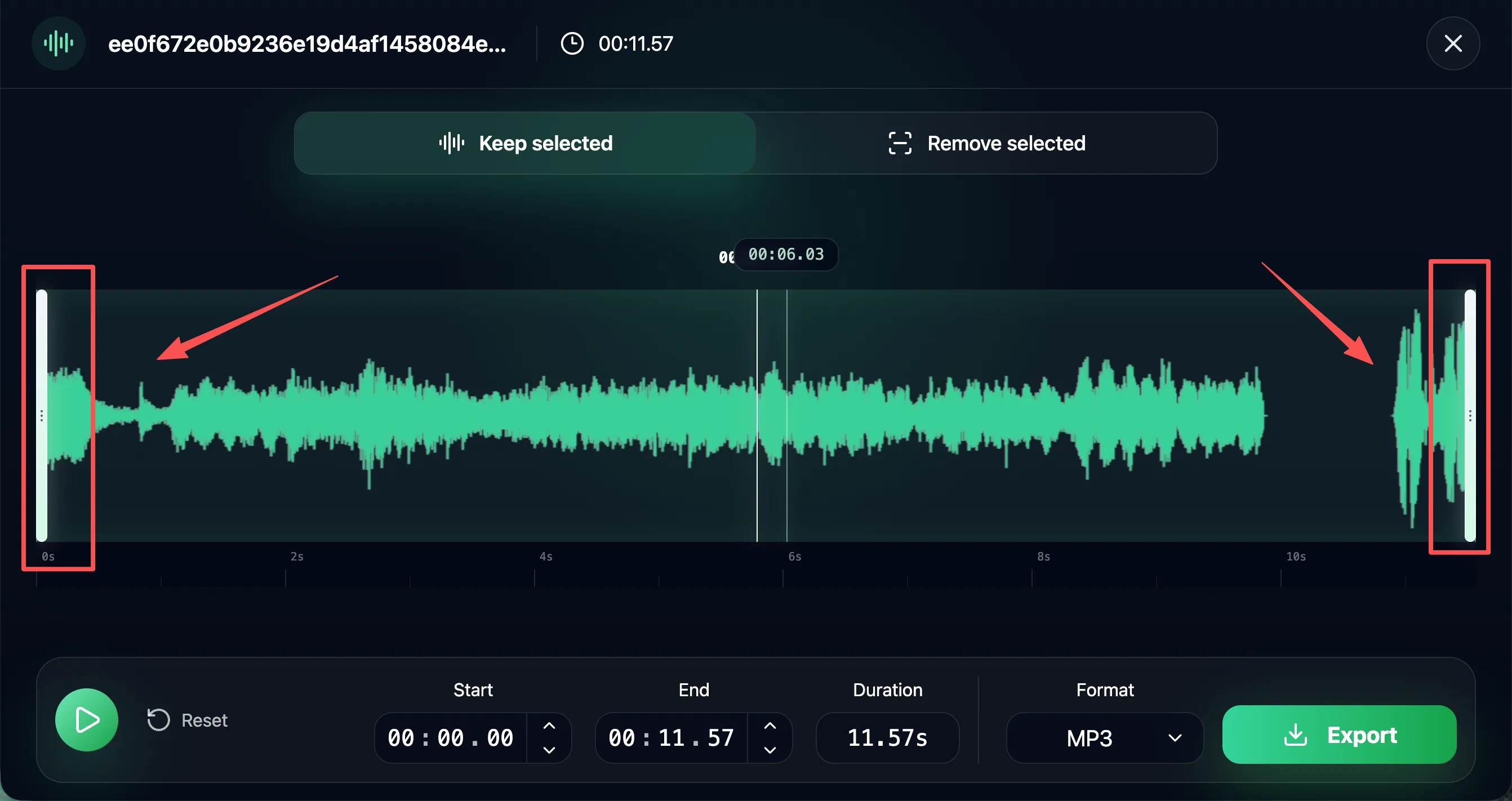
Step 2 — Select on the waveform
Drag the two handles to mark what stays. Zoom in for precise cuts, and add fade in/out so the edges don't click. Preview before you commit.
Step 3 — Export & download
Pick your format — MP3, WAV, AAC, FLAC, OGG, M4A, or M4R — and hit save. No watermark, no login.
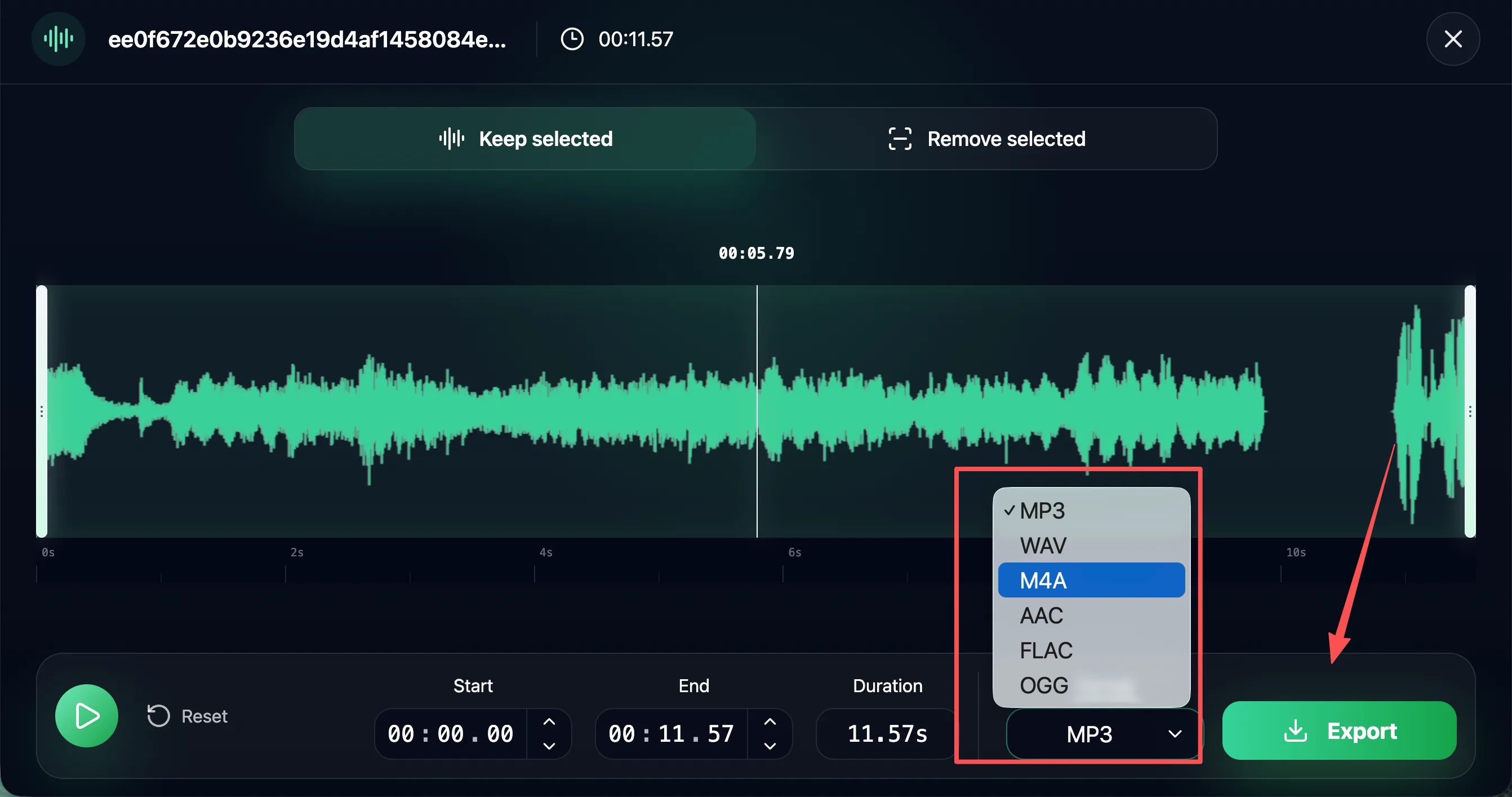
The whole thing took us under two minutes on a laptop and about three on a phone. Not bad for zero software.
Prefer to keep everything on your computer? The Audio Cut Desktop app runs the same three steps offline — no browser upload at all.
FAQ (People Also Ask)
Is it safe to cut audio online?
Mostly yes, with caveats. On AudioCut, small files are processed in your browser and never uploaded. Anything larger goes to a server over SSL and is auto-deleted within 24 hours — it is not stored permanently. If you want to skip uploads entirely, the downloadable Audio Cut Desktop app processes files locally on your computer. Server-only tools like VEED and Clideo keep your file on their side the whole time, so read their privacy notes.
Is AudioCut free? Does it add a watermark?
Yes, AudioCut is 100% free to use. Unlike other tools that add watermarks to your audio, AudioCut allows you to edit, trim, and export clean, high-quality audio files with zero watermarks and no hidden fees.
Can I cut audio on my phone?
Yes. AudioCut's interface is responsive on iPhone and Android, and vocalremover.org/cutter works in mobile browsers too. Long voice memos trim fine on a phone.
Can I cut audio without losing quality?
Export in the same format you imported — a WAV stays a WAV, an MP3 stays an MP3. That keeps the cut lossless at the codec level. Converting formats can shift quality, so match the output to the source.
What audio formats can I cut?
AudioCut handles MP3, WAV, AAC, FLAC, OGG, M4A, and M4R (iPhone ringtones). That spread covers podcast masters, music, and phone clips without a separate converter.
Verdict — Which One Should You Pick?
Match the tool to the job, not the hype.
- Want free, no account, any file size? AudioCut.io.
- Want a real desktop editor that's offline? Audacity.
- Want AudioCut's workflow but with local files and batch processing? Audio Cut Desktop.
- Want files to never touch a server? vocalremover.org/cutter.
- Want a ten-second WAV trim on the free tier? Flixier.
- Want a polished editor and don't mind signing up or a watermark? VEED.IO.
For iPhone ringtones, AudioCut's M4R export beats hunting through iTunes. For Windows or Mac trimming without installing anything, the browser tools win. Pick the one whose limitation you can live with — every tool on this list has one.