
8 Best Free Vocal Remover Tools in 2026
Every cover singer knows the drill: you hunt for a backing track online, and the "instrumental" sounds like it was recorded inside a drainpipe. Muffled, hollow, wrong. That was old phase-cancellation vocal removal — and it's why those tools have quietly disappeared.
Figure: Modern AI vocal removers separate any song into clean instrumental and vocal tracks
Table of Contents
- How to Choose a Vocal Remover
- The Tools, Reviewed
- Comparison Table
- Final Thoughts: Which AI Is Right for You?
- How to Remove Vocals from a Song Online for Free
- FAQ
- Conclusion
The 2026 generation runs AI source separation: neural networks that learn where the voice actually sits in a mix and lift it out. One upload, two clean files back — an instrumental for karaoke and practice, an acapella for remixes and study. A few tools split drums, bass, and guitar into their own stems as well.
We compared eight of them on price, file limits, audio-vs-video support, privacy, and editing. Need a free karaoke track before band practice tonight? Covered. Batch stems for a full remix project? Also covered. Bookmark this page — you'll want it open when it's time to pull vocals.
How to Choose a Vocal Remover
Before the list, here are the five things that actually separate these tools — and the ones worth checking before you upload a file.
Price and limits. "Free" means different things. Some tools here are free with no cap at all. Others hand you ten minutes or three trial runs, then a paywall. Separate one song a month? Who cares. Process tracks weekly? The cap will bite you long before the sticker price does.
Audio vs. video. Most vocal removers take audio files only. Stripping voice from an MP4 — a wedding video, a recorded lecture, gameplay footage — is a different feature, and fewer tools do it cleanly. Check before you upload.
Stem quality. Basic tools give you two outputs: vocals and everything else. Pro tools isolate drums, bass, piano, guitar individually. Unless you're actually remixing, two stems is enough. Don't pay for stems you won't touch.
Privacy. A few tools run the separation entirely inside your browser; the audio never leaves your machine. The rest upload to a server somewhere. For an unreleased demo or client material, that difference is the whole ballgame.
Editing after separation. Some tools hand you two files and wave goodbye. Others — AudioCut, mp3cut.net — keep you in a trim/fade/volume editor so the job finishes in one tab instead of three.
Comparison Table
| Tool | Price | Max file | Audio + Video | Account | Standout feature | Best for |
|---|---|---|---|---|---|---|
| AudioCut Vocal Remover | Free, unlimited | No limit | Both | None | Browser multitrack editor | Karaoke & quick edits, no signup |
| vocalremover.org | Free | Not stated | Audio | None stated | ~10-second processing | Instant karaoke |
| LALAL.AI | Free $0 / Paid $7.5–15/mo | 200MB free / 2GB paid | Both | Yes (paid) | Transformer stem splitter (drums, bass…) | Pro stems & batch |
| RemoveVocals.ai | Free, unlimited | 500MB | Audio | None | Local browser processing (private) | Privacy-first users |
| vocalremover.com | Free trial | Not stated | Audio | None | Lossless, "made for professionals" | Quick clean splits |
| Wondershare UniConverter | Paid (trial 3 uses) | 50MB online | Both | Yes (app) | Desktop batch + video | Video & bulk workflows |
| Canva Vocal Remover | Free / Pro (account) | Not stated | Both (in editor) | Yes | Built into design suite | Canva users |
| mp3cut.net Vocal Remover | Free | Not stated | Both | None | Video voice removal + editor | Casual video/audio |
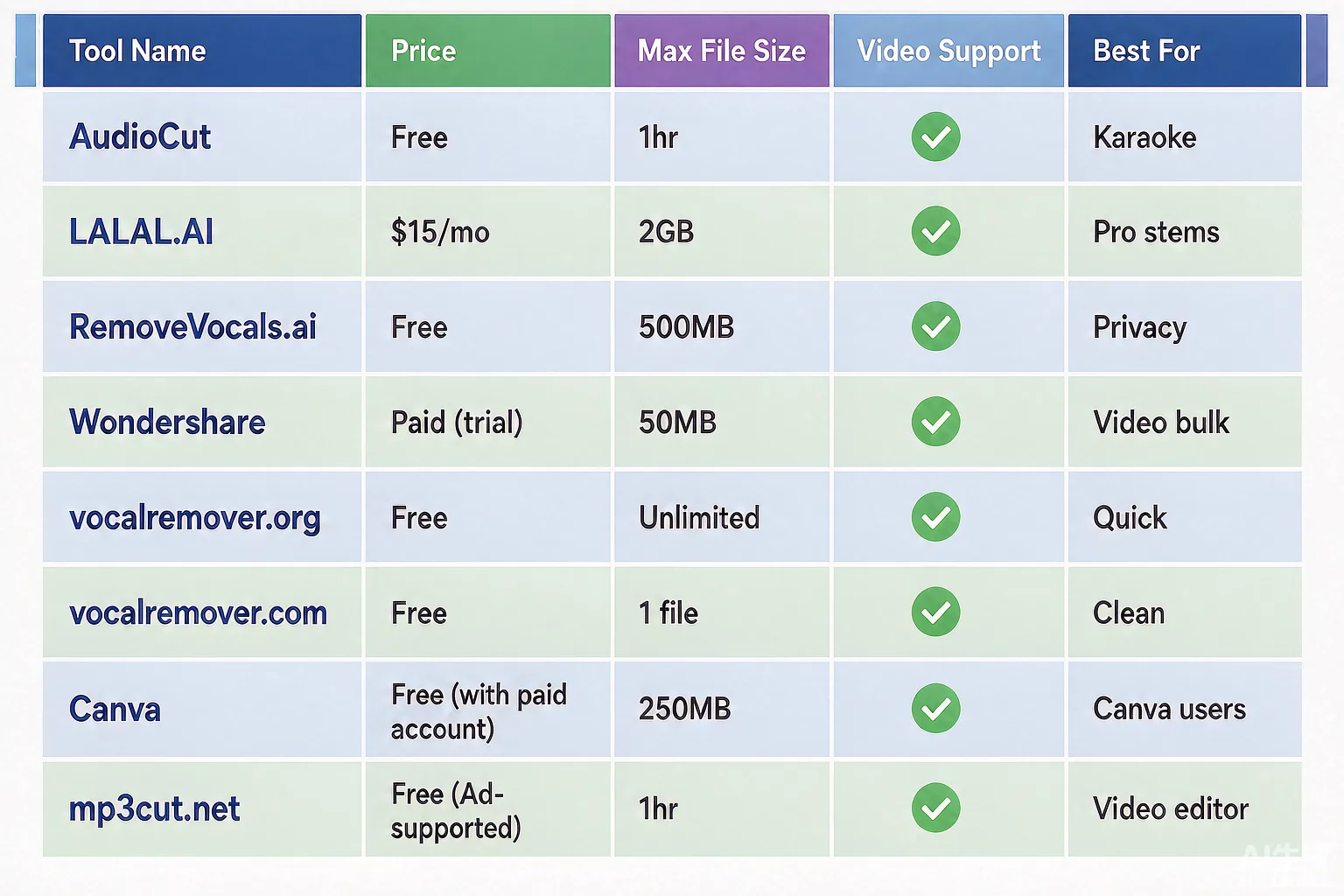
Figure: Side-by-side comparison of 8 vocal remover tools — free options, pro stem splitters, and privacy-focused choices
The Tools, Reviewed
1. AudioCut Vocal Remover — best free all-rounder
AudioCut's vocal remover is free with no usage cap and no account — you open the page and start. Upload a song, the AI splits it into a vocal track and an instrumental track, and both land in a browser-based multitrack editor. From there you can trim, reposition, mute or solo either track, drop in your own recording, and export a single mixed file. No install. A full one-hour DJ set? It takes that too. Try it free
- Pros: Unlimited free uses, zero signup, built-in editor, audio and video input, no file-size cap.
- Cons: Results, like all AI, aren't perfect on heavily layered mixes.
- Best for: Karaoke, vocal practice, and quick remix drafts where you want to finish in one tab.
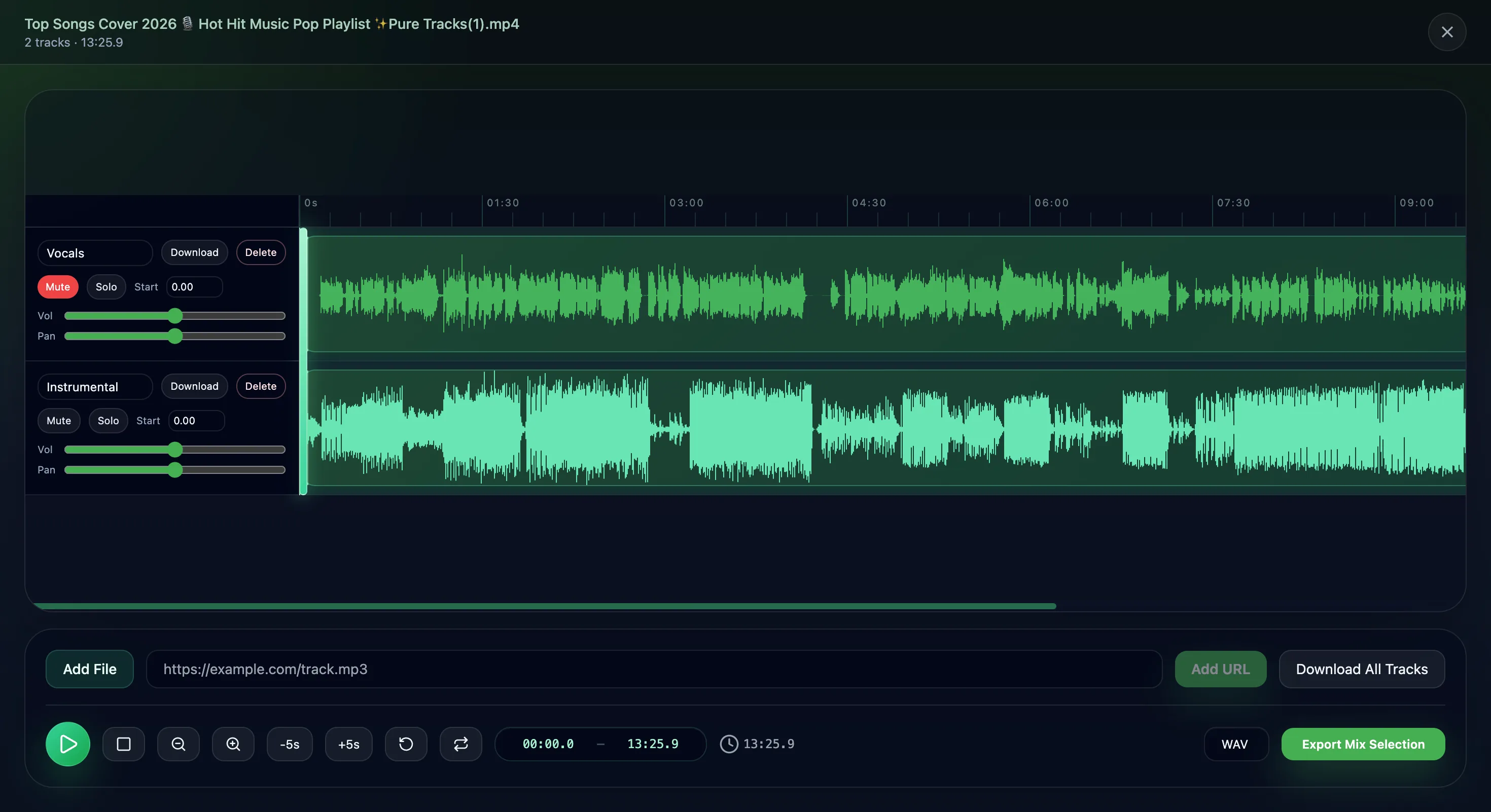
Figure: AudioCut's editor shows separated vocal (green) and instrumental (light green) waveforms with mute/solo/download controls
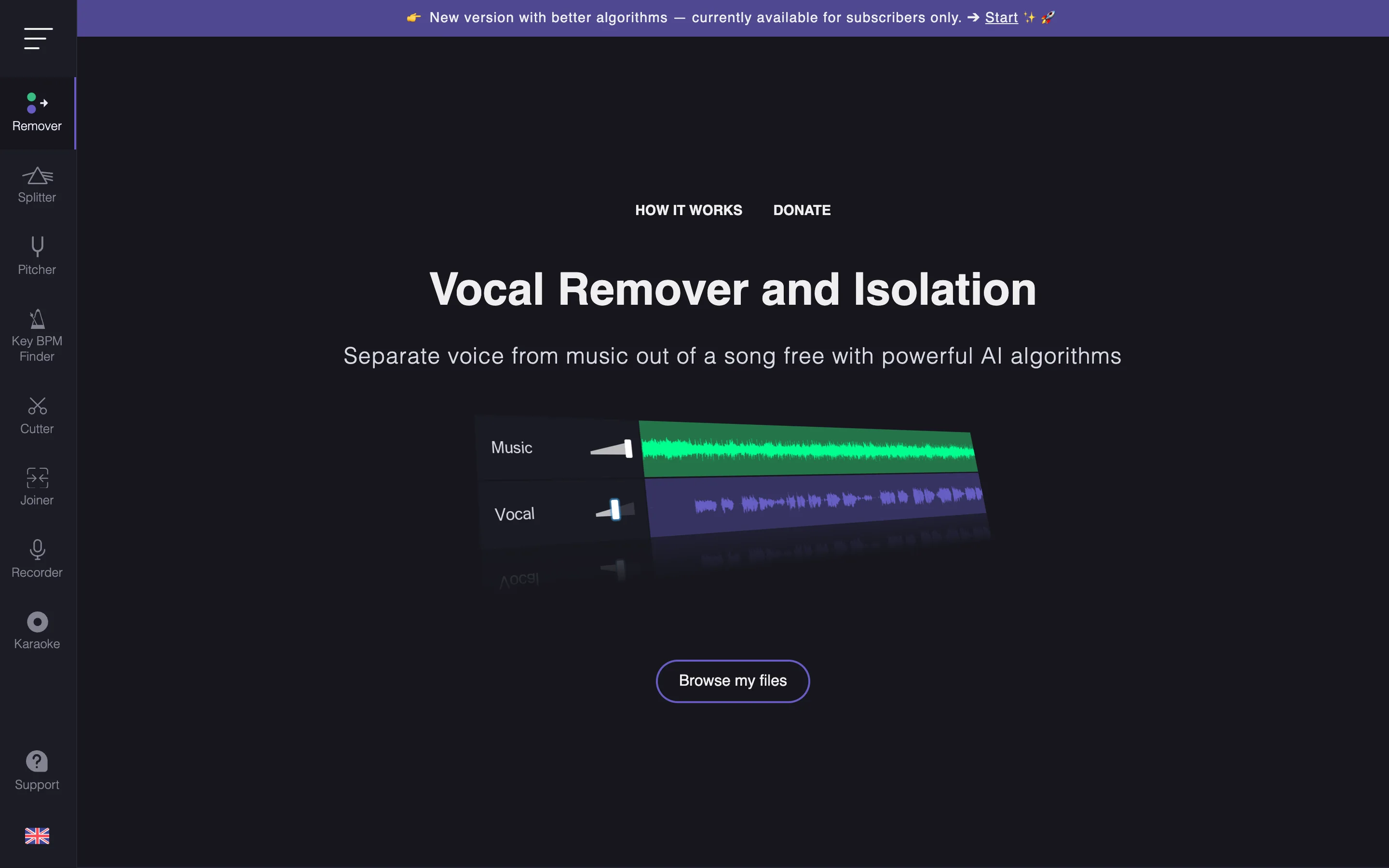
2. vocalremover.org — fastest for a quick karaoke track
This is the minimalist option. Upload a song, wait about ten seconds, and you get a karaoke version plus an acapella — no account needed for basic use. No editor to learn, no settings to tweak. If you need the instrumental for tonight's practice and nothing else, this is the shortest path from song to backing track.
- Pros: Extremely fast, dead simple, free.
- Cons: Few details on file limits or editing; audio-focused.
- Best for: Someone who just wants the instrumental now.
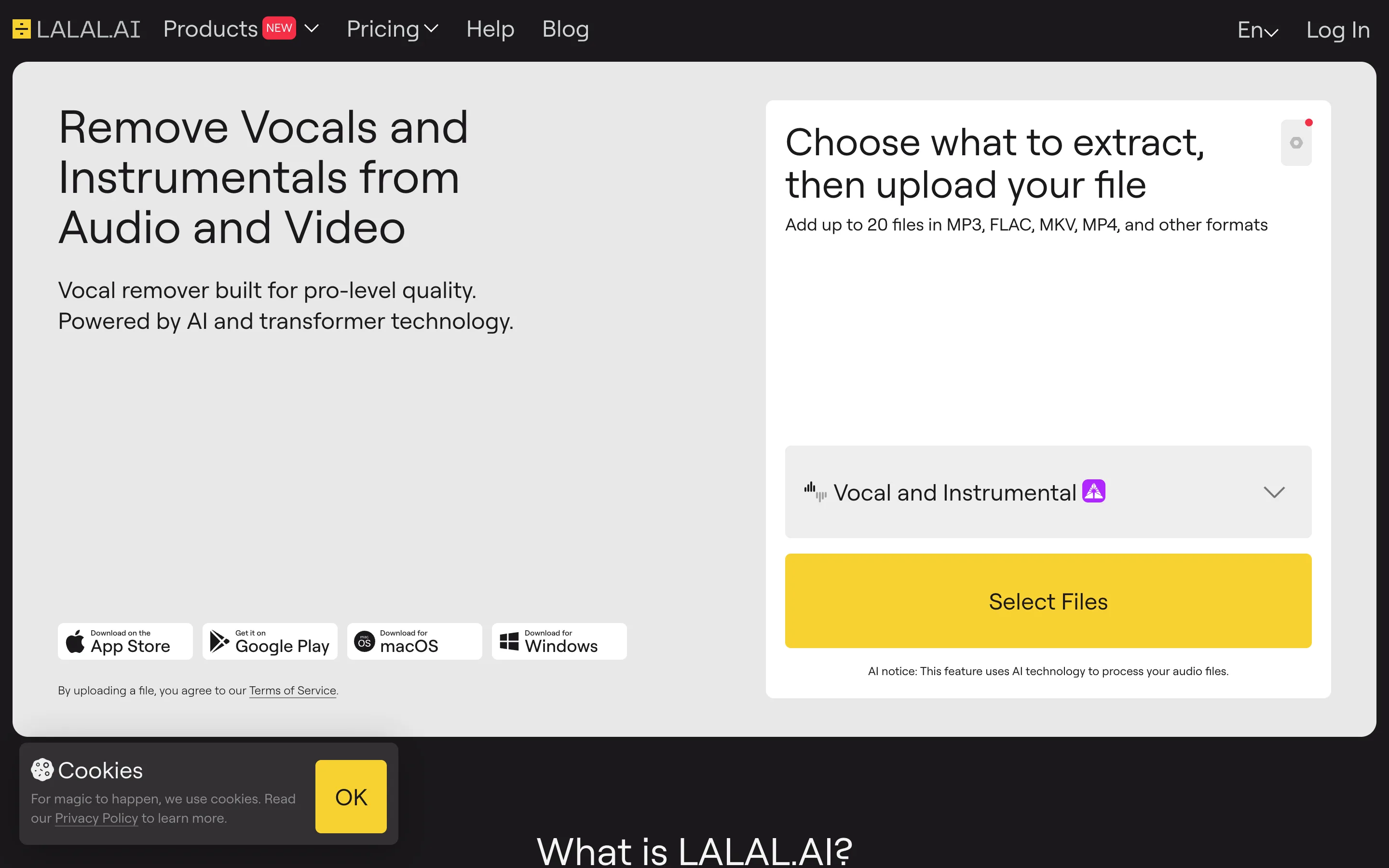
3. LALAL.AI — best for pro stems and batch work
LALAL.AI built its name on vocal removal and grew into a full stem-splitting suite. The free Starter tier covers 10 minutes of processing at a 200MB cap — enough to test one song properly. Paid plans run $7.5/mo (Lite) to $15/mo (Pro) with more minutes, batch processing, a VST plugin, and API access. Its sixth-generation Transformer engine separates not just vocals and music but drums, bass, guitar, piano, and more — which matters when you're pulling a drum loop out of a track, not just killing the voice.
- Pros: Best-in-class stem separation, audio + video formats, batch up to 20 files, desktop apps.
- Cons: Free tier is small; paid plans add up if you process constantly.
- Best for: Producers and DJs who need individual instrument stems or high volume.
4. RemoveVocals.ai — best for privacy
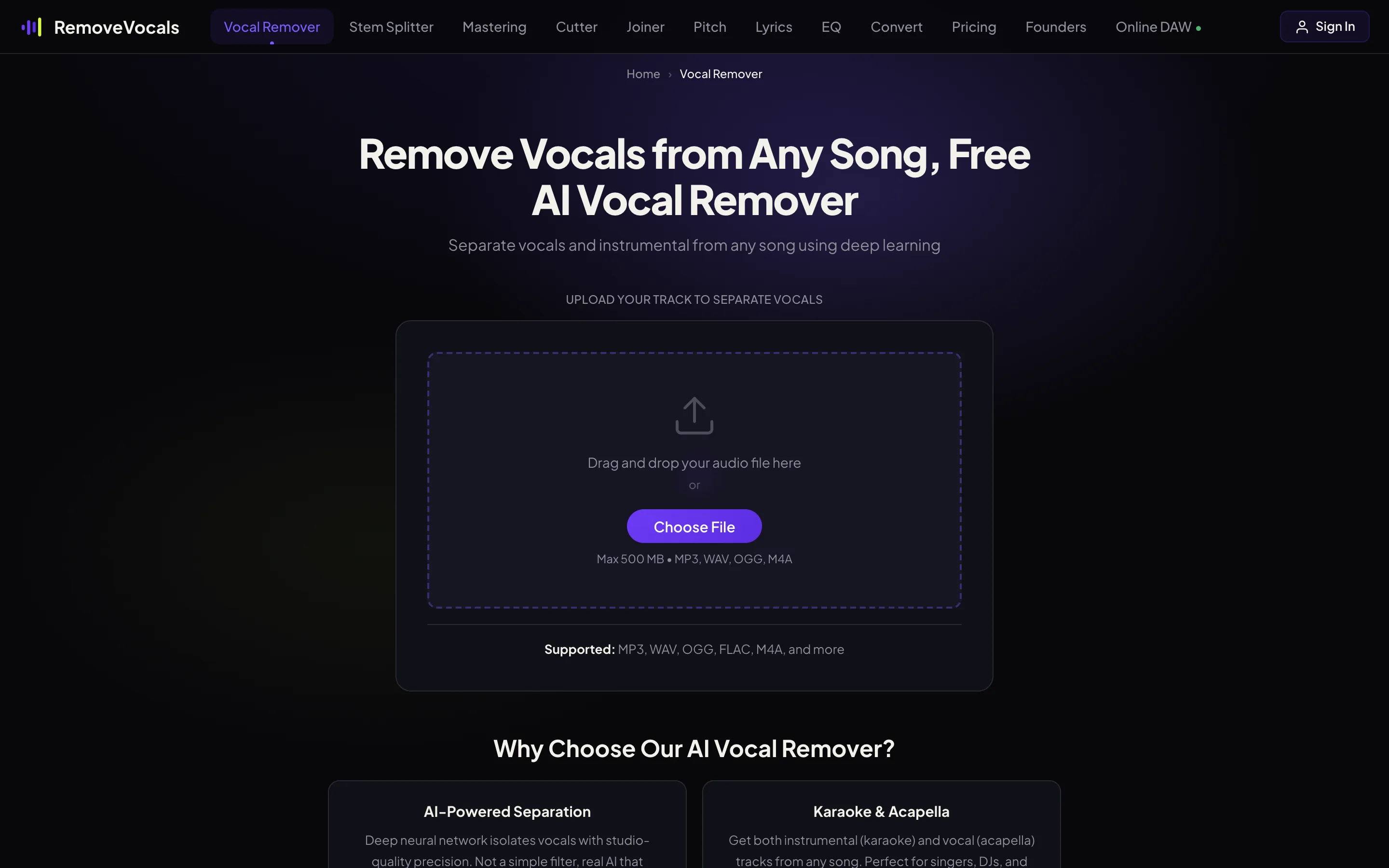
RemoveVocals.ai runs the whole separation locally in your browser. Your audio never touches a server — rare, and genuinely useful when the file is an unreleased demo or a client's rough mix. It's free, unlimited, watermark-free, handles files up to 500MB (MP3, WAV, OGG, FLAC, M4A), and finishes a typical song in 30–60 seconds. The catch: it downloads a 67MB model first, and speed depends on your machine.
- Pros: Local processing, unlimited free, no signup, large file limit.
- Cons: Audio only; depends on your device's speed.
- Best for: Anyone who doesn't want their tracks uploaded anywhere.
5. vocalremover.com — clean splits, no friction
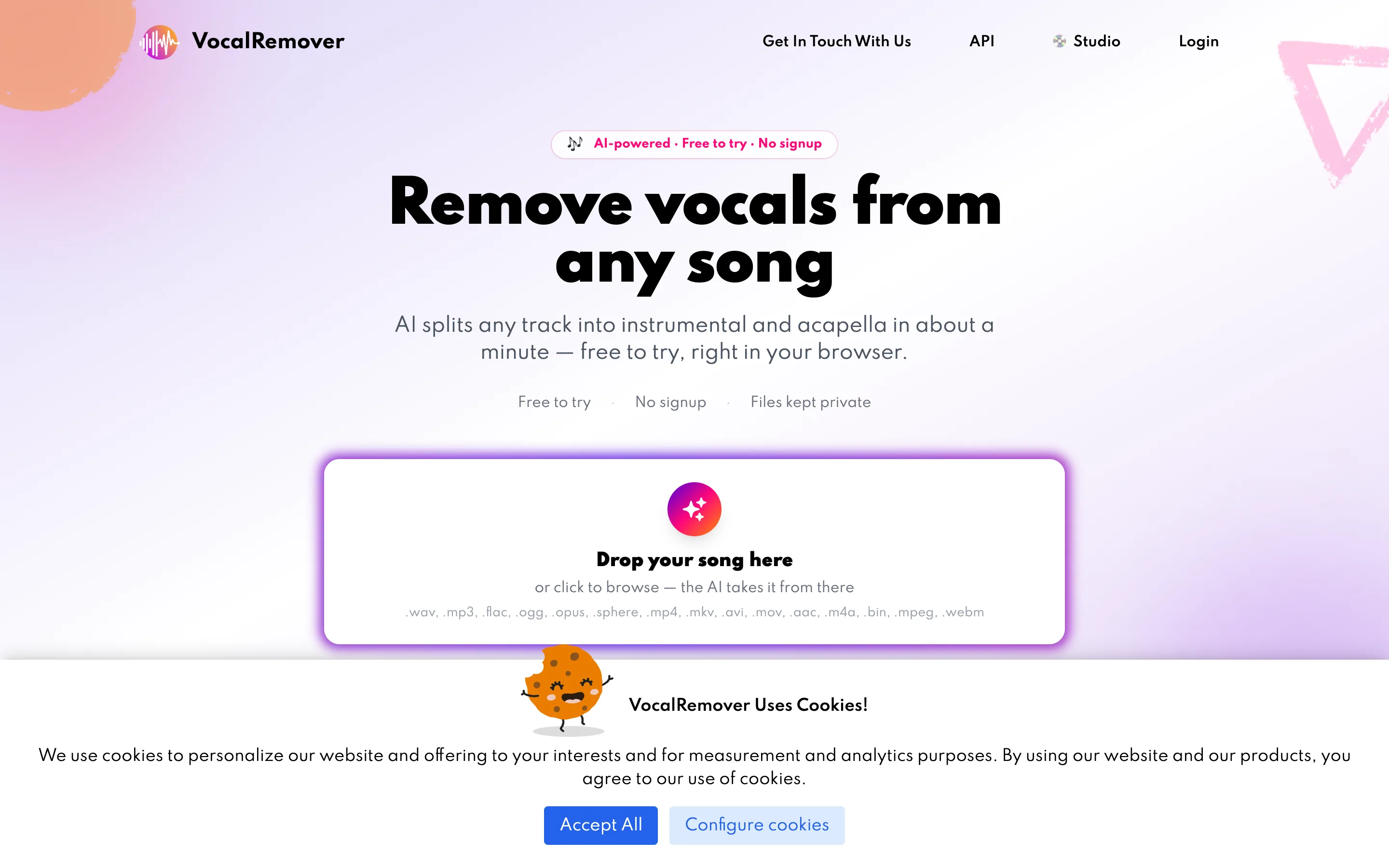
A free-to-try tool with no signup. Upload, wait roughly a minute, and out come an instrumental and an acapella — the site emphasizes lossless output and pitches itself at professionals. What "try" costs after the trial isn't spelled out anywhere obvious, so treat it as a taste test.
- Pros: No account, lossless claim, quick.
- Cons: Trial limits aren't spelled out; audio-focused.
- Best for: A straightforward, no-strings split.
6. Wondershare UniConverter — best for video and bulk
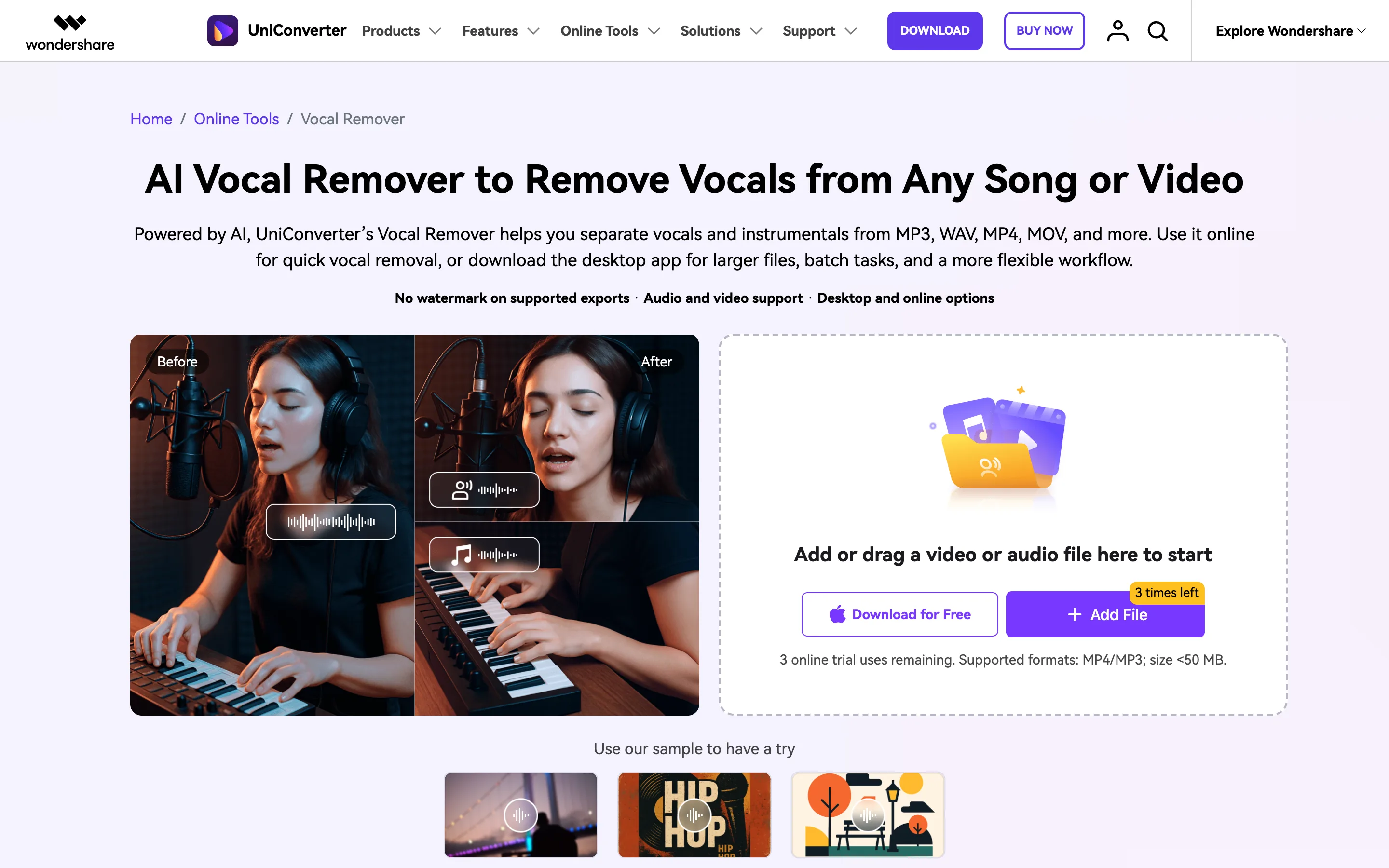
UniConverter is a desktop app with an online vocal remover bolted on. The online version is a trial: three uses, files under 50MB, MP4/MP3 only. The paid desktop app is where it earns its keep — larger files, batch jobs, offline processing across MP3, WAV, M4A, FLAC, and video formats including MP4, MOV, MKV, and AVI. If you're pulling voice out of a stack of MP4s, this is the assembly-line option.
- Pros: Video support, batch processing, watermark-free exports.
- Cons: Real use needs the paid desktop app; online trial is thin.
- Best for: Video editors and anyone processing many files at once.
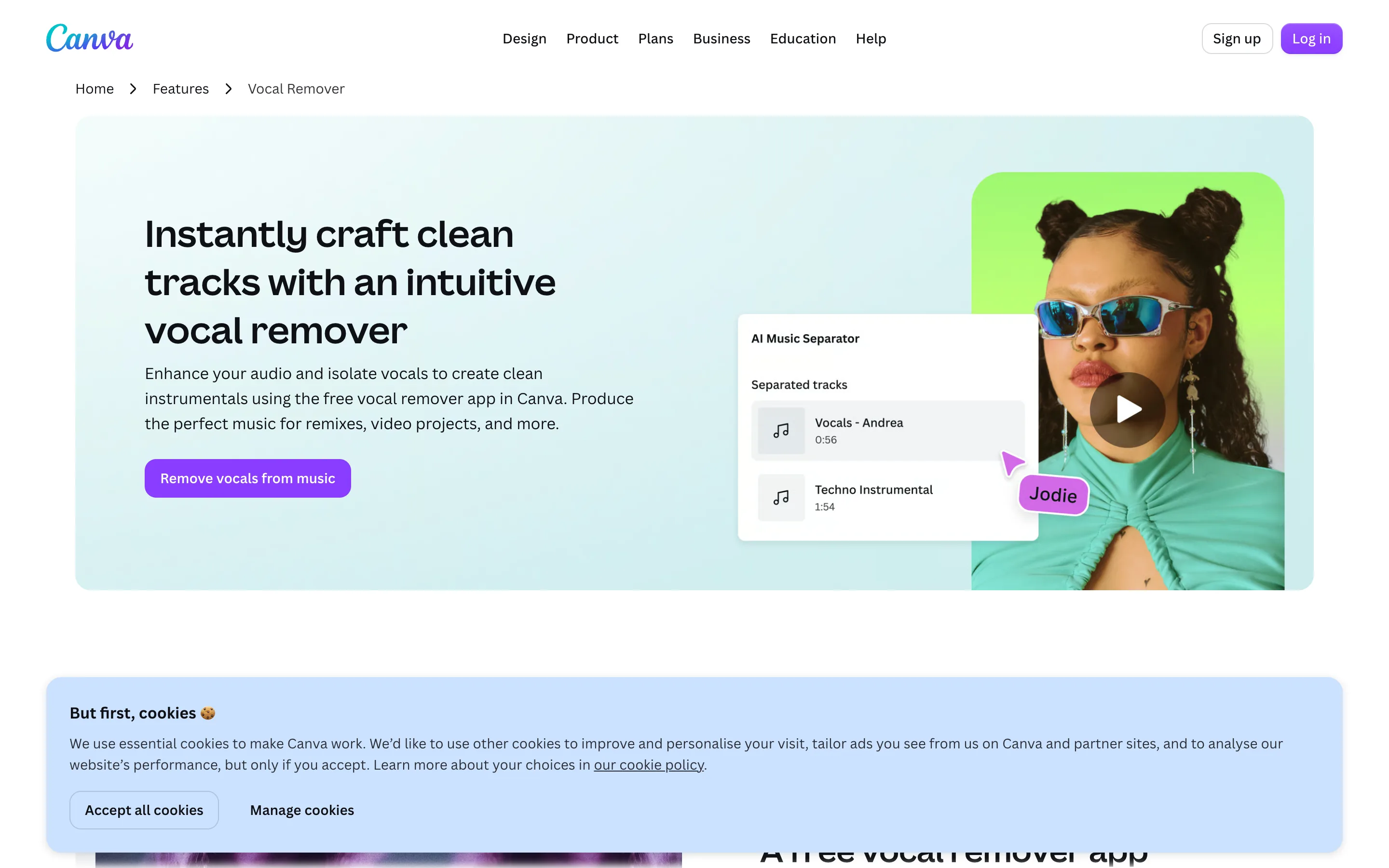
7. Canva Vocal Remover — best if you already live in Canva
Canva's vocal remover is a feature inside its design and video editor, not a standalone tool. You'll need a Canva account (free or Pro). If your video is already sitting in a Canva project, isolating the voice without leaving the app is genuinely convenient. If it isn't, signing up just for this is a detour.
- Pros: Familiar interface, built into a tool you may use already.
- Cons: Not built for bulk or pro stem work; requires an account.
- Best for: Casual creators editing in Canva who need a one-off separation.
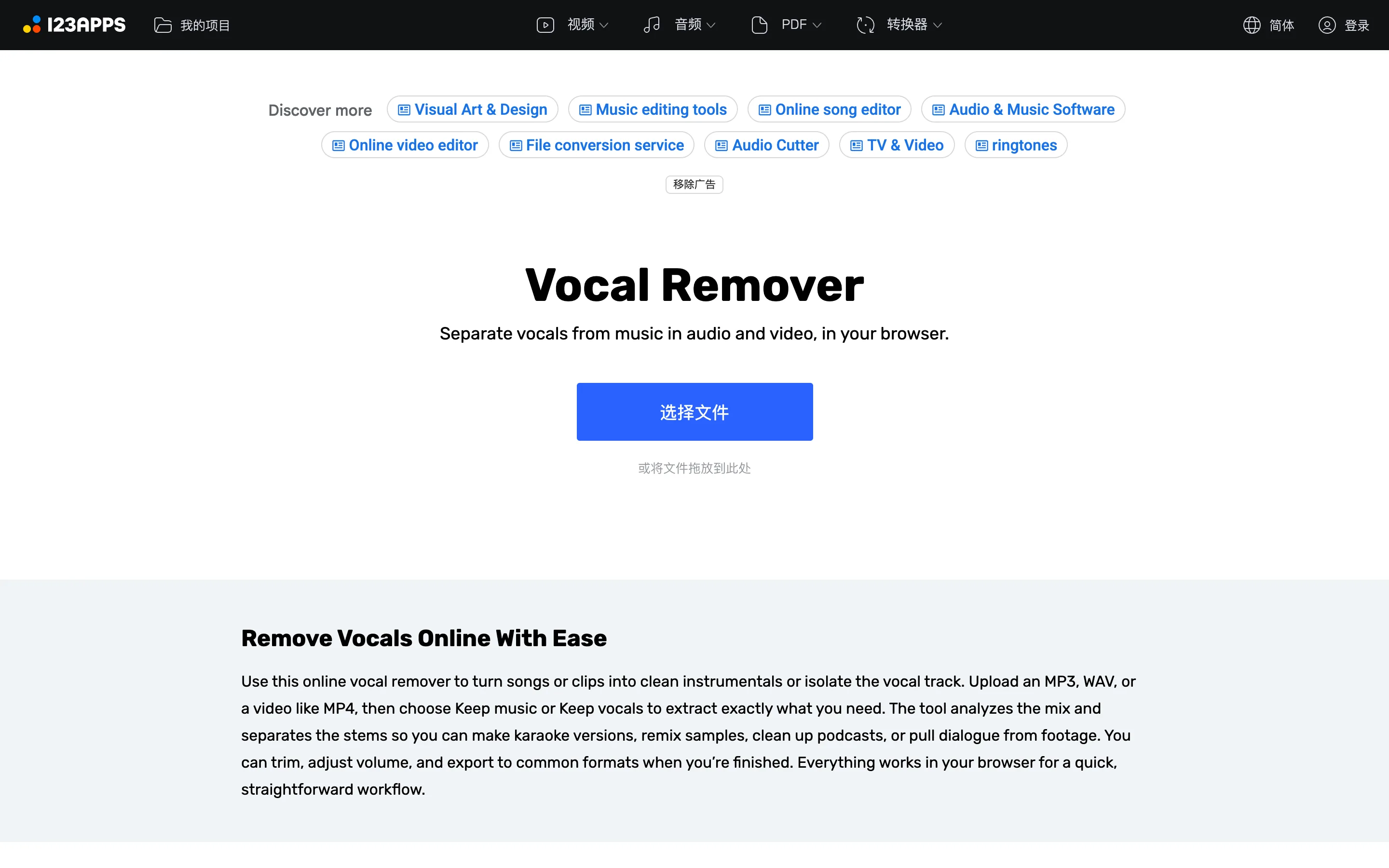
8. mp3cut.net Vocal Remover — best lightweight editor for video voice
A free, browser-based tool with a Chinese-language interface that takes both audio and video. You toggle "Keep music" (instrumental) or "Keep vocals" (acapella), and it can strip voice from a video while keeping the soundtrack. The built-in editor is small but real — trim, fades, speed, pitch, EQ, noise cleanup — and exports reach MP3 at 320 kbps.
- Pros: Video voice removal, free, handy editing extras.
- Cons: UI is Chinese; lighter on pro features.
- Best for: Casual video and audio projects where you want basic cleanup too.
Final Thoughts: Which AI Is Right for You?
Choosing the right vocal remover depends entirely on your production ecosystem:
If you want zero friction and maximum speed: Web-based tools skip local hardware entirely. AudioCut gives you a fast, browser-based splitter workspace — 100% free, no install, no file-size limit. Upload a song before dinner; the karaoke track is done before the dishwasher is. And once the stems are out, you're already inside a full audio editor — trim the intro, fade the ends, balance the levels, then export. No jumping to another app to finish the track.
If you need pro stems and batch work: LALAL.AI's Transformer engine isolates individual instruments (drums, bass, guitar, piano) and queues up to 20 files at once. For high-volume producers and DJs, that's what the subscription is for.
If privacy matters most: RemoveVocals.ai runs everything locally in your browser. Your audio never leaves the device — the right call for client or unreleased material.
If you're stripping voice from video: Wondershare UniConverter and mp3cut.net pull vocals out of MP4 or MOV while keeping the soundtrack. Already editing in Canva? Its built-in separator saves you an export-import round trip.
If you just want the instrumental right now: vocalremover.org and vocalremover.com turn a song into a karaoke track in about a minute. No fuss, no account.
How to Remove Vocals from a Song Online for Free
Use the free vocal remover to upload one song, create two separate tracks with AI, then edit and export the result from the same browser workspace.
Upload and Separate Your Song
Choose an audio file up to 1 hour long. The AI vocal remover processes it and returns separate vocal and instrumental tracks.
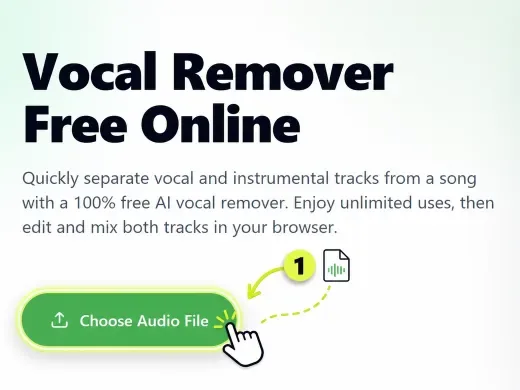
Figure: Click "Choose Audio File" to upload any song up to 1 hour — no signup required
Edit and Mix Your Tracks
Preview both tracks, trim or reposition them, mute or solo either one, and add your own audio to build the arrangement you want.
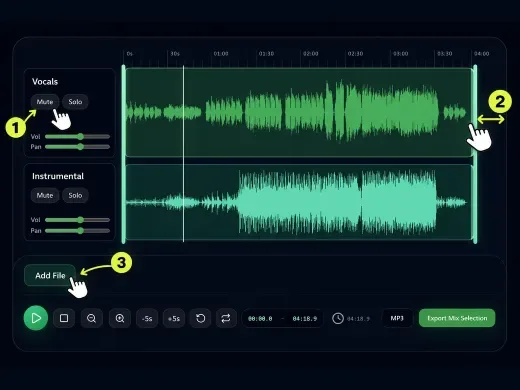
Figure: The browser-based editor lets you mute/solo each track, adjust volume, and preview in real time
Export Your Tracks or Mix
Download the vocal or instrumental track individually, or export the current arrangement as a single mixed audio file.
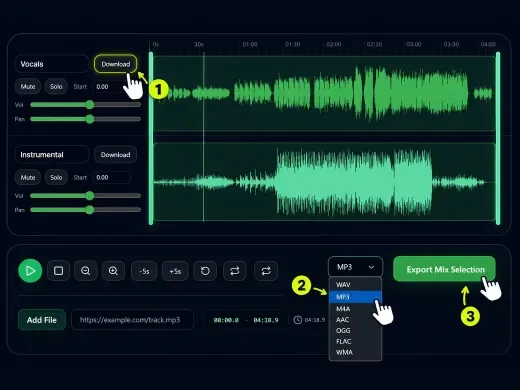
Figure: Export as MP3, WAV, AAC, OGG, FLAC, or WMA — or download each stem separately
One pass, both outputs. Most tools hand you the karaoke and the acapella together, so you don't have to pick a side before you hear the results.
Conclusion
There's no single winner here — the "best" vocal remover is the one that matches the job in front of you. A free karaoke track with no signup and a built-in editor? Start with AudioCut's vocal remover — and keep working there: cut, merge, or convert the stems, set the level, all in the same tab. Pro stems and batch video work? LALAL.AI and UniConverter earn their price. Sensitive material? RemoveVocals.ai keeps it on your device.
One thing is settled, at least: the tin-can sound of phase-inversion karaoke is gone for good.
FAQ
Frequently Asked Questions
Q1: What is the best free vocal remover in 2026?
AudioCut Vocal Remover and RemoveVocals.ai are both free with no usage cap and no account. AudioCut adds a browser multitrack editor; RemoveVocals.ai processes locally for privacy. vocalremover.org is the fastest for a one-off karaoke track.
Q2: Can a vocal remover fully remove vocals from any song?
Rarely 100%. Studio mixes separate cleanly. Heavy reverb, dense harmonies, or instruments sitting in the vocal range can leave faint traces behind — a lot depends on how the track was originally mixed.
Q3: Do vocal removers work on video files?
Yes — several do, and AudioCut leads the free options here. It accepts video uploads (MP4, MOV, and more) and strips the voice while keeping the soundtrack, all in the same browser workspace — no separate converter needed. LALAL.AI, Wondershare UniConverter, Canva, and mp3cut.net also handle video input. vocalremover.org stays audio-only.
Q4: Is it legal to remove vocals from a song?
It depends on what you do with the result. Personal practice, karaoke, and study are generally fine. Redistributing, selling, or publicly performing the separated tracks can infringe copyright, so check the rights for your use case.
Q5: What's the difference between AI vocal removal and phase cancellation?
Phase cancellation inverts the vocal channel and cancels centered vocals, which leaves a hollow, tinny sound and fails on most modern mixes. AI source separation learns the voice's frequency pattern and reconstructs clean stems, so the instrumental stays fuller and clearer.
Q6: Can you edit the audio while removing vocals?
Yes — with AudioCut. Once the split finishes, you're already inside its audio editor: trim the intro, merge clips, adjust levels, or convert the format, all without leaving the tab. Most other tools hand you two files and stop there, so you'd jump to a separate app to finish the track.