
Free Online Audio Converter
Upload an MP3, WAV, AAC, FLAC, M4A, or OGG file and convert it to another format in a few clicks — free, with no configured file size limit and adjustable output quality.
WHY PEOPLE CHOOSE IT
Why Choose AudioCut as Your Audio Converter & MP3 Converter?
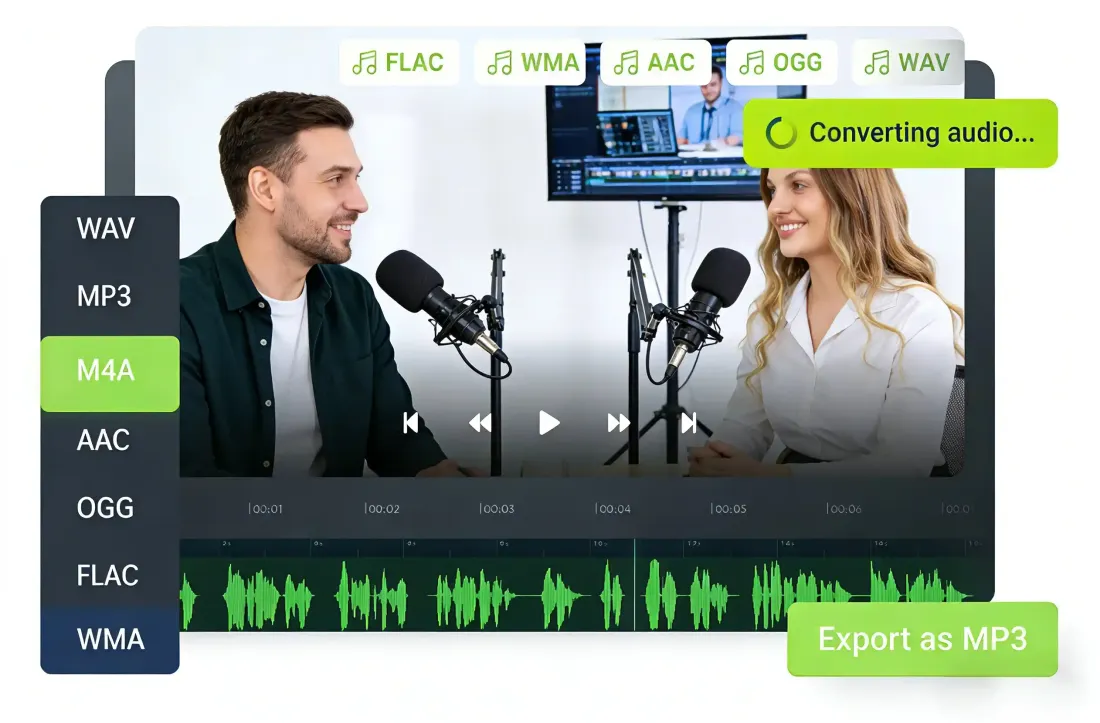
A free audio converter and MP3 converter in one browser-based workspace — switch formats, adjust output quality, preview before export, and keep your source file on your device. No installs and no configured file size limit.
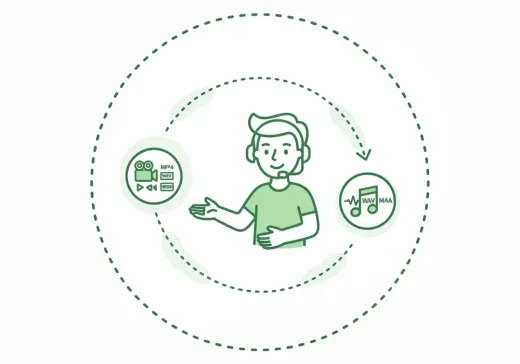
Convert Between Popular Formats
Switch between MP3, WAV, AAC, FLAC, M4A, OGG, and WMA in one workspace — no separate MP3 converter or audio converter for each direction.
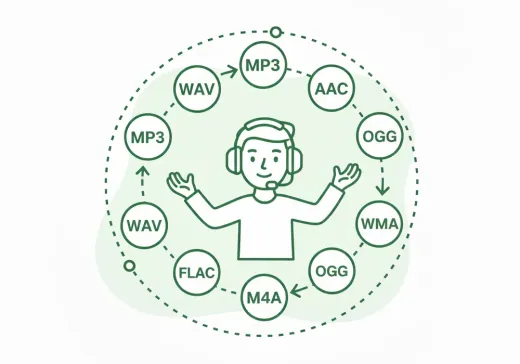
Privacy-First Processing
Your source file is processed locally in the browser instead of being uploaded for conversion. Practical file size and speed depend on your browser, available device memory, source codec, and audio duration.
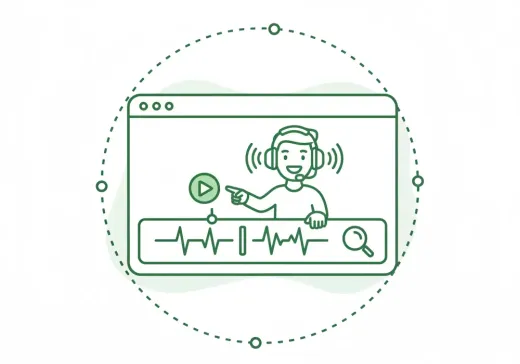
Adjustable Quality
Choose an output quality preset that fits the job. MP3 supports 128, 192, or 320 kbps, while other lossy formats provide format-appropriate quality settings.
Preview Before Export
Scrub the waveform and listen before you download, so you only export the audio you actually need.
Free MP3 Converter, No Configured Size Limit
Use it as a free MP3 converter for podcasts, music, or recordings. AudioCut does not set a file size cap, though browser and device resources determine the practical limit.
One Workspace, More Tools
Continue with AudioCut tools to trim, merge, or compress audio after you finish converting — no desktop app required.
HOW IT WORKS
How to Use the Audio Converter Online
A simple three-step audio converter flow: upload, preview, export.
Step 1
Upload Your Audio File
Choose an MP3, WAV, AAC, FLAC, M4A, OGG, or WMA file from your device to open the conversion workspace.
Step 2
Preview and Confirm
Play, seek, and inspect the source on the timeline so you know the output contains the right content.
Step 3
Choose Format and Save
Pick the target format and quality preset — including MP3 for a widely compatible MP3 converter output — then export immediately.
MORE TOOLS
Continue with the next audio task
Extract, trim, or compress your file with the right tool.
Extract Audio
Need the sound from a video? Pull clean audio from MP4, MOV, and more.
MP3 Cutter
Trim MP3 files with fast in and out points for clips and ringtones.
Audio Compressor
Shrink large audio files into lighter versions with quality presets.
Audio Merge
Join multiple tracks into one ordered file.
WAV Cutter
Cut WAV files precisely for editing and production.
Ringtone Maker
Turn any song into a ringtone in seconds.
USER FEEDBACK
How Creators and Editors Use This Audio Converter
See how creators use the audio converter for client previews, lessons, podcasts, and everyday format changes.
4.9/5
A focused conversion workflow for creators, editors, and everyday audio tasks.
Browser-Based Conversion
Convert supported audio formats locally in a modern browser.
Preview Before Export
Review the source and selected range before saving the result.
No Configured File Size Limit
Process files within the practical memory limits of your browser and device.

Ryan Cole
Music ProducerI export WAV masters from my DAW, then run them through AudioCut to get MP3 versions for client previews — same bitrate control as desktop software, no install.

Mia Lin
Course CreatorHelpful when I need a lighter audio version of a lesson without opening a full editing app.

Daniel Park
Podcast AssistantThe export options are exactly what I need when converting recordings for different publishing tools.

Olivia Hart
Operations ManagerSimple enough for one-time tasks. I upload, choose the format, and download without training.
Start Using the Audio Converter & MP3 Converter Today
Open the converter and switch your audio between MP3, WAV, AAC, FLAC, M4A, and OGG — free, with no configured file size limit and local processing.
Use it as an MP3 converter for music and podcasts, or as a general audio converter for standardizing formats.
AUDIO CONVERTER FAQ
Frequently Asked Questions
Answers to common questions about converting audio files with AudioCut.
Before You Start
Learn how audio format conversion, quality settings, and privacy work before you choose your first file.
An audio converter changes a file from one audio format to another — for example, turning a WAV recording into an MP3 — so it plays on the device or app you need.
You can switch between MP3, WAV, AAC, FLAC, M4A, OGG, and WMA in the same workspace when the source codec is supported. It works as both an audio converter and an MP3 converter.
Yes. You can upload an MP4 or another supported video file and export its audio track. For a focused video-to-audio workflow, use AudioCut's dedicated Extract Audio tool.
It depends on the source, target format, and quality preset. Choose 320 kbps MP3 for higher-quality lossy output, or WAV or FLAC to avoid additional lossy compression. Converting cannot restore detail already missing from the source.
For MP3, 128 kbps suits voice and podcasts, 192 kbps works for everyday listening, and 320 kbps retains more detail for music. Other lossy formats use format-appropriate presets; choose WAV or FLAC for archival workflows.
Yes. You can convert WAV, AAC, FLAC, M4A, OGG, WMA, and other supported audio files to MP3, or convert MP3 to another available format — all in the same tool.
Your source file is processed locally in the browser and is not uploaded for conversion. Processing capacity depends on your browser, available device memory, source codec, and audio duration.
Yes. The converter is designed for modern mobile browsers on iOS and Android, with no app install required. Processing time and practical file size depend on the device and browser.